# MQTTX Documentation
> Full English documentation for MQTTX, the open-source (Apache-2.0) all-in-one MQTT 5.0 client toolbox by EMQ: MQTTX Desktop, MQTTX CLI, MQTTX Web, and the mqttx-cli AI Agent Skill. Site index: https://mqttx.app/llms.txt
---
Source: https://mqttx.app/docs
# Introduction
[MQTTX Desktop](https://mqttx.app) is an open-source MQTT 5.0 client from [EMQ](https://www.emqx.com/) for macOS, Windows, and Linux. Its chat-style interface supports multiple connections and subscriptions over TCP, TLS, and WebSocket, with MQTTX Agent for connection setup, messaging, and troubleshooting in natural language.
Download the latest release from the [website](https://mqttx.app) or [GitHub](https://github.com/emqx/MQTTX), or build it from [source](https://github.com/emqx/MQTTX). Report problems and suggestions in [GitHub issues](https://github.com/emqx/MQTTX/issues); fork the project and submit a pull request to contribute.
## Choose a client
- [MQTTX Desktop](https://mqttx.app/docs): a graphical client for interactive debugging, message analysis, and the built-in MQTTX Agent. This guide covers the desktop app.
- [MQTTX CLI](https://mqttx.app/docs/cli): a command-line client for publishing and subscribing, shell pipelines, automated tests, benchmarks, and IoT data simulation.
- [MQTTX Web](https://mqttx.app/docs/web): a browser client that connects over WebSocket. Use the [online client](https://mqttx.app/web-client) or host it yourself with Docker.
## Preview
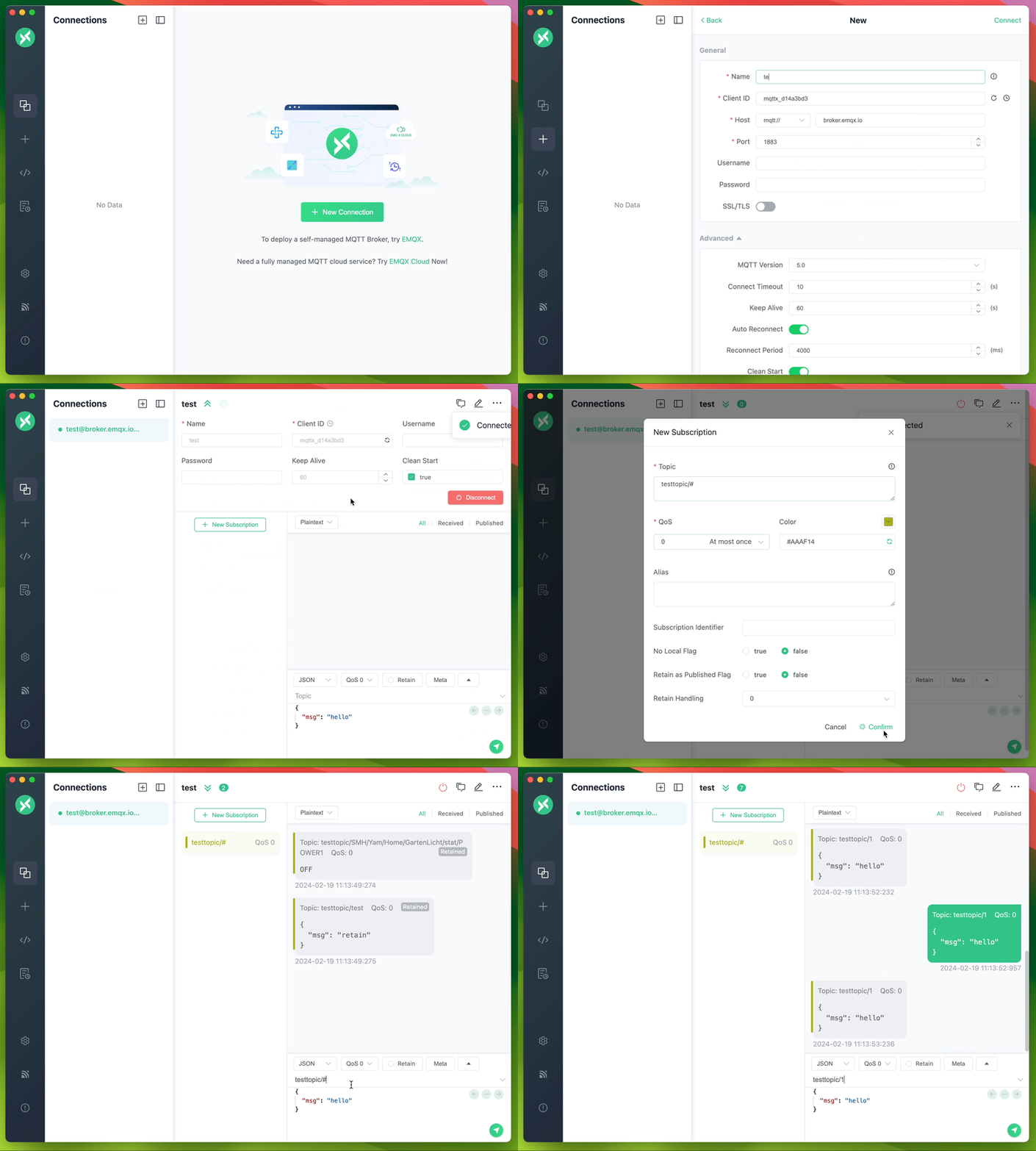
## Desktop Features
- Chat-style interface for sending and receiving MQTT messages
- Runs on Windows, macOS, and Linux
- Fully compliant with MQTT 5.0, 3.1.1, and 3.1
- MQTT 5.0 user properties on connect, publish, and subscribe, plus SCRAM enhanced authentication
- One-way and two-way SSL/TLS authentication
- [MQTT over WebSockets](https://www.emqx.com/en/blog/connect-to-mqtt-broker-with-websocket)
- [MQTTX Agent](https://mqttx.app/docs/agent) for operating MQTTX in natural language: it creates connections, subscribes and publishes, and calls your MCP tools
- Payload formats: Plaintext, JSON, Base64, Hex, CBOR, and MsgPack, with Protobuf and Avro schemas
- Automatic GZIP decompression of received messages, before payload decoding
- Custom scripts and timed messages for MQTT pub/sub simulation
- Viewer tools: Topic Tree, Dashboard, Traffic Monitor, and Payload Inspector
- Customizable colors for subscriptions
- Data backup and recovery in JSON, CSV, Excel, XML, and YAML
- Comprehensive logging
- Light, Dark, and Night themes
- Available in English, Simplified Chinese, Japanese, Turkish, Hungarian, and Korean 🇺🇸 🇨🇳 🇯🇵 🇹🇷 🇭🇺 🇰🇷
---
Source: https://mqttx.app/docs/downloading-and-installation
# Installation
You can download and install MQTTX from several sources:
1. [MQTTX Official Website Download Page](https://mqttx.app/downloads) provides direct access to download and installation.
2. [EMQ Official Website Download Page](https://www.emqx.com/en/try?product=MQTTX) also hosts MQTTX for download and installation.
3. Alternatively, you can select your preferred version from the [GitHub Releases](https://github.com/emqx/MQTTX/releases) page.
> If you're experiencing slow network speed or latency issues when downloading from GitHub, we recommend using the MQTTX official homepage or the EMQ official download page instead.
For additional released versions, you can visit our [More Downloads](https://www.emqx.com/en/downloads/MQTTX) page. Select and install the version that best suits your needs.
**Note**: We strongly recommend downloading the latest version whenever possible to ensure the best user experience.
## macOS
> We offer two distinct versions of the MQTTX installer for macOS users, one for Intel Chip and another for Apple Silicon. Please select the version that is compatible with your current hardware configuration.
When it comes to installing MQTTX, we recommend downloading the `dmg` format installation package. Alternatively, you can download the `mac.zip` compressed file which can be decompressed and used quickly.
**System requirement for MQTTX 1.13.2**: macOS 12 or later. Choose the Intel or Apple Silicon package for your Mac.
For macOS users who prefer using the command line, MQTTX can also be installed via [brew cask](https://formulae.brew.sh/cask/mqttx):
```shell
brew install --cask mqttx
```
## Windows
> For Windows users, we provide installation packages for 64-bit (x64) and 32-bit (ia32) architectures. Please choose the version compatible with your current hardware.
We recommend Windows users to download the latest `exe` file. Once downloaded, you can follow the Setup instructions for installation.
## Linux
> For Linux users, we provide installation packages for x86 64-bit and ARM64 architectures. Please select the version that matches your current hardware.
Linux users can directly visit Flathub to download and install MQTTX:
 Alternatively, use the `flatpak` command to quickly install and start MQTTX:
Install:
```shell
flatpak install flathub com.emqx.MQTTX
```
Run:
```shell
flatpak run com.emqx.MQTTX
```
For those who prefer manual installation, download the latest `AppImage`, `deb`, or `rpm` files according to your specific Linux operating system.
## Ubuntu
> For Ubuntu Snap Store users, currently, only the x86 64-bit installer is available.
Ubuntu users typically use snap files for installation. The snap format installers can be downloaded from the Snap Store:
Alternatively, use the `flatpak` command to quickly install and start MQTTX:
Install:
```shell
flatpak install flathub com.emqx.MQTTX
```
Run:
```shell
flatpak run com.emqx.MQTTX
```
For those who prefer manual installation, download the latest `AppImage`, `deb`, or `rpm` files according to your specific Linux operating system.
## Ubuntu
> For Ubuntu Snap Store users, currently, only the x86 64-bit installer is available.
Ubuntu users typically use snap files for installation. The snap format installers can be downloaded from the Snap Store:
 Alternatively, execute the following command to install MQTTX using the `snap` file:
```shell
sudo snap install mqttx
```
For manual installation, download a released `snap` file and replace `` with the version in its filename:
```shell
sudo snap install "Downloads/MQTTX__amd64.snap" --dangerous
```
**Note**: When installing with `snap` files, you may encounter insufficient permission issues. For more details, refer to this `issue`: [https://github.com/emqx/MQTTX/issues/109](https://github.com/emqx/MQTTX/issues/109)
---
Source: https://mqttx.app/docs/get-started
# Getting Started
## Preparing the MQTT Broker
### Public MQTT Broker
For a quick test that doesn't require local MQTT Broker deployment, you can use the online public version of [EMQX](https://github.com/emqx/emqx);
```shell
Broker address: broker.emqx.io
Broker TCP port: 1883
Broker SSL port: 8883
```
### Fully Managed MQTT Cloud
EMQX Cloud is a fully managed, cloud-native MQTT Messaging Service for IoT that allows you to create an MQTT Broker instantly in just a few minutes.
[Sign up for a 14-day free trial of EMQX Cloud](https://www.emqx.com/en/try?product=cloud)
_No credit card required_.
### Self-managed MQTT Broker
If you plan on running an MQTT Broker locally, we recommend [EMQX](https://www.emqx.com/en/products/emqx). EMQX Broker is a cloud-native, distributed MQTT Broker for IoT, powering event streaming for IoT devices at massive scale.
[Download EMQX now](https://www.emqx.com/en/try?product=enterprise)
To install EMQX using Docker:
```shell
docker run -d --name emqx -p 1883:1883 -p 8083:8083 -p 8883:8883 -p 8084:8084 -p 18083:18083 emqx/emqx
```
## Connect
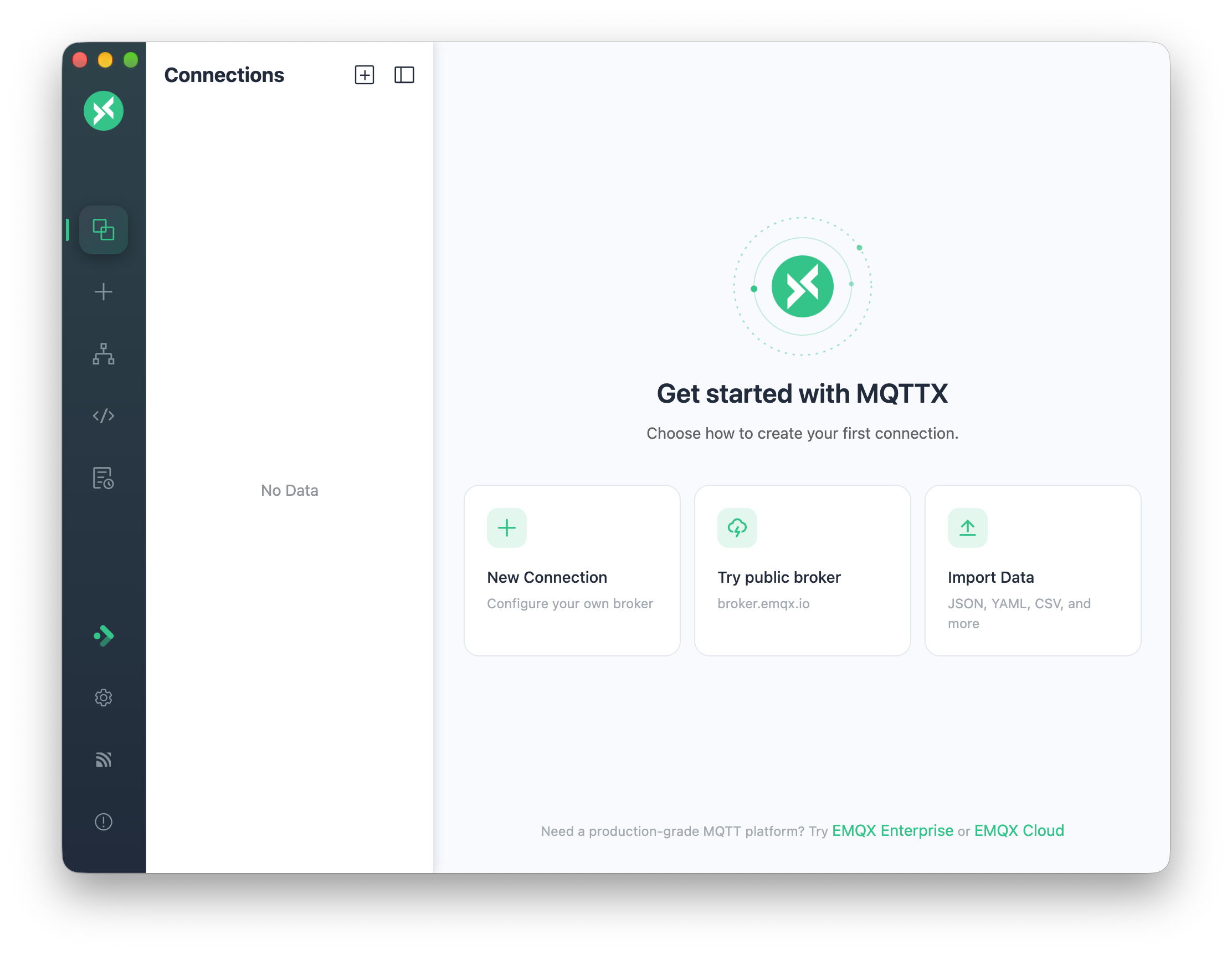
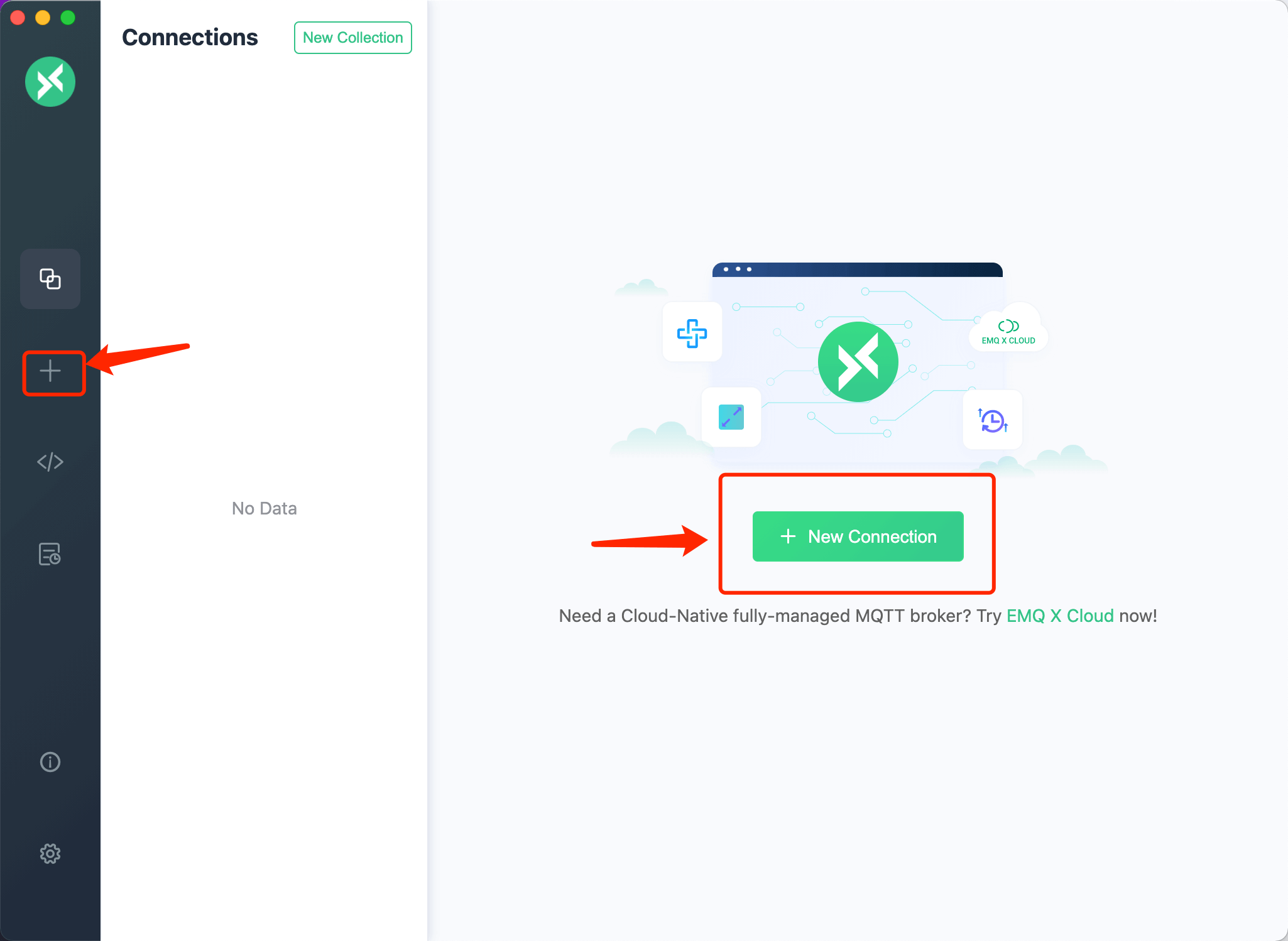
Once your broker is ready, click `+` in the left sidebar or **New Connection** to open the connection form.
When no connections are saved, the welcome page offers three shortcuts:
- **New Connection**: Open the connection form, or press `Cmd/Ctrl + N`.
- **Try public broker**: Create a connection named `broker.emqx.io` to `broker.emqx.io:1883` and connect immediately.
- **Import Data**: Import JSON, YAML, CSV, XML, or Excel files. The app reloads after a successful import.
### Client-Related Information
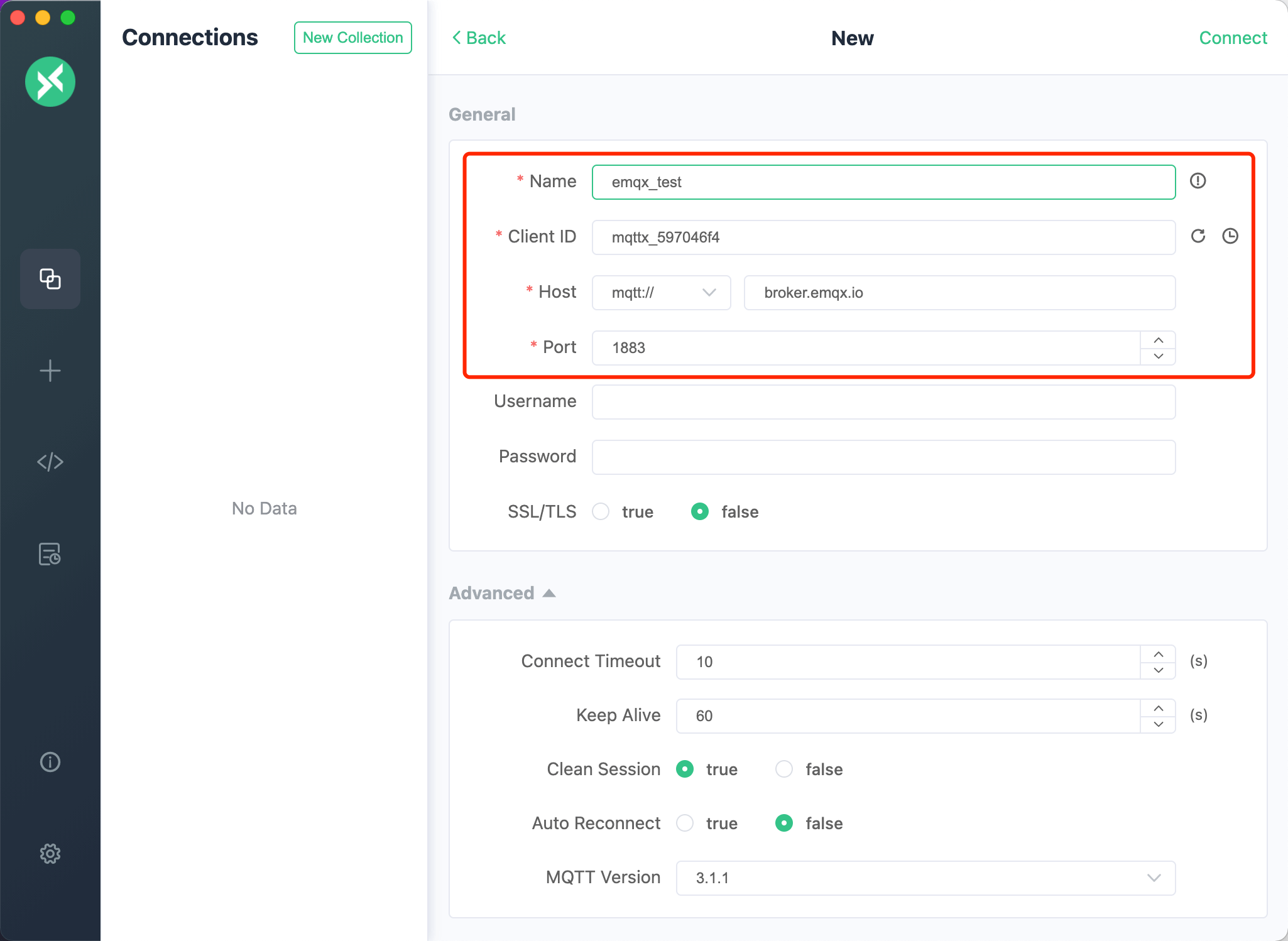
Configure the following fields on the connection form.
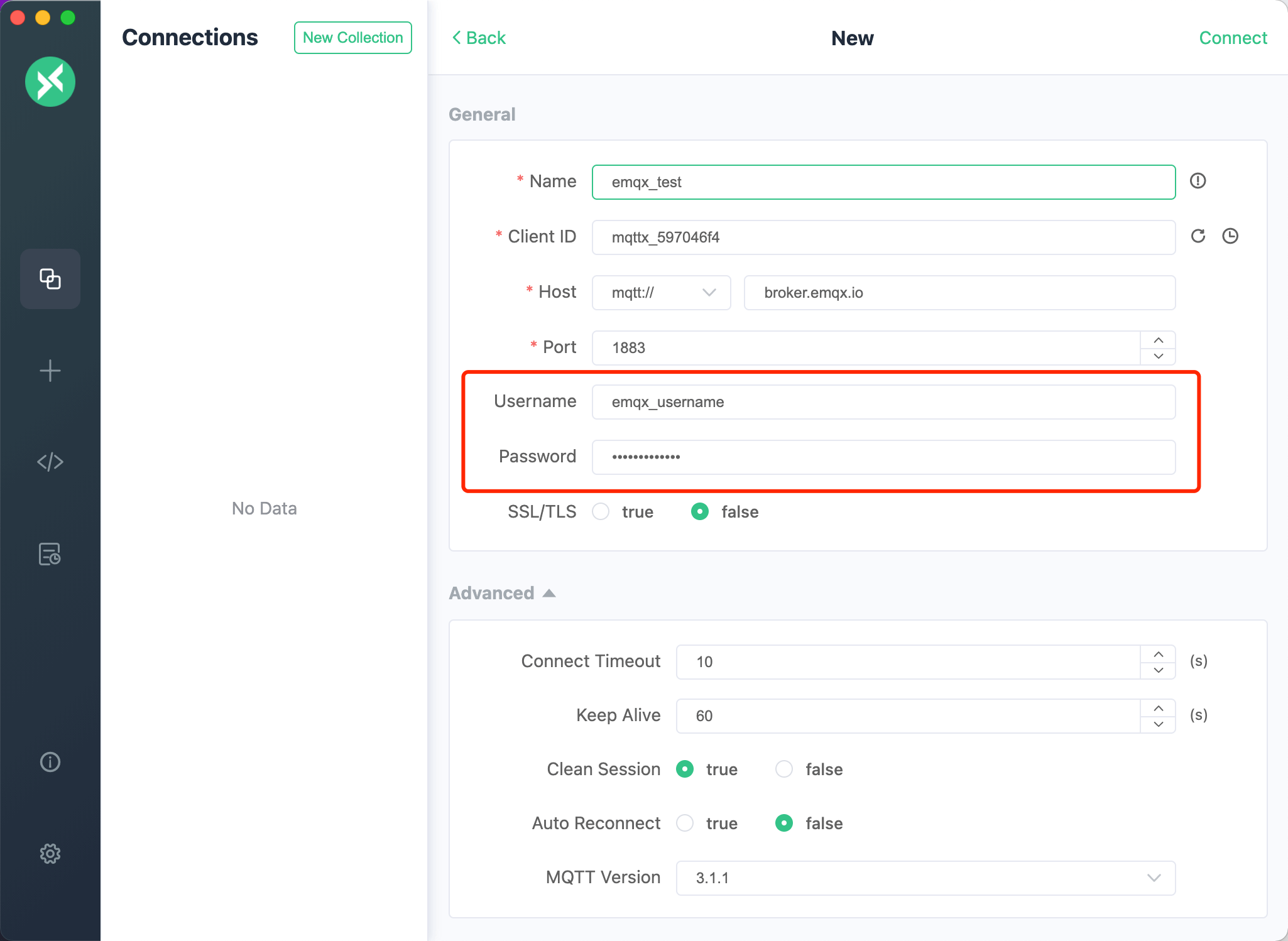
1. Broker Information
**Client ID**, **Host**, and **Port** have default values. Set them to match your broker.
- **Name**: Enter a connection name, such as `emqx_test`.
- **Client ID**: A unique identifier for the connection. Click the refresh button to generate one.
- **Host**: Choose `mqtt://` or `ws://`, or `mqtts://` or `wss://` for TLS. The default hostname is the public broker `broker.emqx.io`; replace it with your broker's hostname or IP address when needed.
- **Path**: For WebSocket connections, enter the server's endpoint path; the default is `/mqtt`.
- **Port**: Use the port configured for the selected protocol. EMQX defaults are listed below; your broker may use different ports.
| Protocol | Default EMQX port |
| -------- | ----------------- |
| mqtt:// | 1883 |
| mqtts:// | 8883 |
| ws:// | 8083 |
| wss:// | 8084 |
2. User Authentication Information
If the broker requires user authentication, enter **Username** and **Password**.
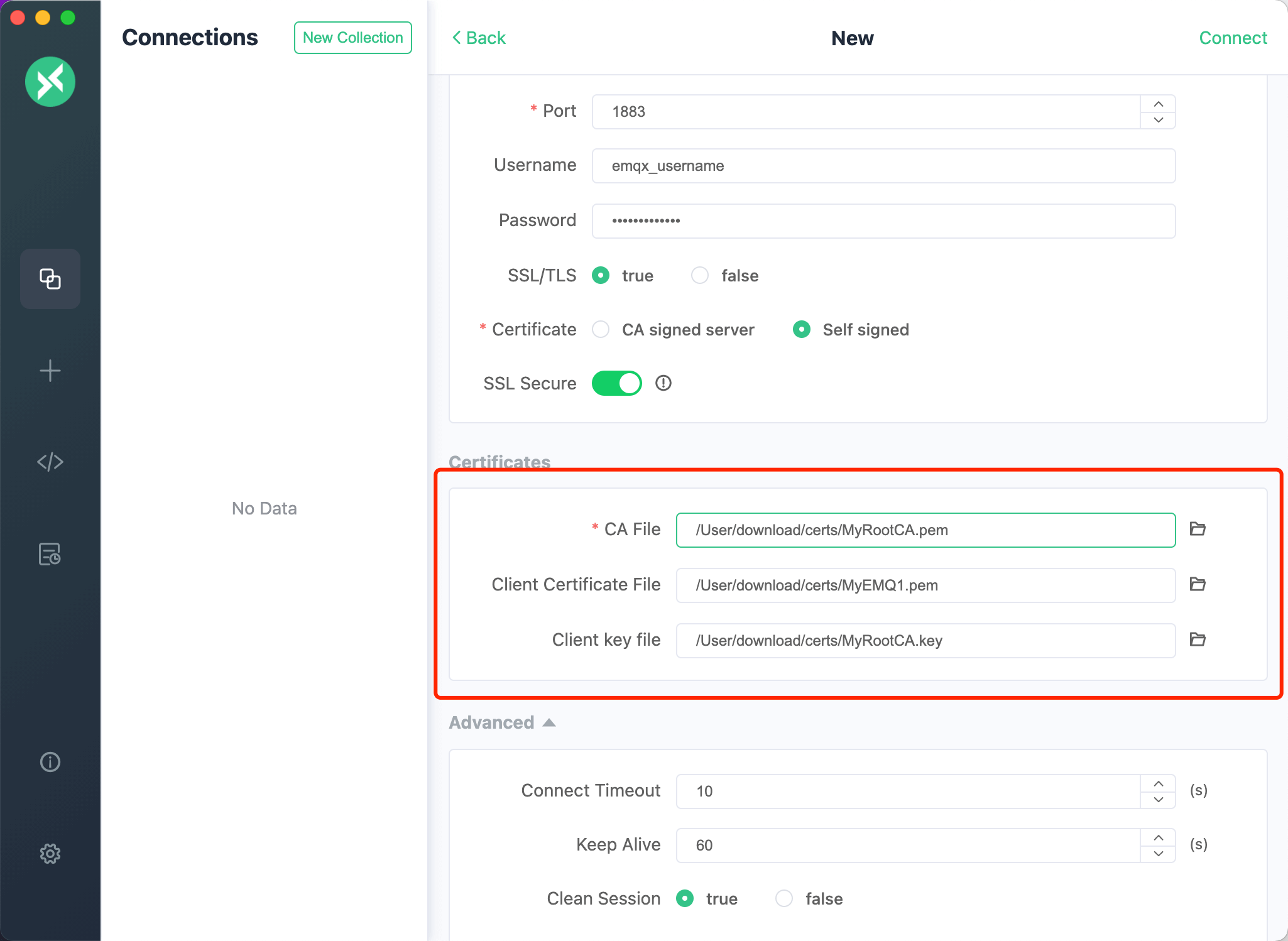
3. SSL/TLS
Enable **SSL/TLS** to encrypt the connection between MQTTX and the broker.
- **SSL/TLS**: Enable or disable TLS; off by default.
- **SSL Secure**: Verify the server certificate chain and hostname. Turning it off skips both checks. You can temporarily disable it when testing untrusted certificates in development or a trusted internal network; keep it enabled in production and for external connections.
- **CA signed server certificate**: Verify the server using a trusted CA.
- **CA or Self-signed certificates**: Supply your own certificates. One-way authentication requires **CA File**; two-way authentication also requires **Client Certificate File** and **Client key file**. Use the folder icon beside each field to select the file.
4. Advanced Configuration
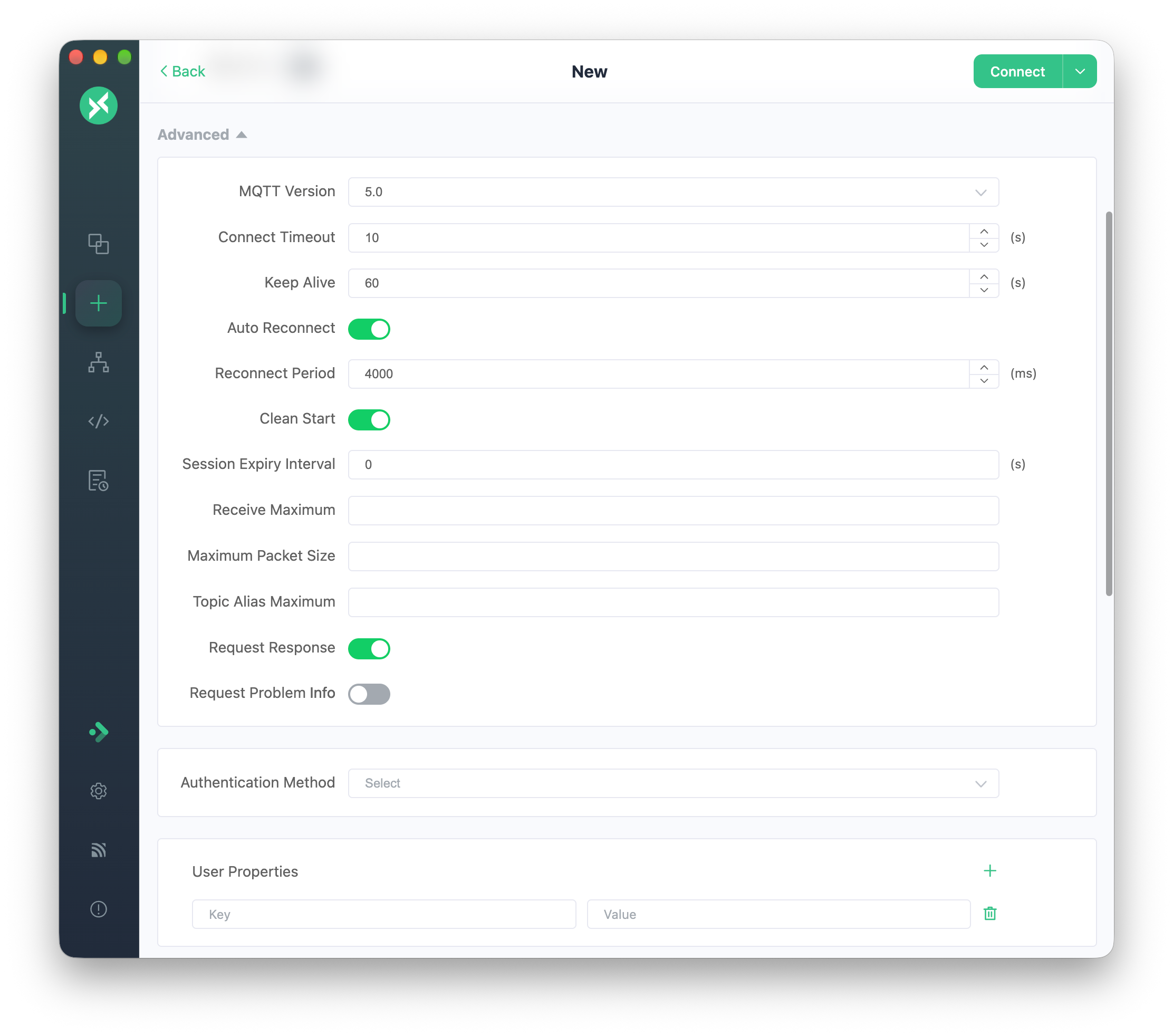
In **Advanced**, set the connection timeout, [Keep Alive](https://www.emqx.com/en/blog/mqtt-keep-alive), Clean Session or Clean Start, automatic reconnection, and MQTT version.
5. MQTT 5.0
**MQTT Version** defaults to `5.0`; `3.1` and `3.1.1` are also available. With MQTT 5.0, you can set optional properties such as `Session Expiry Interval`, `Receive Maximum`, and `Topic Alias Maximum`.
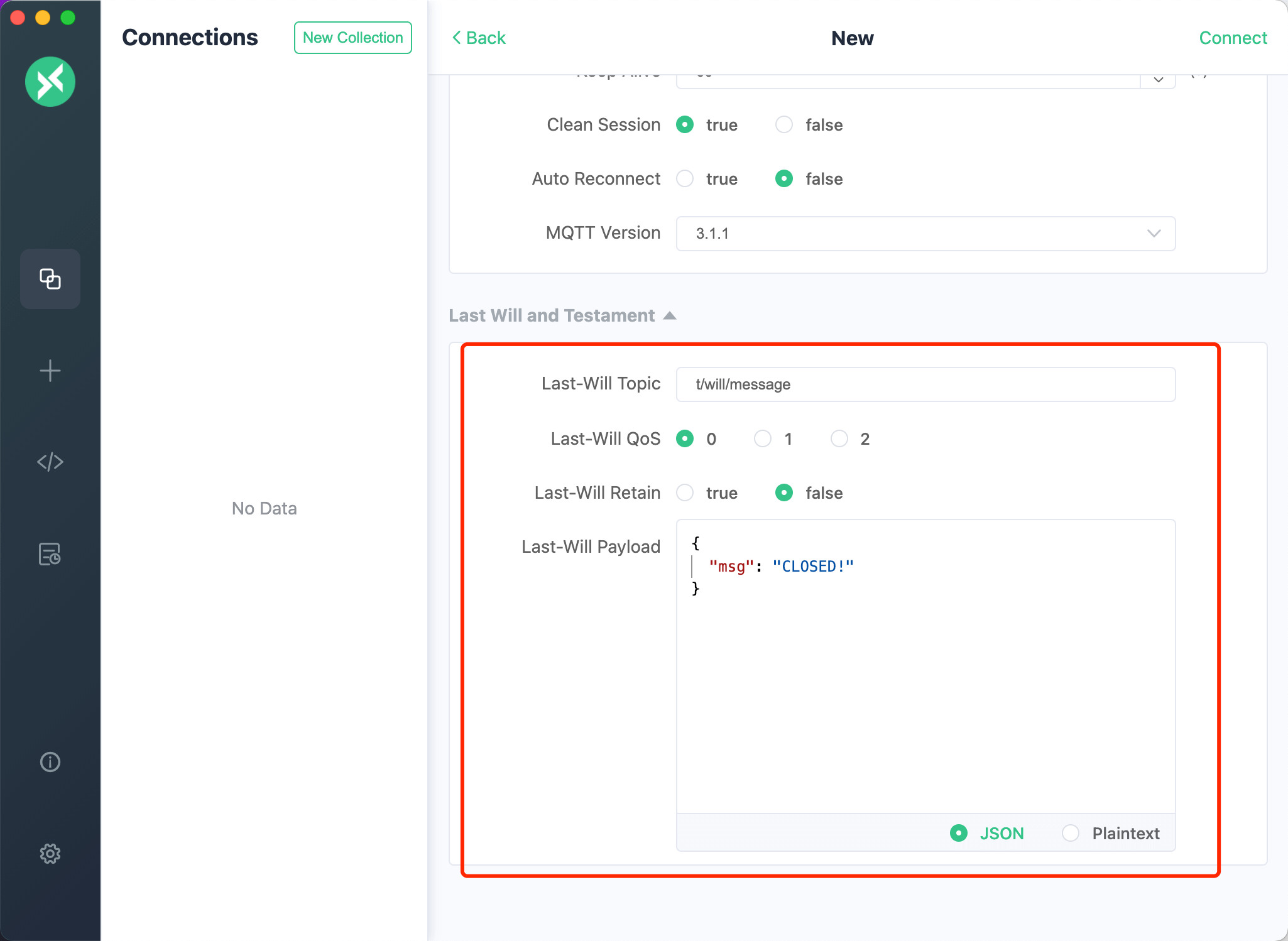
6. Will Message
In **Last Will and Testament**, configure the message that the broker publishes if the client disconnects unexpectedly.
`Last-Will-QoS` defaults to `0` and `Last-Will-Retain` to `False`. Enter `Last-Will-Topic` and `Last-Will-Payload` to complete the configuration.
Click **Connect** in the upper right corner to create the connection and connect to the broker.
## Subscribe and Publish
### Main Interface
After connecting, expand the panel next to the connection name to view or edit basic settings. Disconnect before changing settings, then reconnect to apply them. The panel collapses after each successful connection. While disconnected, use the configuration button on the right for all connection settings.
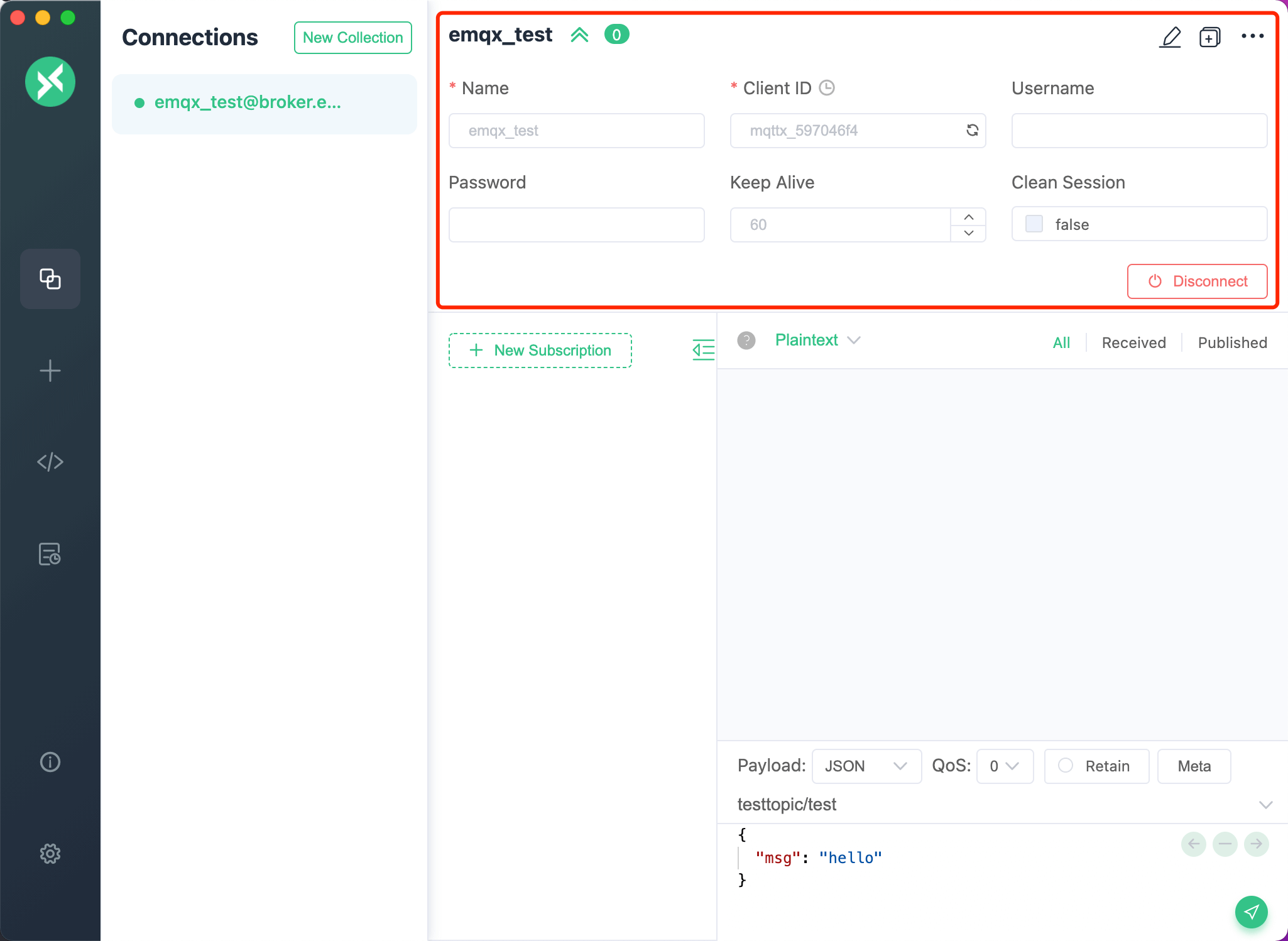
### Add Subscription
Click `New Subscription` in the lower left corner and enter a [Topic](https://www.emqx.com/en/blog/advanced-features-of-mqtt-topics). Choose a color or use a randomly generated one. The button at the top right of the subscription list hides the list.
Click a subscription to filter messages; click it again to clear the filter, or select another subscription to change the filter. Click the topic name to copy it, then paste it into the publish area's topic field when needed.
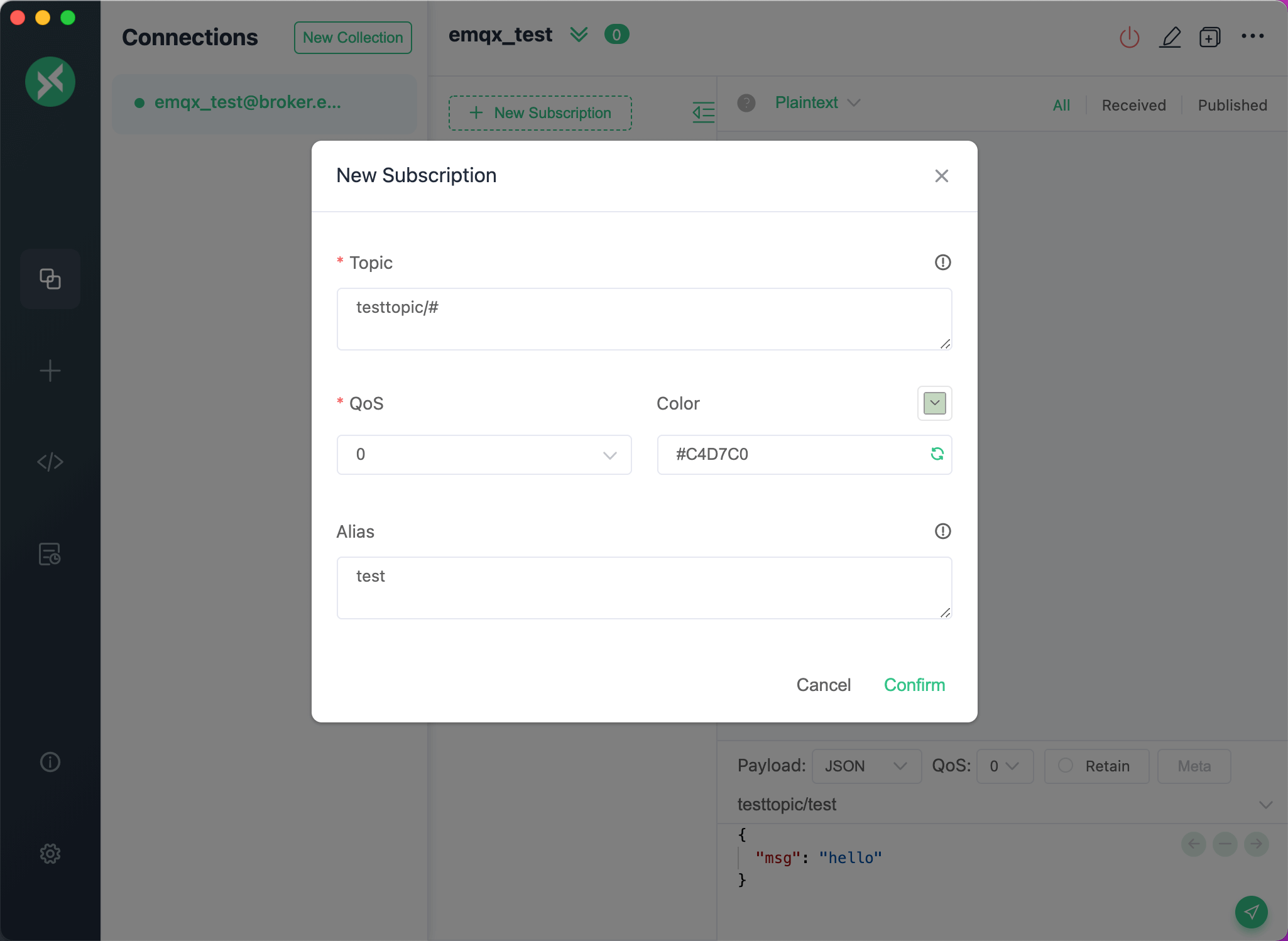
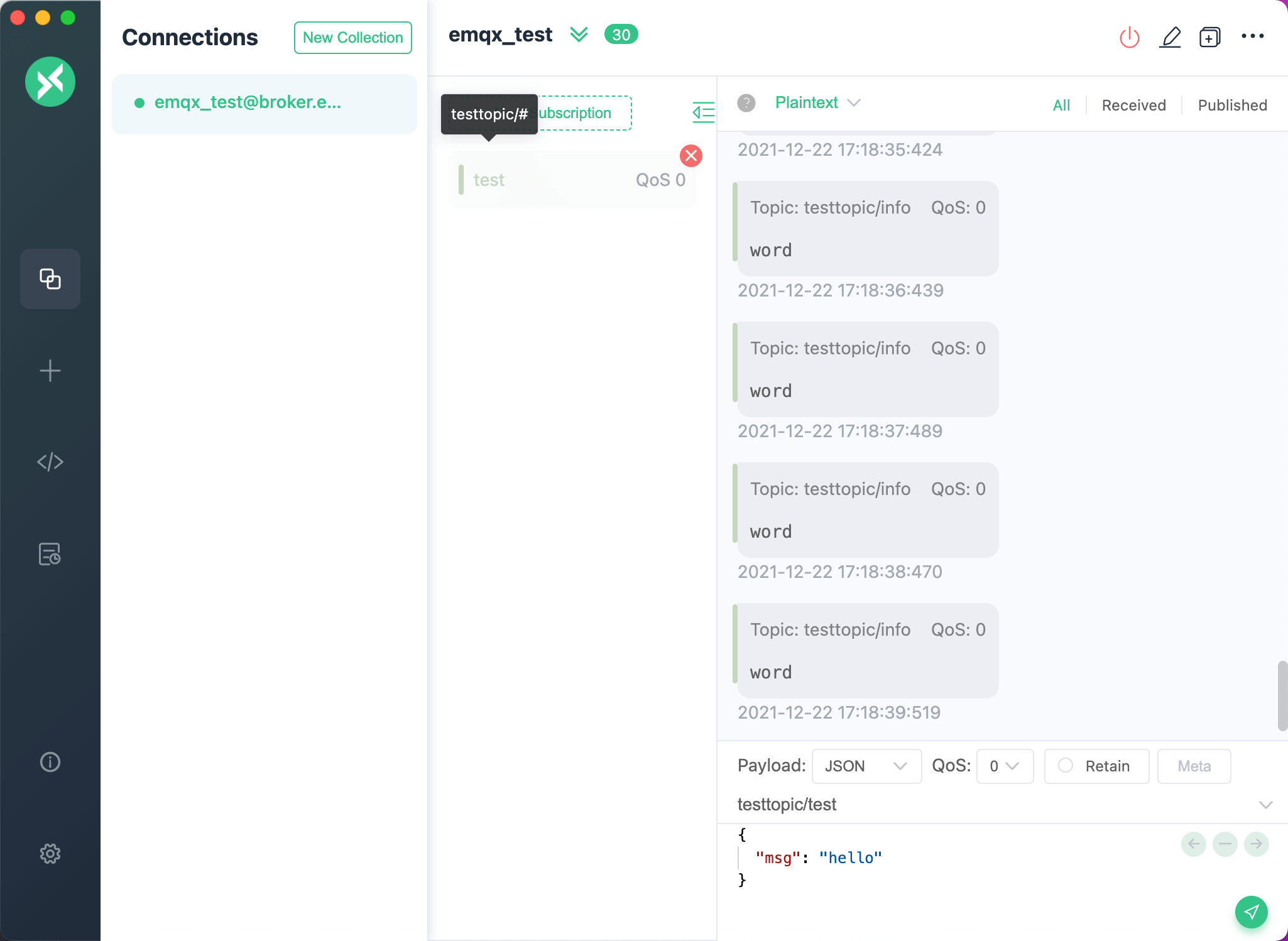
Optionally, set a topic alias when adding a subscription. The list displays the alias, while hovering shows the original topic. Aliases help distinguish long topic names.
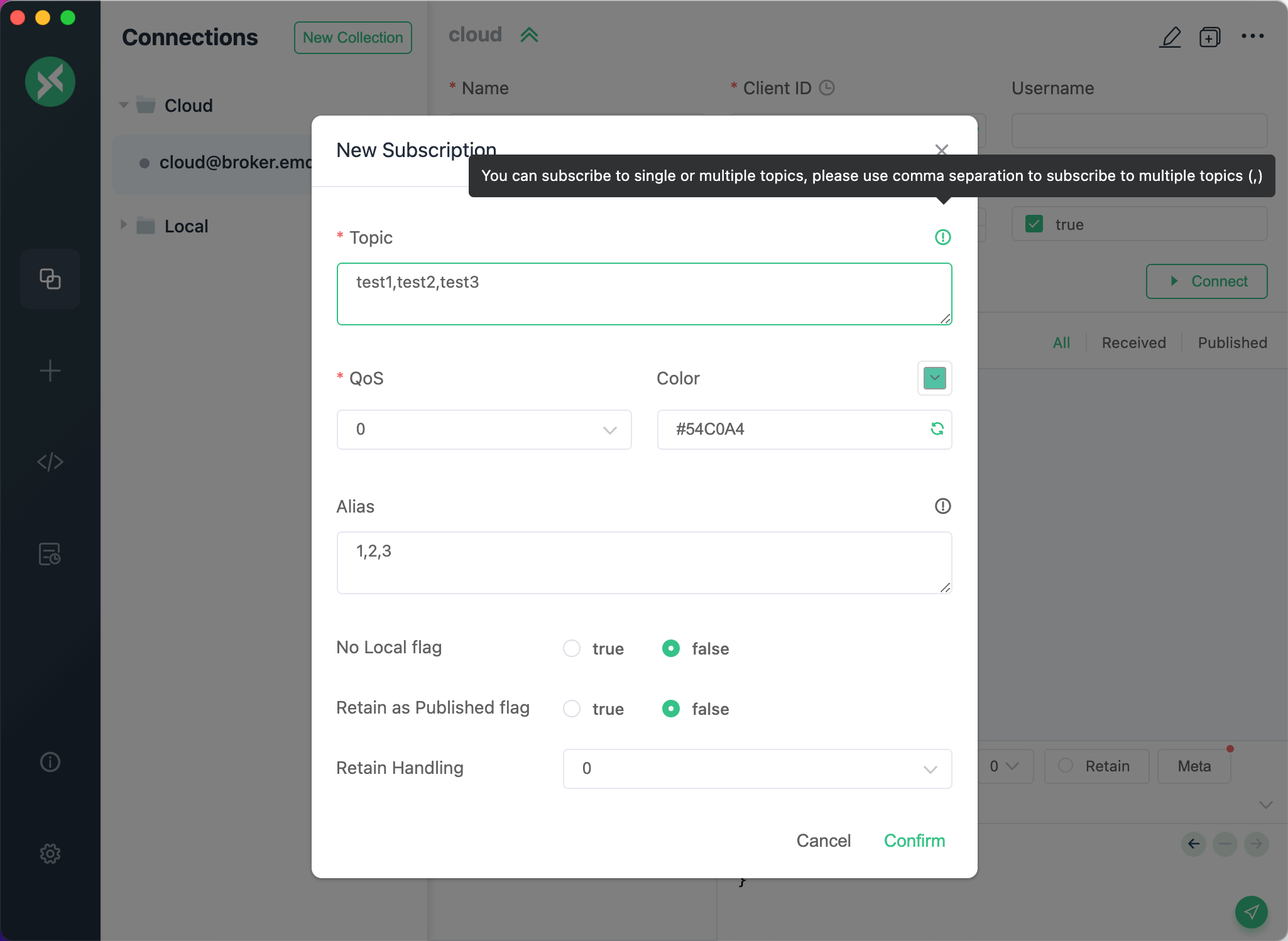
To add multiple topics at once, separate them with commas in the subscription dialog. Use commas to separate their aliases too.
Right-click a subscription to **Edit**, **Disable**, or **Enable** it. Disable a subscription to stop receiving its messages temporarily; enable it to resume without entering the topic again.
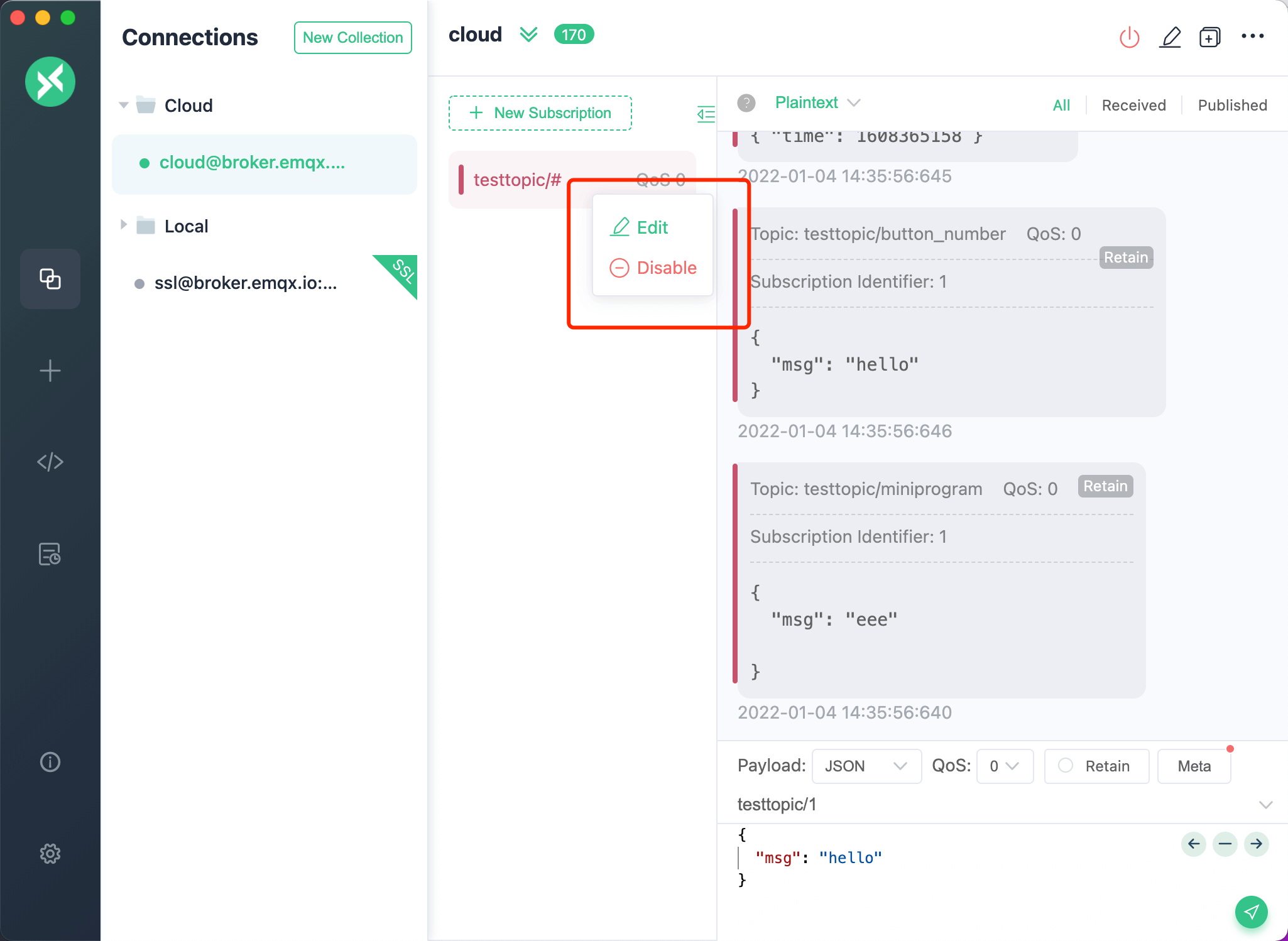
While disconnected, you can delete or disable subscriptions if Clean Session (MQTT 3.x) or Clean Start (MQTT 5.0) is enabled. MQTTX blocks these changes for persistent sessions: Clean Session disabled, or Clean Start disabled with a Session Expiry Interval greater than 0. The broker retains those subscriptions. Adding or editing a subscription still requires a connection.
### Publish and Receiving Messages
In the publish area, enter a subscribed topic, choose [QoS](https://www.emqx.com/en/blog/introduction-to-mqtt-qos) and `Retain`, enter the payload, and click Send. Sent messages appear on the right and received messages on the left. A message published to a subscribed topic appears in both. Press `Cmd + Enter` on macOS or `Ctrl + Enter` on other systems to publish.
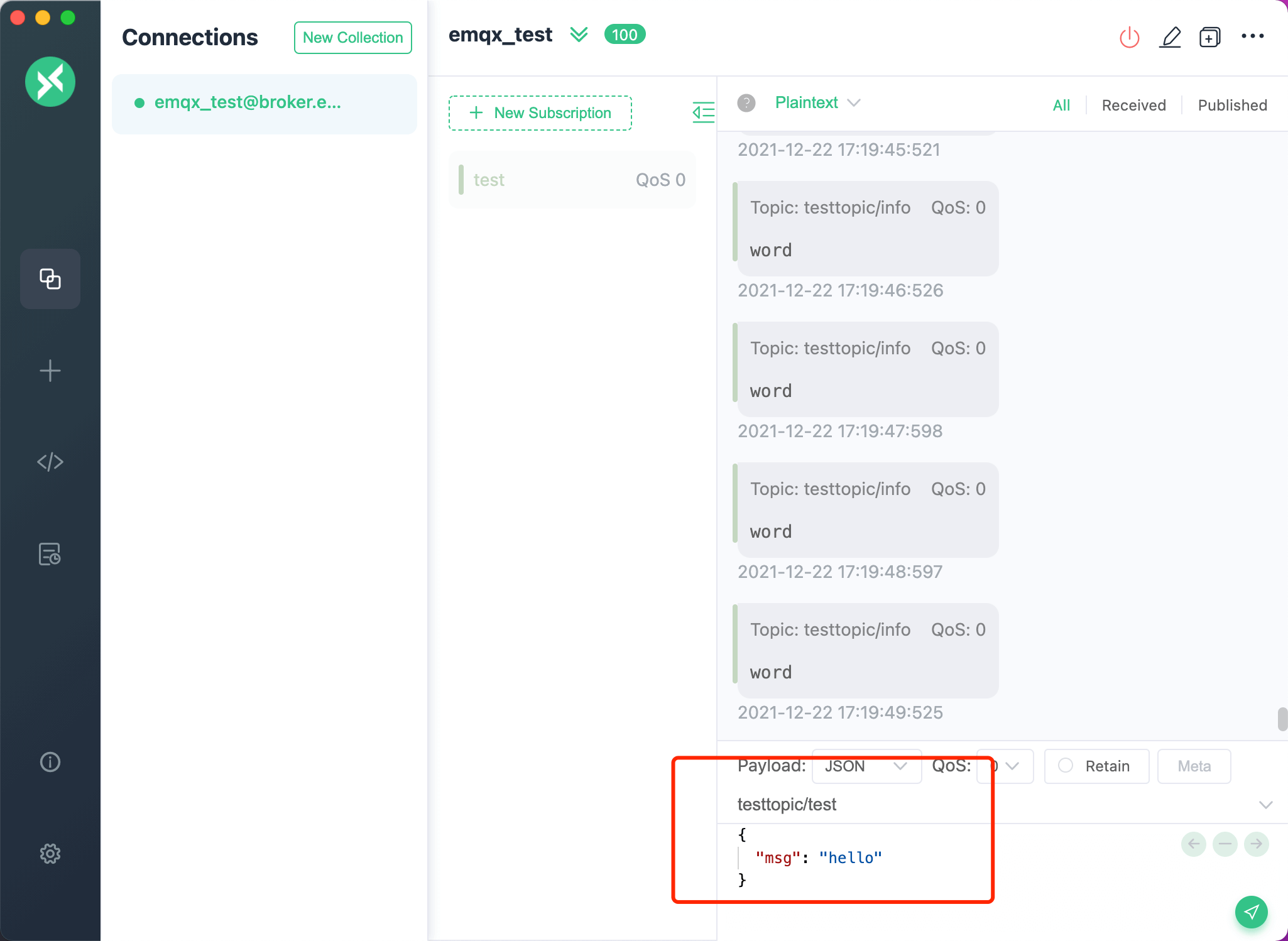
Choose `Base64`, `Hex`, `JSON`, `Plaintext`, `CBOR`, or `MsgPack` in the publish area's `payload` selector. Use the format selector above the message list to decode received messages.
> **Note:** CBOR and MsgPack are efficient binary formats that can reduce payload size compared with JSON. Both use JSON for input and output.
For `Protobuf` and `Avro` encoding and decoding, open **Script > Schema**.
Use the arrows in the publish area to browse previously published payloads. Right-click a message to copy its payload or topic.
Each connection saves its own publish area (`Topic`, `QoS`, `Retain`, `Payload`, and format) and publish history. A connection with no saved publish area opens with its most recent sent message. Upgrading copies the previously shared history to each connection. In the topic history drop-down, use an entry's delete icon to remove only that entry.
So far, the testing of an `MQTT` message is completed.
---
Source: https://mqttx.app/docs/advanced
# Advanced
## MQTT 5.0
### Clean Start and Session Expiry Interval
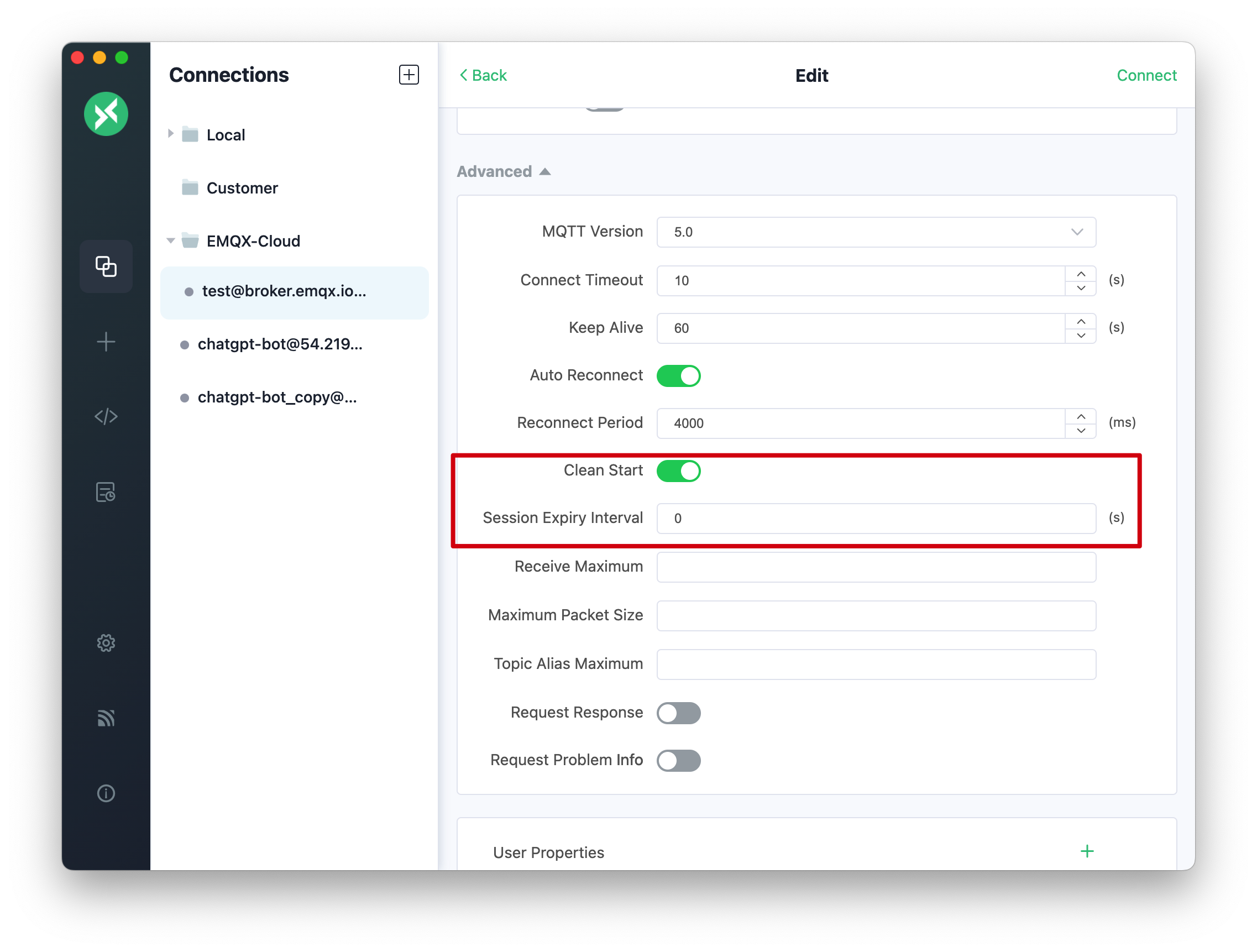
MQTT 5.0 introduces two features, Clean Start and Session Expiry Interval, which provide more flexibility compared to the Clean Session in MQTT 3.1.1.
In MQTTX, if Clean Start is enabled, it needs to be paired with a set Session Expiry Interval to take effect. By default, if Clean Start is disabled, the Session Expiry Interval is set to 7200 seconds (two hours).
If you need to set it to never expire, you can click the clear button on the right side of the input box; clearing the value will set the session to never expire. However, if the Session Expiry Interval is disabled, MQTTX automatically sets the Session Expiry Interval to 0, meaning that as soon as the connection is disconnected, the session ends immediately.
### User Properties
To begin configuring User Properties, navigate to the New Client page by clicking on the New button. Firstly, ensure that the [MQTT](https://www.emqx.com/en/blog/the-easiest-guide-to-getting-started-with-mqtt) version selected is 5.0.
You will then notice a card at the bottom of the page specifically for User Properties configuration. This card displays a configurable input box for key-value pairs. To add User Properties, click on the Add button found at the upper right corner of the card. You may also delete configurations by clicking on the Delete button at the end of each line.
To finalize your configuration, enter the necessary key-value pairs, including the name and the corresponding content of the property. Upon establishing a successful connection, the MQTT server will then access the content of the client's User Properties.
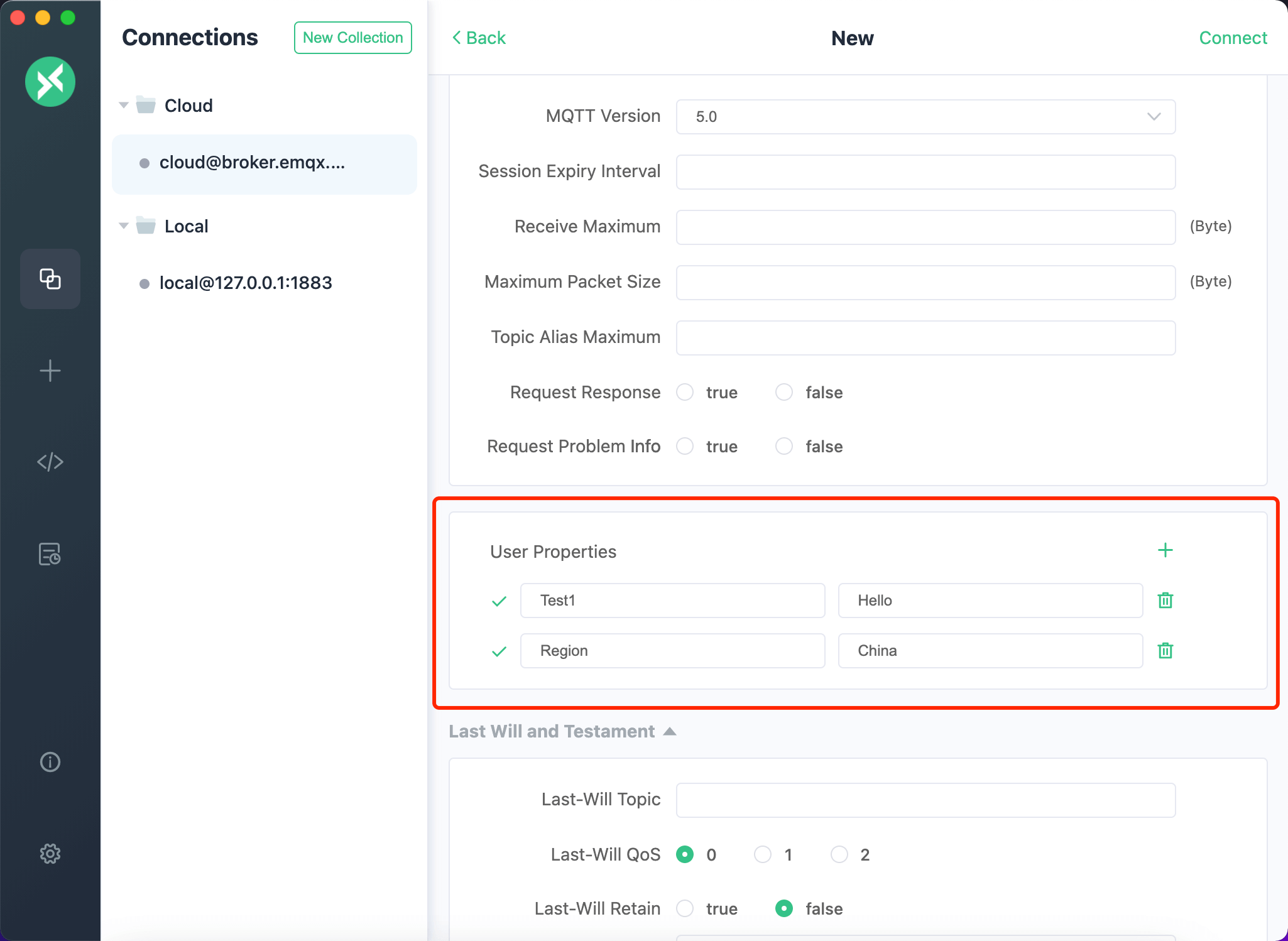
Note: User properties configuration is not only available when initiating a client connection. You can also configure user properties when publishing messages. When establishing a new connection with an MQTT 5.0 client, you'll notice a Meta button at the bottom right of the publish message area. Clicking this button will reveal a card that allows you to configure properties at the time of publishing. The user properties configuration can be found at the top of this card.
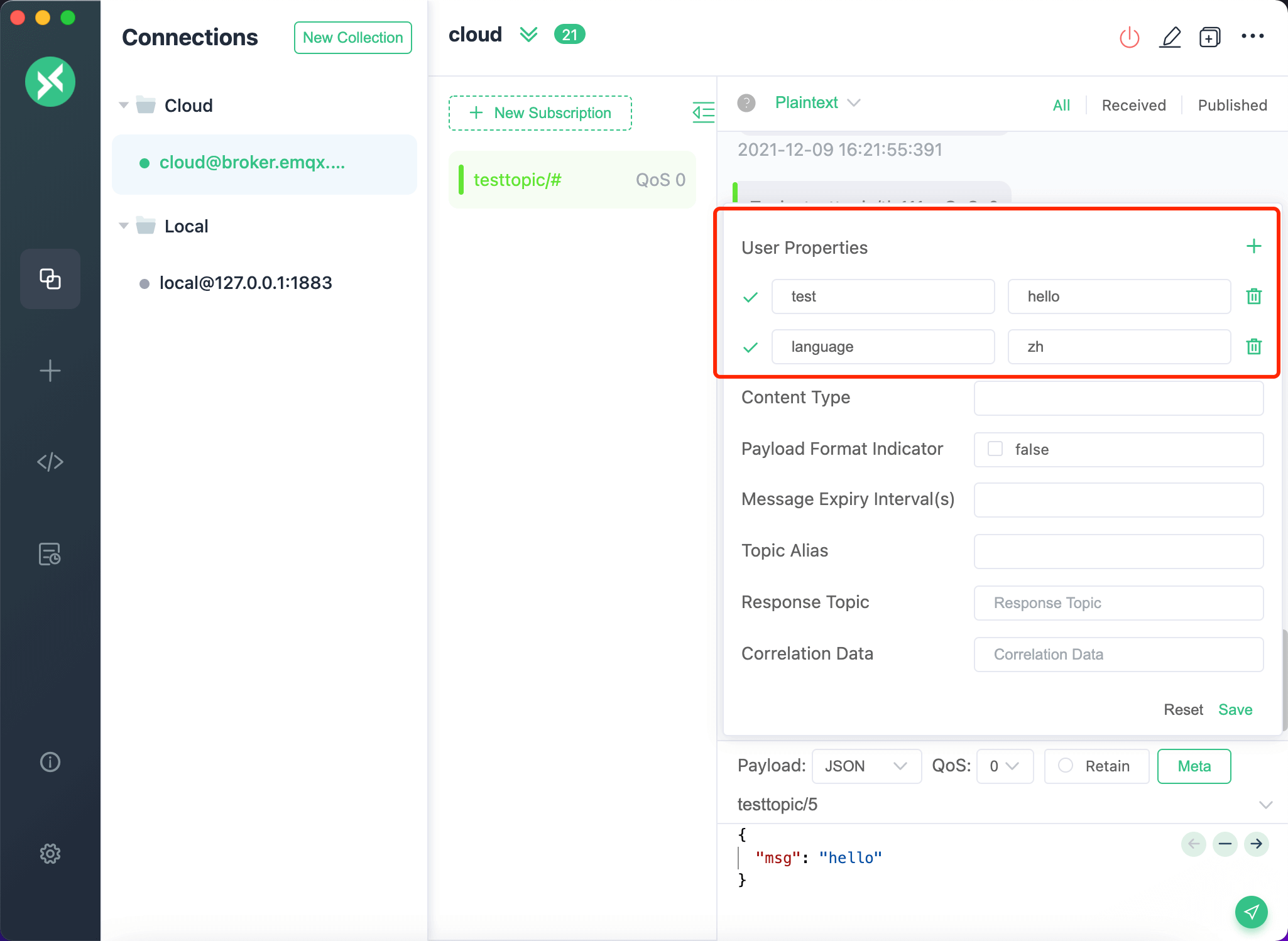
Starting from v1.13.1, you can also set user properties when subscribing. In the new or edit subscription dialog of an MQTT 5.0 connection, add key-value pairs under User Properties, and they are sent with the SUBSCRIBE packet. Some broker features rely on this, such as the `stream-offset` user property used to choose the replay position when consuming EMQX MQTT Streams. Subscriptions with user properties show an icon in the subscription list; click it to view the properties.
### SCRAM Enhanced Authentication
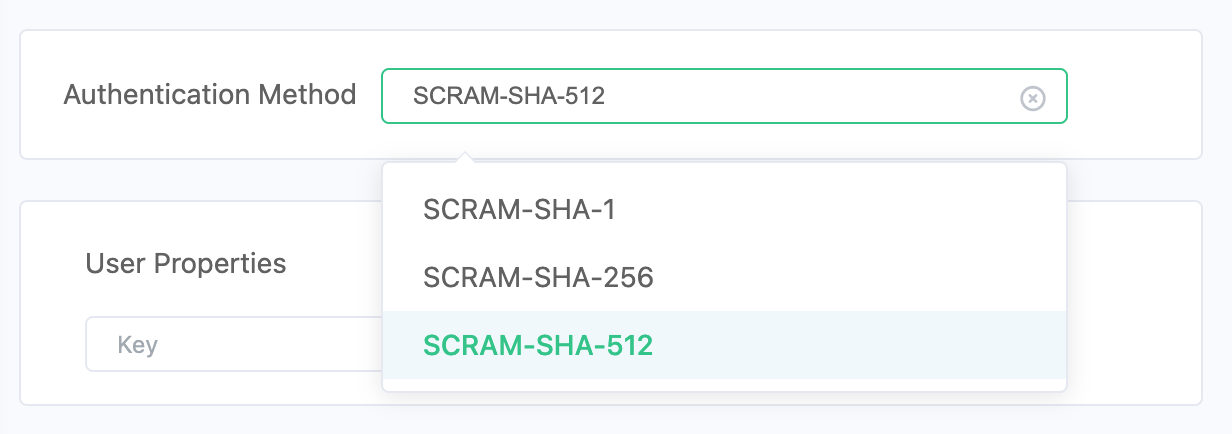
MQTT 5.0 supports SCRAM (Salted Challenge Response Authentication Mechanism) enhanced authentication. When your MQTT broker (such as EMQX) has SCRAM authentication enabled, you can select the desired authentication method from the `Authentication Method` dropdown in the connection configuration. MQTTX supports:
- SCRAM-SHA-1
- SCRAM-SHA-256
- SCRAM-SHA-512
Simply select your preferred SCRAM method and connect to the broker using your username and password.
### Request Response
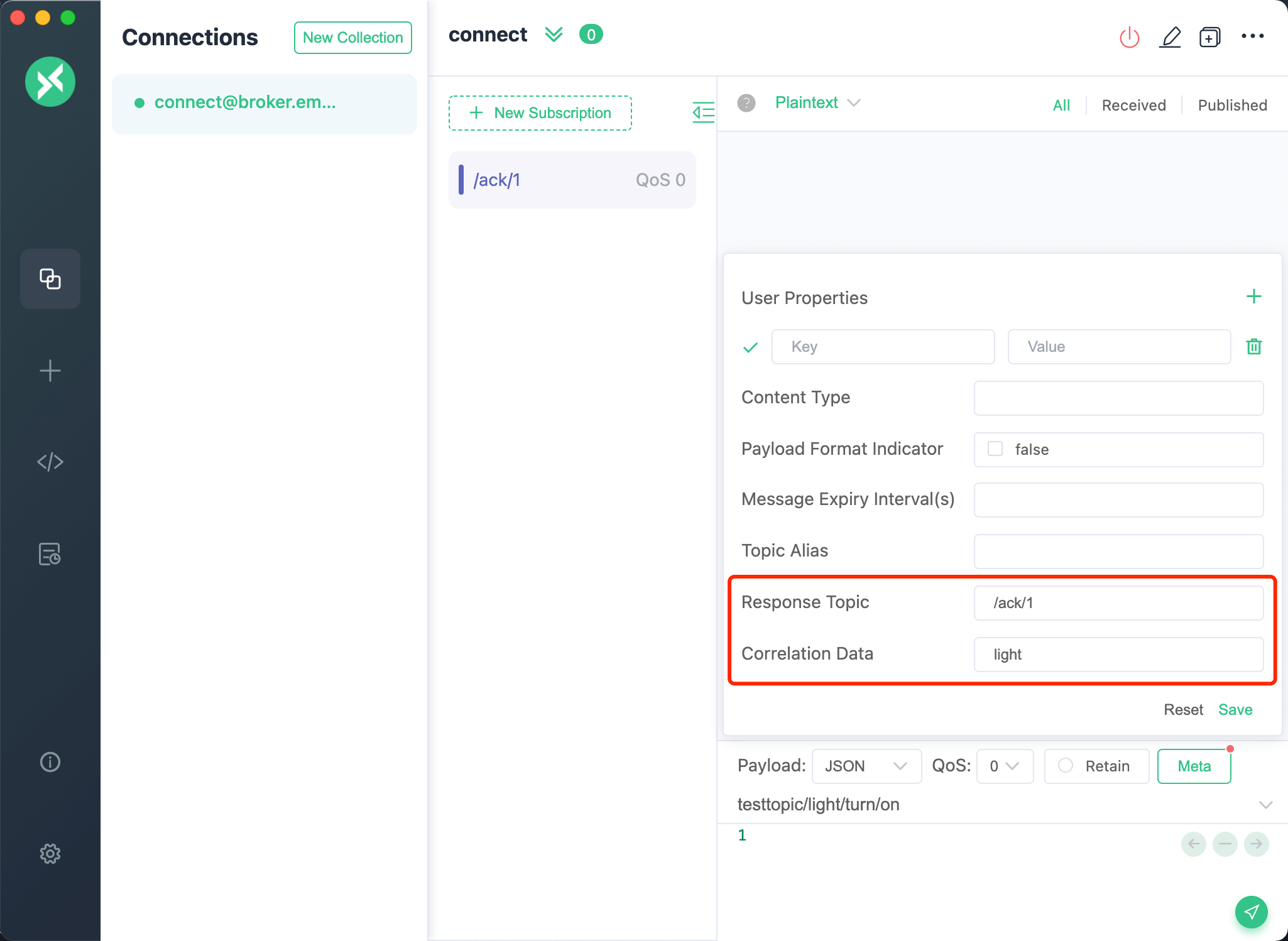
To configure a Request Response, click the Meta button and input a Response Topic, such as /ack/1, in the provided field. Next, input comparison data (for example, "light"), and subscribe to /ack/1 with the currently connected client.
Enable **Request Response Info** in an MQTT 5.0 connection's advanced settings to request Response Information in CONNACK. If returned, the connection header shows **Response Information** and a copy button, even when its settings are collapsed. Click a long value to view it in full. The value comes from the broker; MQTTX does not generate it. It is hidden for MQTT 3.x connections and after disconnecting.

### Content-Type and Payload Format Indicator
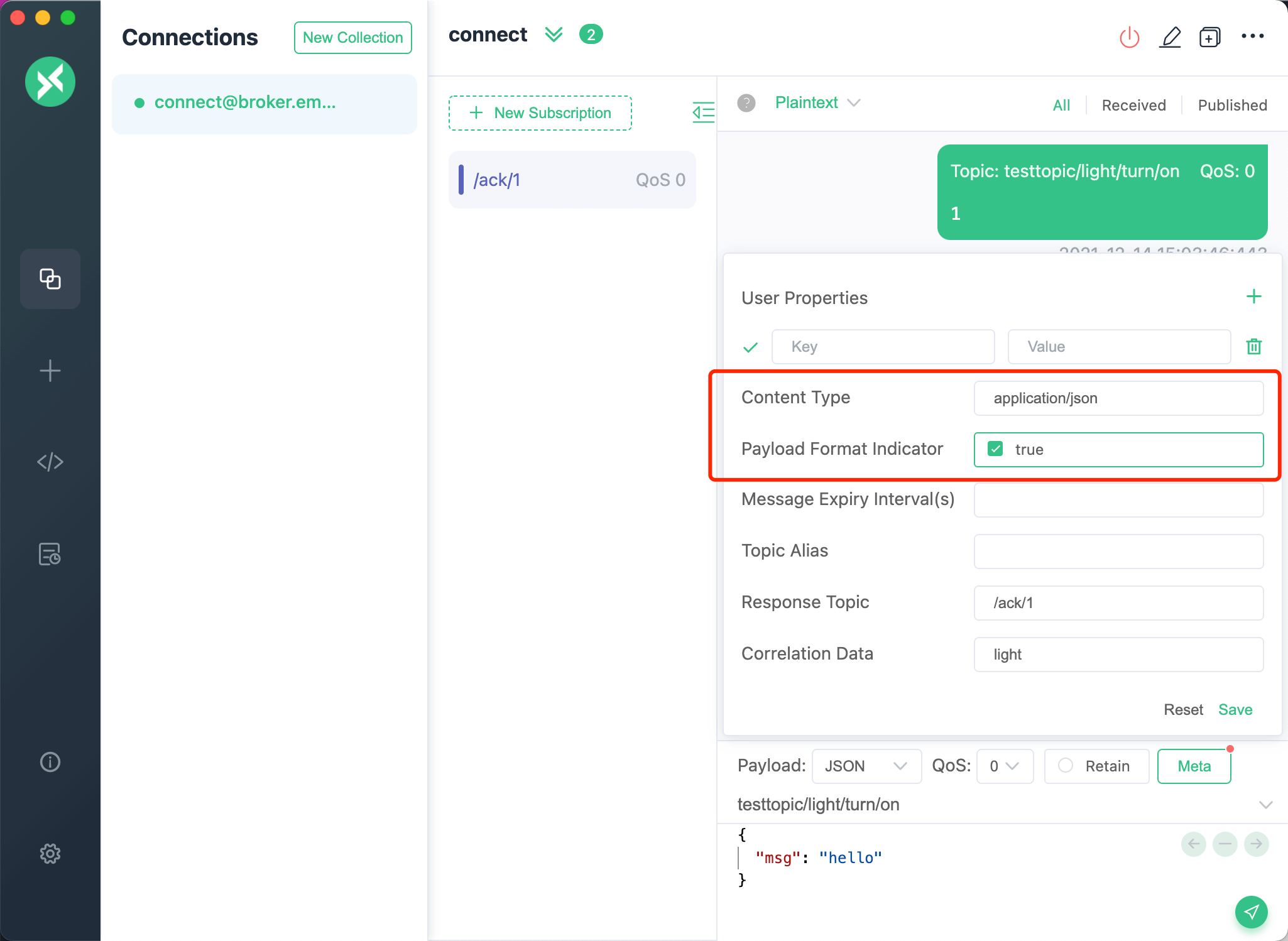
Setting the Content-Type and Payload Format Indicator requires a few steps. Start by clicking the Meta button, then enter the Content-Type in the input field. Following this, select Set Payload Format Indicator value, and finally, publish the message.
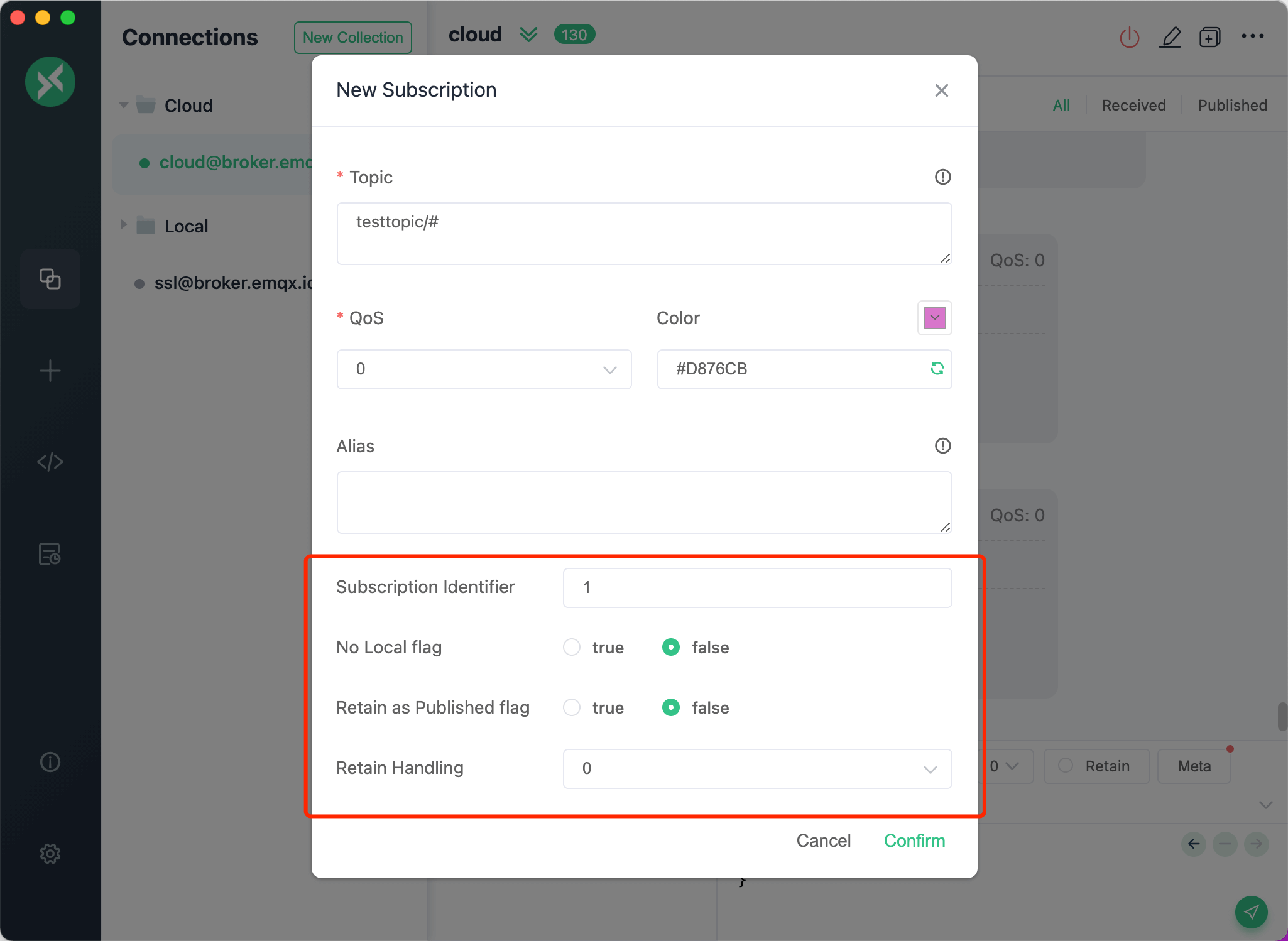
### Subscription Identifier and Options
To access the Subscription Identifier and Subscription Options, open the pop-up box for the Subscription topic. Here, you can set the Subscription Identifier and configure Subscription Options which include No Local, Retain as Published, and Retain Handling.
Users can specify a numeric subscription identifier in the subscription message. This identifier will be returned when the message is distributed. By establishing a mapping of subscription identifiers to message handlers, clients can direct messages to the appropriate message handler via the subscription identifier when a PUBLISH message is received. The server's behavior can be adjusted through the configuration of these subscription options.
## Settings
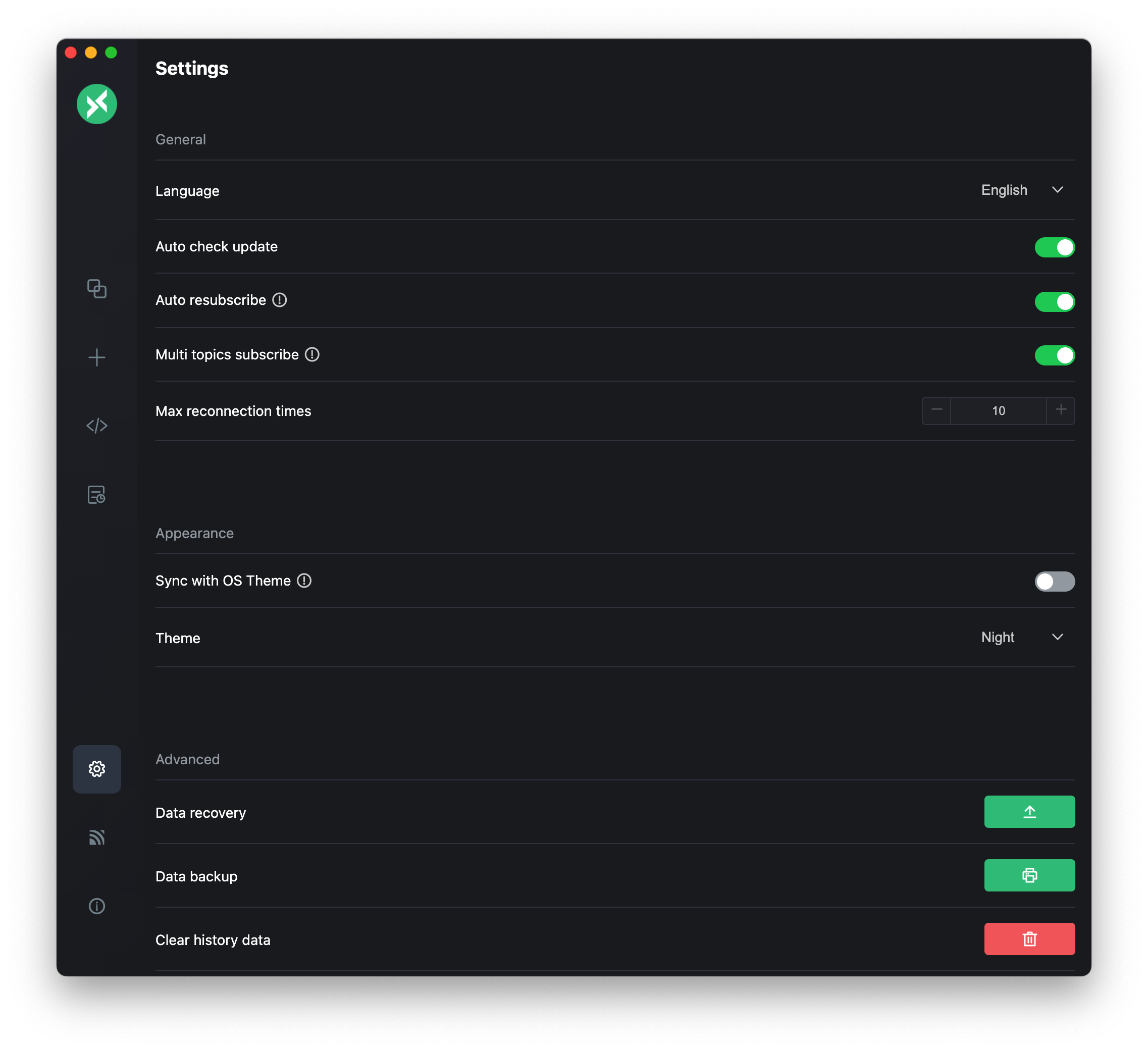
The settings can be accessed by clicking the button located at the bottom of the left menu bar or by using a shortcut. macOS users can use `command +,` while other users can use `control +,`. The settings page includes several options categorized into General, Appearance, and Advanced sections. Settings that belong to MQTTX Agent, such as enabling it, choosing a model provider and configuring MCP servers, are described in [MQTTX Agent](https://mqttx.app/docs/agent).
### General
The General settings allow for basic operational customizations of MQTTX:
- **Language**: choose the interface language.
- **Auto check update**: check for new versions automatically.
- **Auto resubscribe**: resubscribe to all locally saved subscriptions after connecting.
- **Multi topics subscribe**: subscribe to multiple topics at once, separated by commas.
- **Max reconnect times**: set the maximum number of reconnection attempts to maintain connection continuity under unstable network conditions.
- **Max payload display size**: payloads at or above this size are collapsed in the message list (minimum 16 KB, default 512 KB, maximum 2 MB).
### Appearance
The Appearance settings allow you to customize the look of your MQTTX interface. You can choose from three themes: Light, Dark, and Night. Alternatively, there is also an option to synchronize the MQTTX theme with your operating system for a consistent user experience.
**JSON Highlighting** highlights received JSON payloads in real time. Turn it off if you experience performance issues.
### Install MQTTX CLI
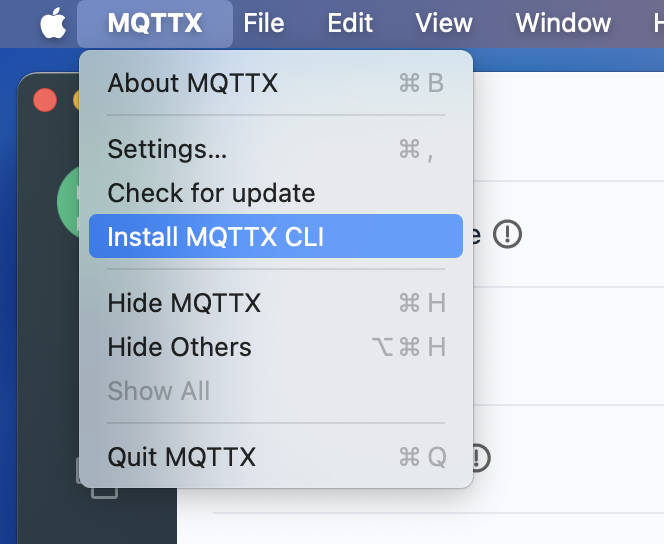
From v1.10.1 onwards, the MQTTX desktop client supports a one-click installation of the MQTTX CLI tool. Users only need to click the install button to automate the entire setup process through a user-friendly graphical interface, avoiding manual downloads and configurations. This feature ensures that the latest version of the MQTTX CLI is easily accessible, enhancing usability in various operational environments.
**Installation Steps:**
1. Navigate to the settings page, find the MQTTX CLI section, and click the install button.
2. Alternatively, select the 'Install MQTTX CLI' option from the top menu.
Once clicked, the client automatically downloads and installs the required package for your system. You might need to enter a password to grant installation permissions. After installation, the `mqttx` command is ready to use from any command-line window.
> Note: For Windows users, after clicking install, you need to manually download the MQTTX CLI executable file and use it in the corresponding directory.

### Advanced (Data Management)
In the Advanced settings, you find more specific customization options, including data backup, recovery, and history clearing.
#### Backup and restore
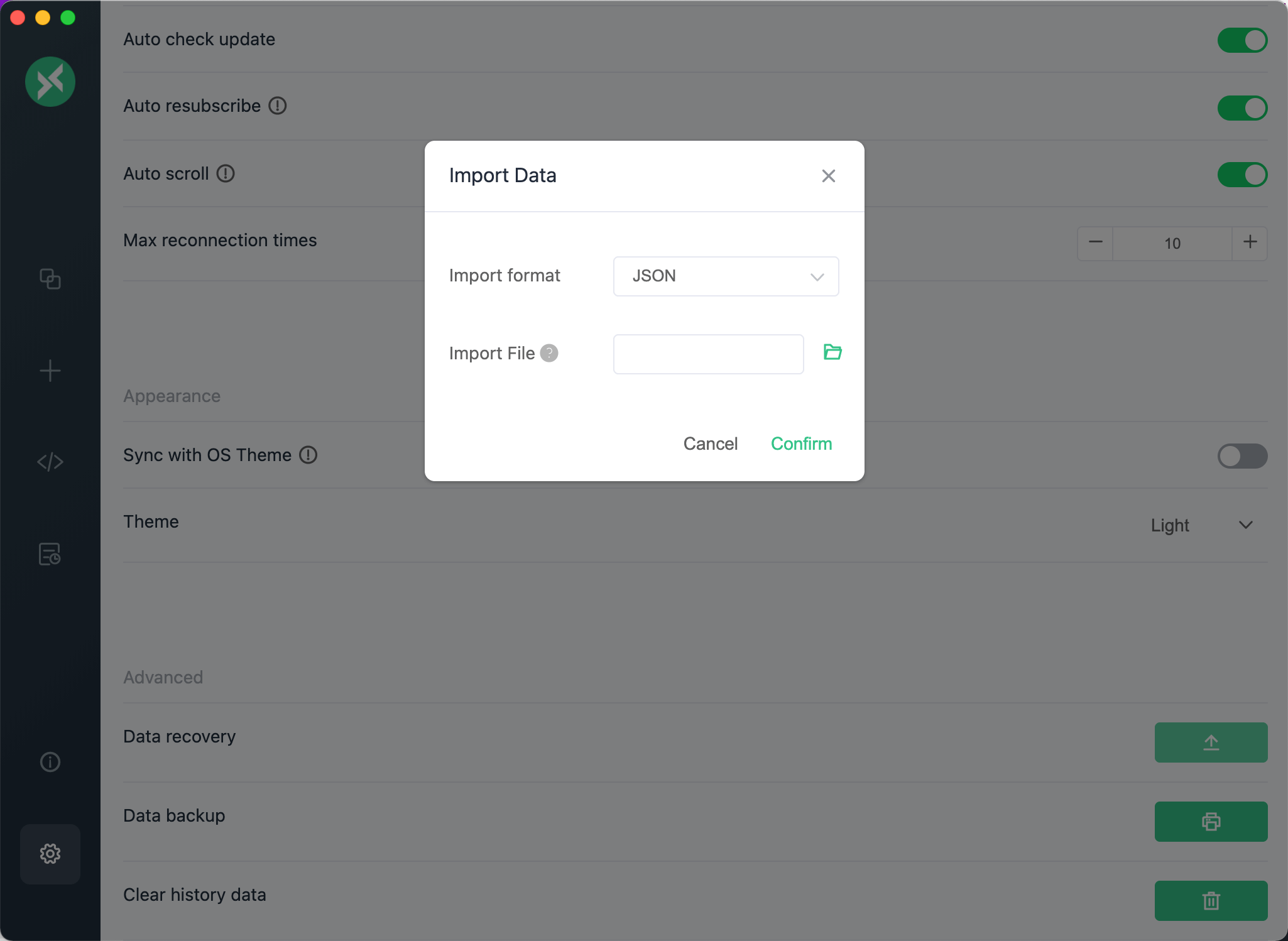
In **Settings > Advanced**, choose **Data Backup** to export connection settings and sent and received messages as JSON, YAML, XML, CSV, or Excel. Choose **Data Recovery** to import a backup; connections remain disconnected after recovery.
JSON preserves nested and empty connection groups, ordering, and each connection's group. A single-connection JSON export includes its ancestor groups. Other formats keep their existing connection or message layouts without groups.
Alternatively, execute the following command to install MQTTX using the `snap` file:
```shell
sudo snap install mqttx
```
For manual installation, download a released `snap` file and replace `` with the version in its filename:
```shell
sudo snap install "Downloads/MQTTX__amd64.snap" --dangerous
```
**Note**: When installing with `snap` files, you may encounter insufficient permission issues. For more details, refer to this `issue`: [https://github.com/emqx/MQTTX/issues/109](https://github.com/emqx/MQTTX/issues/109)
---
Source: https://mqttx.app/docs/get-started
# Getting Started
## Preparing the MQTT Broker
### Public MQTT Broker
For a quick test that doesn't require local MQTT Broker deployment, you can use the online public version of [EMQX](https://github.com/emqx/emqx);
```shell
Broker address: broker.emqx.io
Broker TCP port: 1883
Broker SSL port: 8883
```
### Fully Managed MQTT Cloud
EMQX Cloud is a fully managed, cloud-native MQTT Messaging Service for IoT that allows you to create an MQTT Broker instantly in just a few minutes.
[Sign up for a 14-day free trial of EMQX Cloud](https://www.emqx.com/en/try?product=cloud)
_No credit card required_.
### Self-managed MQTT Broker
If you plan on running an MQTT Broker locally, we recommend [EMQX](https://www.emqx.com/en/products/emqx). EMQX Broker is a cloud-native, distributed MQTT Broker for IoT, powering event streaming for IoT devices at massive scale.
[Download EMQX now](https://www.emqx.com/en/try?product=enterprise)
To install EMQX using Docker:
```shell
docker run -d --name emqx -p 1883:1883 -p 8083:8083 -p 8883:8883 -p 8084:8084 -p 18083:18083 emqx/emqx
```
## Connect
Once your broker is ready, click `+` in the left sidebar or **New Connection** to open the connection form.
When no connections are saved, the welcome page offers three shortcuts:
- **New Connection**: Open the connection form, or press `Cmd/Ctrl + N`.
- **Try public broker**: Create a connection named `broker.emqx.io` to `broker.emqx.io:1883` and connect immediately.
- **Import Data**: Import JSON, YAML, CSV, XML, or Excel files. The app reloads after a successful import.


### Client-Related Information
Configure the following fields on the connection form.
1. Broker Information
**Client ID**, **Host**, and **Port** have default values. Set them to match your broker.
- **Name**: Enter a connection name, such as `emqx_test`.
- **Client ID**: A unique identifier for the connection. Click the refresh button to generate one.
- **Host**: Choose `mqtt://` or `ws://`, or `mqtts://` or `wss://` for TLS. The default hostname is the public broker `broker.emqx.io`; replace it with your broker's hostname or IP address when needed.
- **Path**: For WebSocket connections, enter the server's endpoint path; the default is `/mqtt`.
- **Port**: Use the port configured for the selected protocol. EMQX defaults are listed below; your broker may use different ports.
| Protocol | Default EMQX port |
| -------- | ----------------- |
| mqtt:// | 1883 |
| mqtts:// | 8883 |
| ws:// | 8083 |
| wss:// | 8084 |

2. User Authentication Information
If the broker requires user authentication, enter **Username** and **Password**.

3. SSL/TLS
Enable **SSL/TLS** to encrypt the connection between MQTTX and the broker.
- **SSL/TLS**: Enable or disable TLS; off by default.
- **SSL Secure**: Verify the server certificate chain and hostname. Turning it off skips both checks. You can temporarily disable it when testing untrusted certificates in development or a trusted internal network; keep it enabled in production and for external connections.
- **CA signed server certificate**: Verify the server using a trusted CA.
- **CA or Self-signed certificates**: Supply your own certificates. One-way authentication requires **CA File**; two-way authentication also requires **Client Certificate File** and **Client key file**. Use the folder icon beside each field to select the file.

4. Advanced Configuration
In **Advanced**, set the connection timeout, [Keep Alive](https://www.emqx.com/en/blog/mqtt-keep-alive), Clean Session or Clean Start, automatic reconnection, and MQTT version.
5. MQTT 5.0
**MQTT Version** defaults to `5.0`; `3.1` and `3.1.1` are also available. With MQTT 5.0, you can set optional properties such as `Session Expiry Interval`, `Receive Maximum`, and `Topic Alias Maximum`.

6. Will Message
In **Last Will and Testament**, configure the message that the broker publishes if the client disconnects unexpectedly.
`Last-Will-QoS` defaults to `0` and `Last-Will-Retain` to `False`. Enter `Last-Will-Topic` and `Last-Will-Payload` to complete the configuration.

Click **Connect** in the upper right corner to create the connection and connect to the broker.
## Subscribe and Publish
### Main Interface
After connecting, expand the panel next to the connection name to view or edit basic settings. Disconnect before changing settings, then reconnect to apply them. The panel collapses after each successful connection. While disconnected, use the configuration button on the right for all connection settings.

### Add Subscription
Click `New Subscription` in the lower left corner and enter a [Topic](https://www.emqx.com/en/blog/advanced-features-of-mqtt-topics). Choose a color or use a randomly generated one. The button at the top right of the subscription list hides the list.
Click a subscription to filter messages; click it again to clear the filter, or select another subscription to change the filter. Click the topic name to copy it, then paste it into the publish area's topic field when needed.

Optionally, set a topic alias when adding a subscription. The list displays the alias, while hovering shows the original topic. Aliases help distinguish long topic names.

To add multiple topics at once, separate them with commas in the subscription dialog. Use commas to separate their aliases too.

Right-click a subscription to **Edit**, **Disable**, or **Enable** it. Disable a subscription to stop receiving its messages temporarily; enable it to resume without entering the topic again.

While disconnected, you can delete or disable subscriptions if Clean Session (MQTT 3.x) or Clean Start (MQTT 5.0) is enabled. MQTTX blocks these changes for persistent sessions: Clean Session disabled, or Clean Start disabled with a Session Expiry Interval greater than 0. The broker retains those subscriptions. Adding or editing a subscription still requires a connection.
### Publish and Receiving Messages
In the publish area, enter a subscribed topic, choose [QoS](https://www.emqx.com/en/blog/introduction-to-mqtt-qos) and `Retain`, enter the payload, and click Send. Sent messages appear on the right and received messages on the left. A message published to a subscribed topic appears in both. Press `Cmd + Enter` on macOS or `Ctrl + Enter` on other systems to publish.

Choose `Base64`, `Hex`, `JSON`, `Plaintext`, `CBOR`, or `MsgPack` in the publish area's `payload` selector. Use the format selector above the message list to decode received messages.
> **Note:** CBOR and MsgPack are efficient binary formats that can reduce payload size compared with JSON. Both use JSON for input and output.
For `Protobuf` and `Avro` encoding and decoding, open **Script > Schema**.
Use the arrows in the publish area to browse previously published payloads. Right-click a message to copy its payload or topic.
Each connection saves its own publish area (`Topic`, `QoS`, `Retain`, `Payload`, and format) and publish history. A connection with no saved publish area opens with its most recent sent message. Upgrading copies the previously shared history to each connection. In the topic history drop-down, use an entry's delete icon to remove only that entry.
So far, the testing of an `MQTT` message is completed.
---
Source: https://mqttx.app/docs/advanced
# Advanced
## MQTT 5.0
### Clean Start and Session Expiry Interval
MQTT 5.0 introduces two features, Clean Start and Session Expiry Interval, which provide more flexibility compared to the Clean Session in MQTT 3.1.1.
In MQTTX, if Clean Start is enabled, it needs to be paired with a set Session Expiry Interval to take effect. By default, if Clean Start is disabled, the Session Expiry Interval is set to 7200 seconds (two hours).
If you need to set it to never expire, you can click the clear button on the right side of the input box; clearing the value will set the session to never expire. However, if the Session Expiry Interval is disabled, MQTTX automatically sets the Session Expiry Interval to 0, meaning that as soon as the connection is disconnected, the session ends immediately.

### User Properties
To begin configuring User Properties, navigate to the New Client page by clicking on the New button. Firstly, ensure that the [MQTT](https://www.emqx.com/en/blog/the-easiest-guide-to-getting-started-with-mqtt) version selected is 5.0.
You will then notice a card at the bottom of the page specifically for User Properties configuration. This card displays a configurable input box for key-value pairs. To add User Properties, click on the Add button found at the upper right corner of the card. You may also delete configurations by clicking on the Delete button at the end of each line.
To finalize your configuration, enter the necessary key-value pairs, including the name and the corresponding content of the property. Upon establishing a successful connection, the MQTT server will then access the content of the client's User Properties.

Note: User properties configuration is not only available when initiating a client connection. You can also configure user properties when publishing messages. When establishing a new connection with an MQTT 5.0 client, you'll notice a Meta button at the bottom right of the publish message area. Clicking this button will reveal a card that allows you to configure properties at the time of publishing. The user properties configuration can be found at the top of this card.

Starting from v1.13.1, you can also set user properties when subscribing. In the new or edit subscription dialog of an MQTT 5.0 connection, add key-value pairs under User Properties, and they are sent with the SUBSCRIBE packet. Some broker features rely on this, such as the `stream-offset` user property used to choose the replay position when consuming EMQX MQTT Streams. Subscriptions with user properties show an icon in the subscription list; click it to view the properties.
### SCRAM Enhanced Authentication
MQTT 5.0 supports SCRAM (Salted Challenge Response Authentication Mechanism) enhanced authentication. When your MQTT broker (such as EMQX) has SCRAM authentication enabled, you can select the desired authentication method from the `Authentication Method` dropdown in the connection configuration. MQTTX supports:
- SCRAM-SHA-1
- SCRAM-SHA-256
- SCRAM-SHA-512
Simply select your preferred SCRAM method and connect to the broker using your username and password.

### Request Response
To configure a Request Response, click the Meta button and input a Response Topic, such as /ack/1, in the provided field. Next, input comparison data (for example, "light"), and subscribe to /ack/1 with the currently connected client.
Enable **Request Response Info** in an MQTT 5.0 connection's advanced settings to request Response Information in CONNACK. If returned, the connection header shows **Response Information** and a copy button, even when its settings are collapsed. Click a long value to view it in full. The value comes from the broker; MQTTX does not generate it. It is hidden for MQTT 3.x connections and after disconnecting.


### Content-Type and Payload Format Indicator
Setting the Content-Type and Payload Format Indicator requires a few steps. Start by clicking the Meta button, then enter the Content-Type in the input field. Following this, select Set Payload Format Indicator value, and finally, publish the message.

### Subscription Identifier and Options
To access the Subscription Identifier and Subscription Options, open the pop-up box for the Subscription topic. Here, you can set the Subscription Identifier and configure Subscription Options which include No Local, Retain as Published, and Retain Handling.
Users can specify a numeric subscription identifier in the subscription message. This identifier will be returned when the message is distributed. By establishing a mapping of subscription identifiers to message handlers, clients can direct messages to the appropriate message handler via the subscription identifier when a PUBLISH message is received. The server's behavior can be adjusted through the configuration of these subscription options.

## Settings
The settings can be accessed by clicking the button located at the bottom of the left menu bar or by using a shortcut. macOS users can use `command +,` while other users can use `control +,`. The settings page includes several options categorized into General, Appearance, and Advanced sections. Settings that belong to MQTTX Agent, such as enabling it, choosing a model provider and configuring MCP servers, are described in [MQTTX Agent](https://mqttx.app/docs/agent).

### General
The General settings allow for basic operational customizations of MQTTX:
- **Language**: choose the interface language.
- **Auto check update**: check for new versions automatically.
- **Auto resubscribe**: resubscribe to all locally saved subscriptions after connecting.
- **Multi topics subscribe**: subscribe to multiple topics at once, separated by commas.
- **Max reconnect times**: set the maximum number of reconnection attempts to maintain connection continuity under unstable network conditions.
- **Max payload display size**: payloads at or above this size are collapsed in the message list (minimum 16 KB, default 512 KB, maximum 2 MB).
### Appearance
The Appearance settings allow you to customize the look of your MQTTX interface. You can choose from three themes: Light, Dark, and Night. Alternatively, there is also an option to synchronize the MQTTX theme with your operating system for a consistent user experience.
**JSON Highlighting** highlights received JSON payloads in real time. Turn it off if you experience performance issues.
### Install MQTTX CLI
From v1.10.1 onwards, the MQTTX desktop client supports a one-click installation of the MQTTX CLI tool. Users only need to click the install button to automate the entire setup process through a user-friendly graphical interface, avoiding manual downloads and configurations. This feature ensures that the latest version of the MQTTX CLI is easily accessible, enhancing usability in various operational environments.
**Installation Steps:**
1. Navigate to the settings page, find the MQTTX CLI section, and click the install button.
2. Alternatively, select the 'Install MQTTX CLI' option from the top menu.
Once clicked, the client automatically downloads and installs the required package for your system. You might need to enter a password to grant installation permissions. After installation, the `mqttx` command is ready to use from any command-line window.
> Note: For Windows users, after clicking install, you need to manually download the MQTTX CLI executable file and use it in the corresponding directory.


### Advanced (Data Management)
In the Advanced settings, you find more specific customization options, including data backup, recovery, and history clearing.
#### Backup and restore
In **Settings > Advanced**, choose **Data Backup** to export connection settings and sent and received messages as JSON, YAML, XML, CSV, or Excel. Choose **Data Recovery** to import a backup; connections remain disconnected after recovery.
JSON preserves nested and empty connection groups, ordering, and each connection's group. A single-connection JSON export includes its ancestor groups. Other formats keep their existing connection or message layouts without groups.
JSON compatibility and import rules
##### Compatibility
JSON keeps the existing top-level array. Connection records retain their existing fields. Group records use this shape:
```json
{
"id": "collection-id",
"name": "Production",
"isCollection": true,
"parentId": null,
"orderId": 0
}
```
`parentId` names another group in the same backup, or is `null` for a root group. Connections use their existing `parentId` to refer to a group. Record order does not affect recovery.
Recovery also accepts older connection-only backups. Their connections recover at the root because those files contain no group entities. A legacy connection without an ID receives a new ID. Older MQTTX versions cannot import JSON backups containing group records; restore those files with a version that supports group backup.
##### Repeated imports and conflicts
Importing an existing group or connection ID updates that entity. Message IDs update messages belonging to that connection, and supplied subscriptions replace its subscription list. Messages absent from the backup remain in the database. Preserve IDs when repeating an import to avoid creating new entities.
Recovery rejects duplicate IDs within a backup, IDs shared by a group and a connection, child IDs owned by another connection, missing group references, and cyclic group hierarchies. Any validation or database error rolls back the entire import, including group relationships, connections, wills, subscriptions, and messages.
If necessary, you can clear your history to manage your data usage or protect your privacy.
The Advanced section also includes:
- **Log level**: choose how much detail is written to the log. See [Logs](#logs).
- **Topic whitespace detection**: highlight whitespace in topics to help prevent publish/subscribe mismatches.
- **Enable GPU Acceleration**: render the interface with graphics hardware for smoother operation and lower CPU usage. Changing this option requires restarting MQTTX. If you see screen lag, artifacts, or other display issues, check that your graphics driver is up to date, or turn this option off.
- **Decompress GZIP messages**: decompress received GZIP payloads automatically. See [GZIP Decompression](#gzip-decompression).
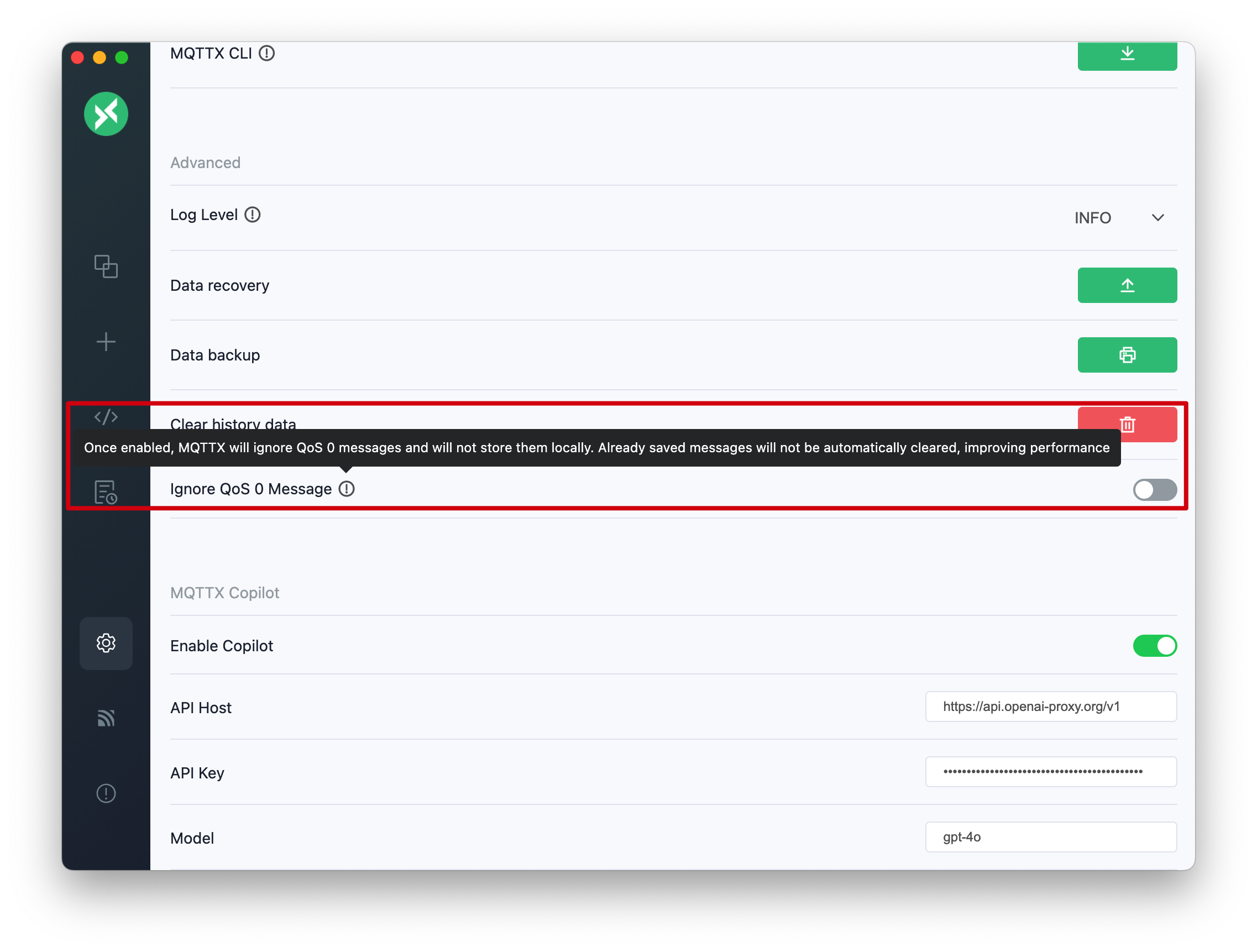
### Ignore QoS 0 Message
In the settings, you can choose to enable or disable the feature to ignore QoS 0 messages. QoS 0 (Quality of Service level 0) messages are the most basic form of message delivery, offering no guarantee of delivery and no retries. For certain application scenarios, you may want to ignore these messages to reduce unnecessary network traffic or processing overhead.
#### Steps to Configure
1. Open the settings page.
2. Locate the "Ignore QoS 0 Message" option.
3. Toggle the switch to "On" or "Off" as desired.
#### Feature Description
- **Enabled**: MQTTX will ignore QoS 0 messages. These messages will only be displayed on the page but not stored locally, thus improving performance and reducing unnecessary storage overhead.
- **Disabled**: All QoS 0 messages will be received and processed normally.
> Note: Previously saved QoS 0 messages will not be automatically cleared.
### GZIP Decompression
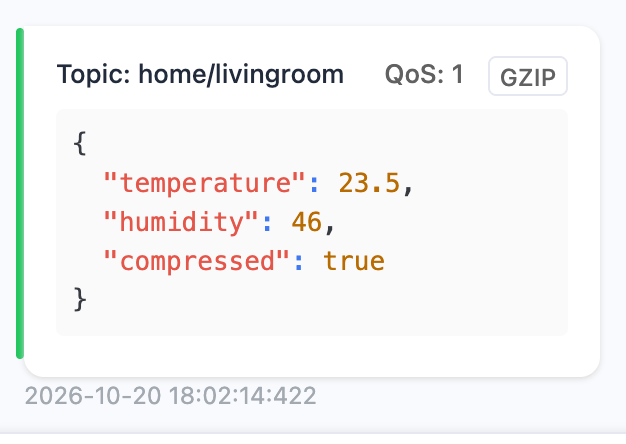
Starting from v1.13.2, the `Decompress GZIP messages` switch in the Advanced settings decompresses received GZIP messages. It is off by default.
- A received message that starts with the gzip magic number `1f 8b` is decompressed first, then decoded with the selected payload format or Schema. Messages that are not gzipped are left unchanged.
- A message that cannot be decompressed is marked with an error and keeps its original content.
- A decompressed message shows a `GZIP` badge next to its QoS value; hover the badge to see `Automatically decompressed from GZIP`.
- The badge is stored with the message, so history messages keep it after you turn the switch off or restart MQTTX.
## Script
### Function
This feature allows users to write customized function code according to specific needs or scenarios, freely adjusting and transforming the content and format of the Payload for more refined data management and processing. If combined with the timing sending function, it can realize automation testing of simulated data reports, etc.
Examples of custom functions can be found in the [scripts-example/function](https://github.com/emqx/MQTTX/tree/main/scripts-example/function) folder. If you have better and more practical scripts in use, you can submit your code here so that more people can use it.
#### JavaScript
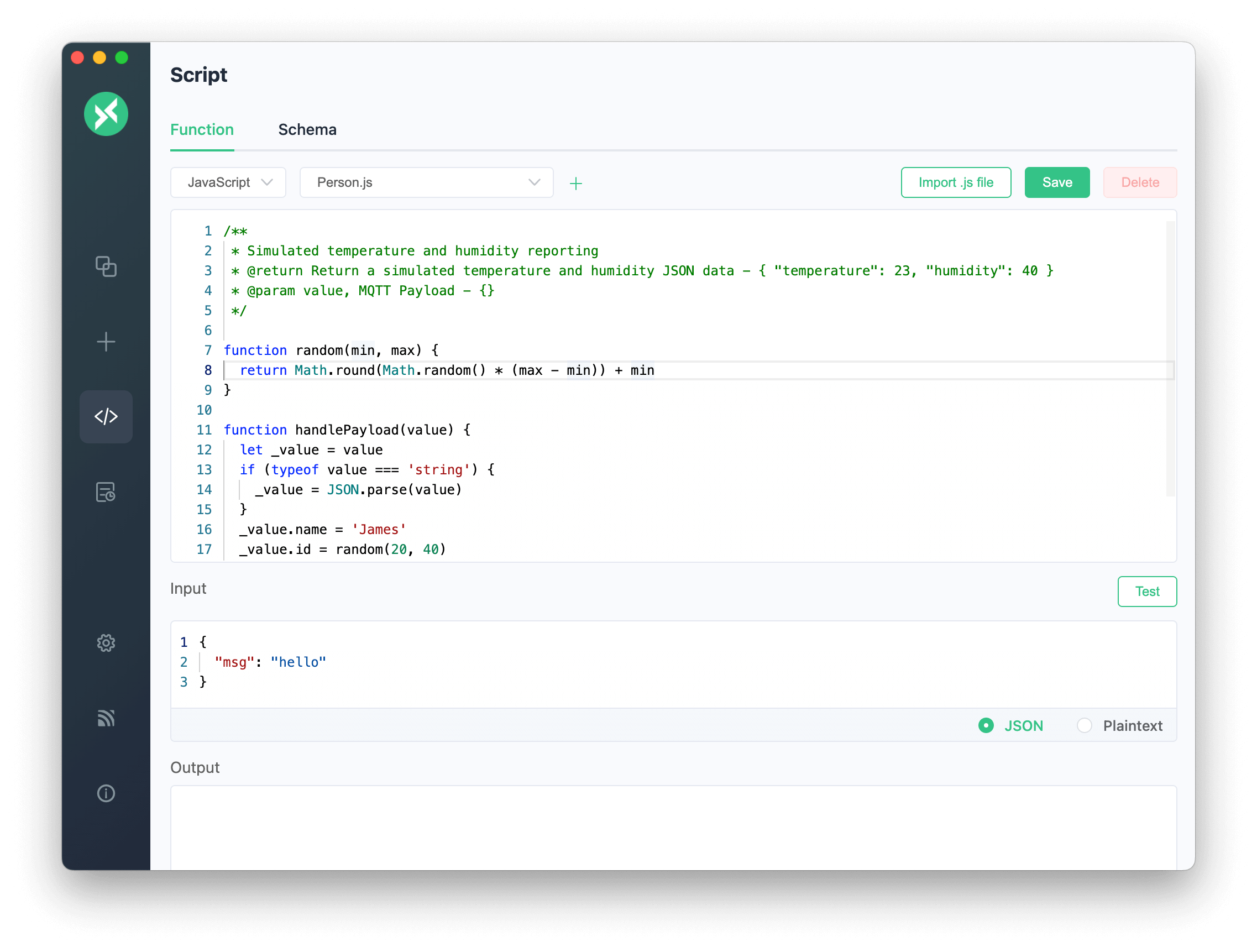
Click the `Script` button in the left menu to enter the script editing page. In the `Function` page, users can write JavaScript code in the code editor at the top. There is only one global `execute` API, users need to write a custom function that accepts a `value` parameter, which is the `Payload`. The function can customize and modify `value`, and finally execute the custom function through `execute`.
There is also an `Input` and `Output` box below, where you can enter the expected input value. Click the `Test` button on the right to view the execution result in the `Output` box. The format of the input value includes `JSON` and `Plaintext`, which is convenient for users to debug the custom function in advance. After testing, you can click the `Save` button in the upper right corner, enter the custom function name and save the custom function. After saving, it can be used on the connection page, and the saved custom functions can also be edited and deleted.
The default JavaScript function example is as follows:
```javascript
/**
* @description: Default script
* @param {any} value - Payload
* @param {string} msgType - Message type, the value is 'received' or 'publish'
* @param {number} index - The index of the message, only valid when the script is used to publish messages and enable timed messages
* @return {any} - Payload after script processing
*/
function handlePayload(value, msgType, index) {
return value.msg
}
execute(handlePayload)
```
### Schema
This feature allows users to write custom Schema files according to actual needs to encode and decode the sent and received `Payload`. In specific applications, users can write specific encoding and decoding rules according to data characteristics or specific application scenarios. This process is similar to designing a specific "language" for `Payload` and defining the translation rules of this "language" by writing encoding and decoding files. In this way, whether sending or receiving `Payload`, you can encode or decode according to these rules to ensure the correct understanding and effective transmission of data.
Examples of Schema can be found in the [scripts-example/schema](https://github.com/emqx/MQTTX/tree/main/scripts-example/schema) folder. If you have better and more practical encoding and decoding in use, you can submit your code here so that more people can use it.
#### Protocol Buffers
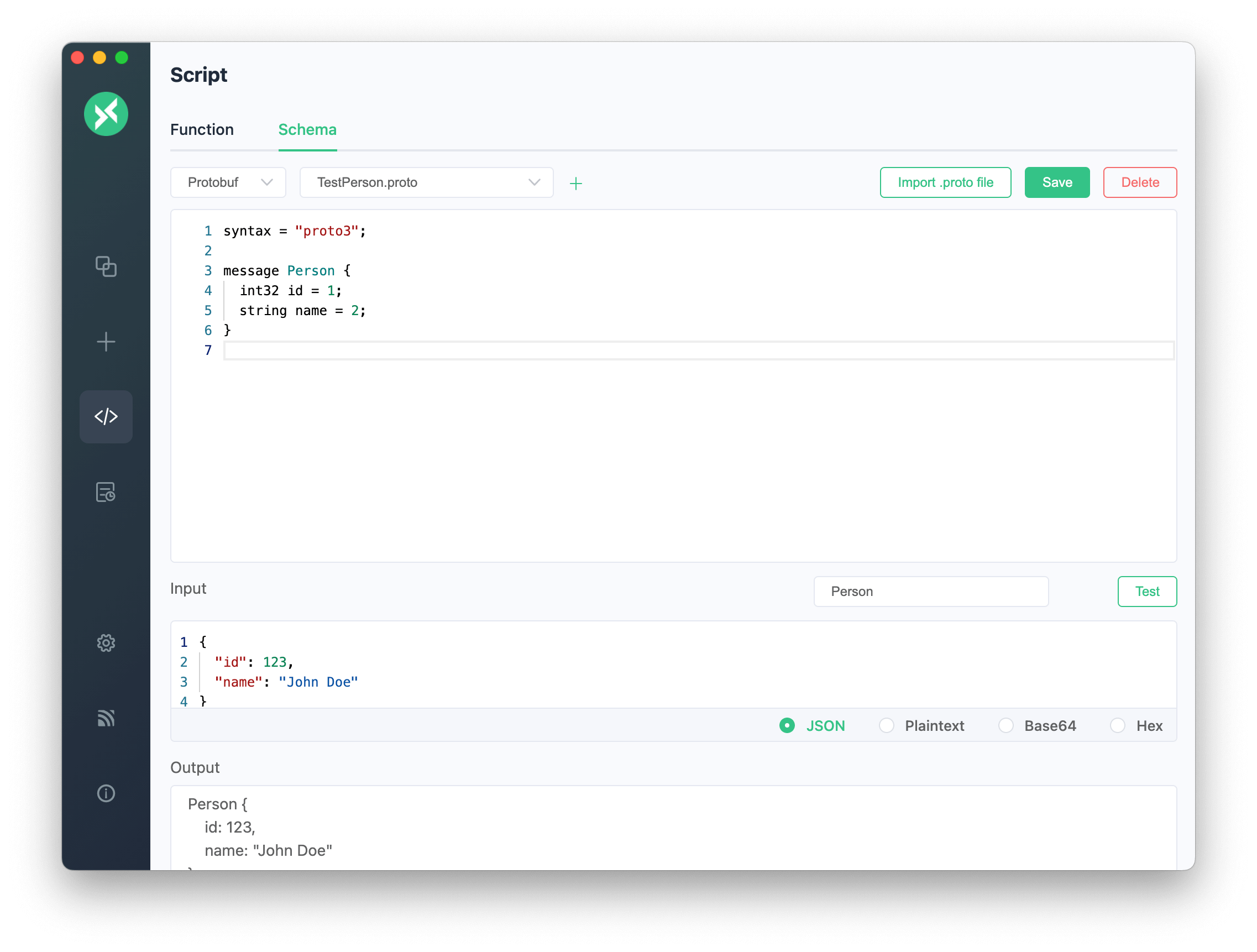
Click the `Script` button in the left menu to enter the script editing page. On the `Schema` page, users can select `Protobuf` from the dropdown box at the top, then write the `proto` file in the code editor.
There is also an `Input` and `Output` box below, where you can enter the expected input value. After entering the name of the defined message type, click the `Test` button on the right to view the execution result in the `Output` box. The format of the input value includes `JSON`, `Plaintext`, `Base64`, and `Hex`, which is convenient for users to debug the custom Schema in advance. After inputting `JSON` or `JSON` strings encoded with `Base64` and `Hex`, and testing is completed, click the `Save` button in the upper right corner, enter the Schema name and save the Schema. After saving, it can be used on the connection page, and the saved Schema can also be edited and deleted.
The default Protocol Buffers Schema file example is as follows:
```proto
syntax = "proto3";
message Person {
int32 id = 1;
string name = 2;
}
```
#### Using Avro Schema
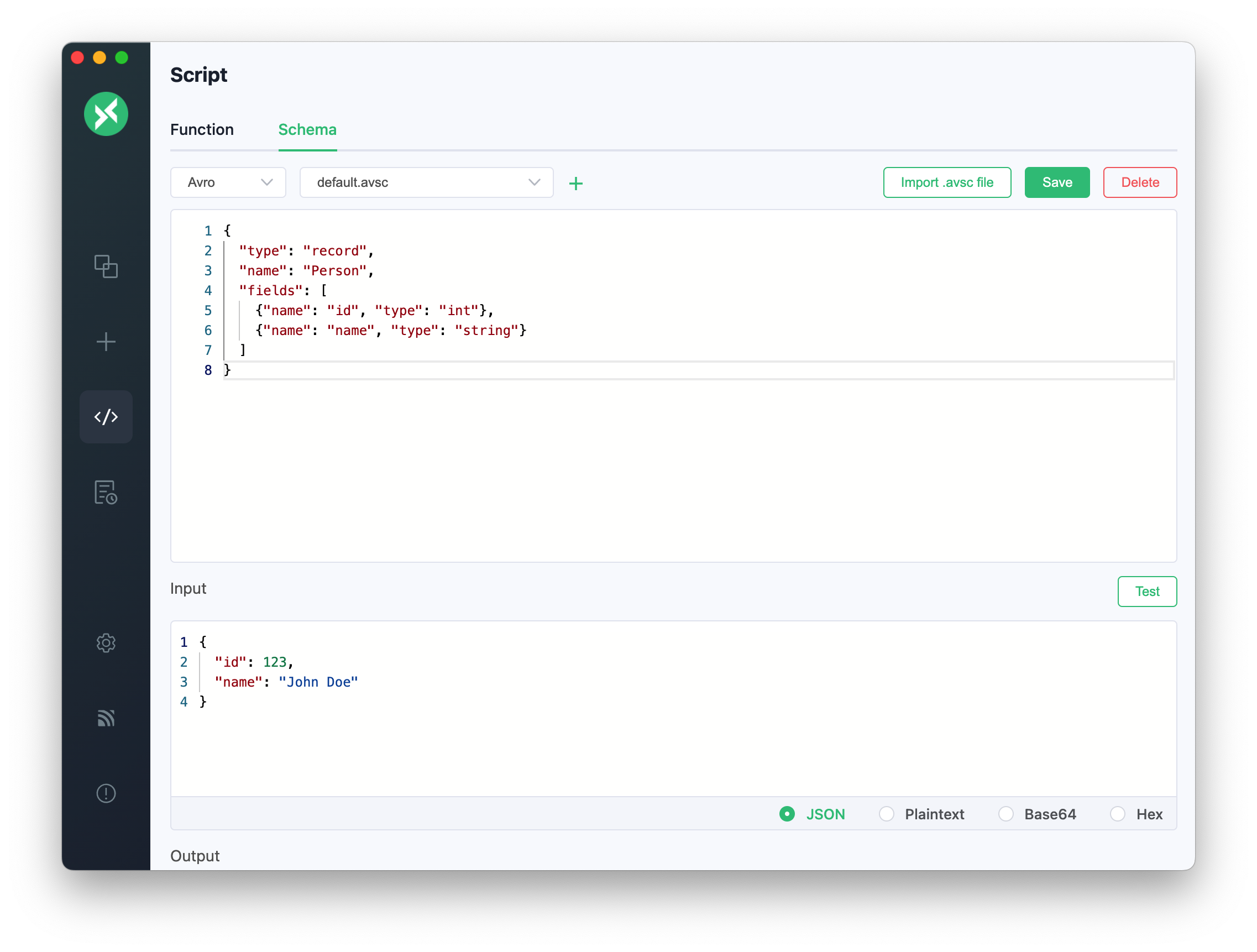
Click the `Script` button in the left menu to enter the script editing page. On the `Schema` page, users can select `Avro` from the dropdown box at the top, then write the `avsc` file in the code editor.
There is also an `Input` and `Output` box below, where you can enter the expected input value. Click the `Test` button on the right to view the encoding and decoding execution result in the `Output` box. The usage method is essentially the same as with `Protobuf`.
An example of using an Avro schema file is as follows:
```json
{
"type": "record",
"name": "Person",
"fields": [
{ "name": "id", "type": "int" },
{ "name": "name", "type": "string" }
]
}
```
### Workflow
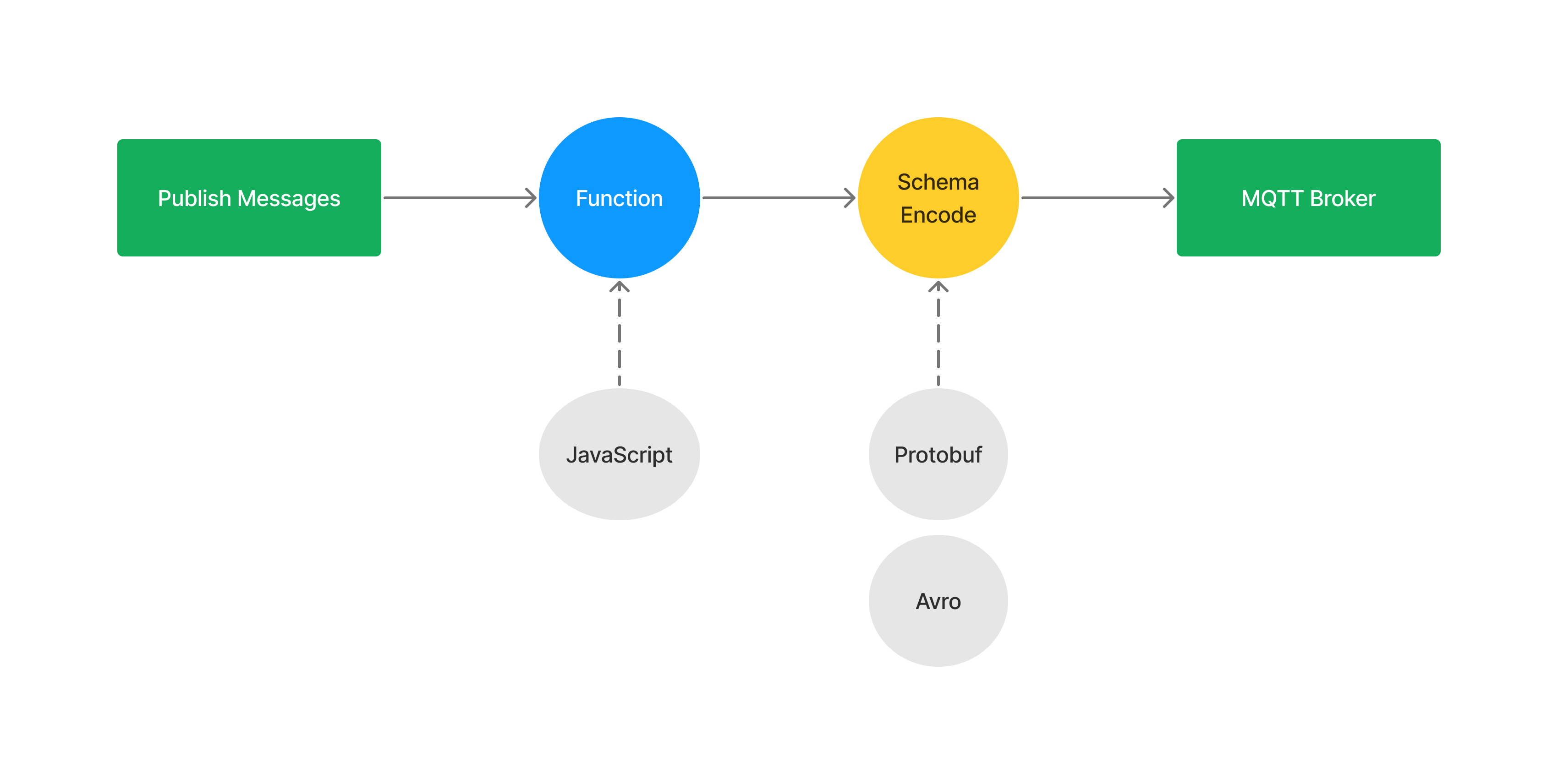
If the user uses both the custom function and Schema features of the script, MQTTX will use an efficient script workflow, covering both the publishing and subscribing stages.
In the publishing stage, the script workflow first calls custom functions to process the input data. The messages generated after these custom functions are displayed. Subsequently, the processed messages are encoded using the Schema.
In the subscription stage, the script workflow first receives the incoming encoded messages. After receiving the messages, the Schema is immediately called to decode. The decoded messages are sent to the custom functions for processing. After processing, the processed messages are displayed.
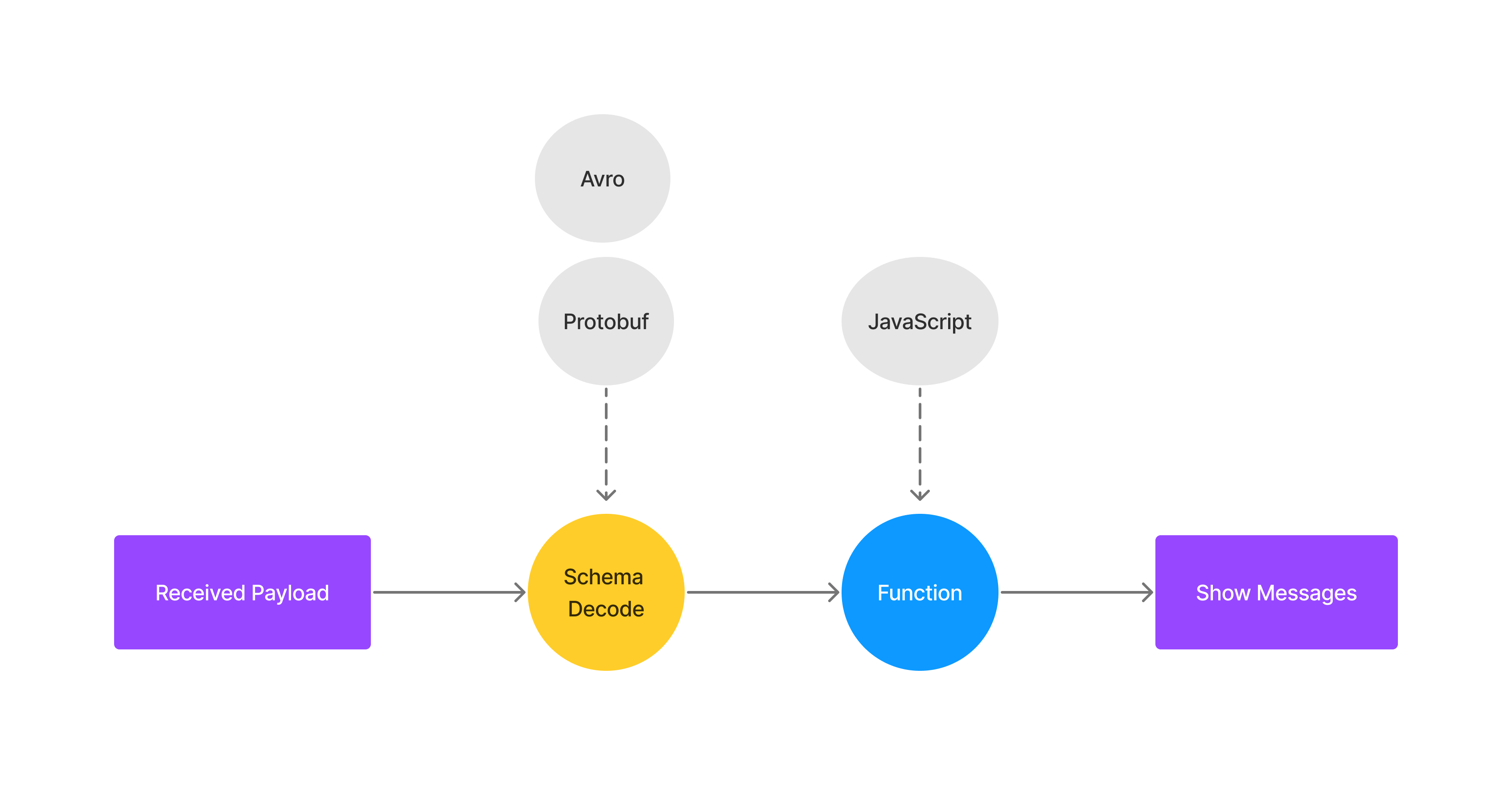
This script workflow design allows users to flexibly process data during publishing and subscribing stages, and ensures the safety and integrity of messages during transmission.
### Usage
1. Navigate to the connection page, click the drop-down menu in the upper right corner of the page. In the drop-down menu, select the `Run Script` option.
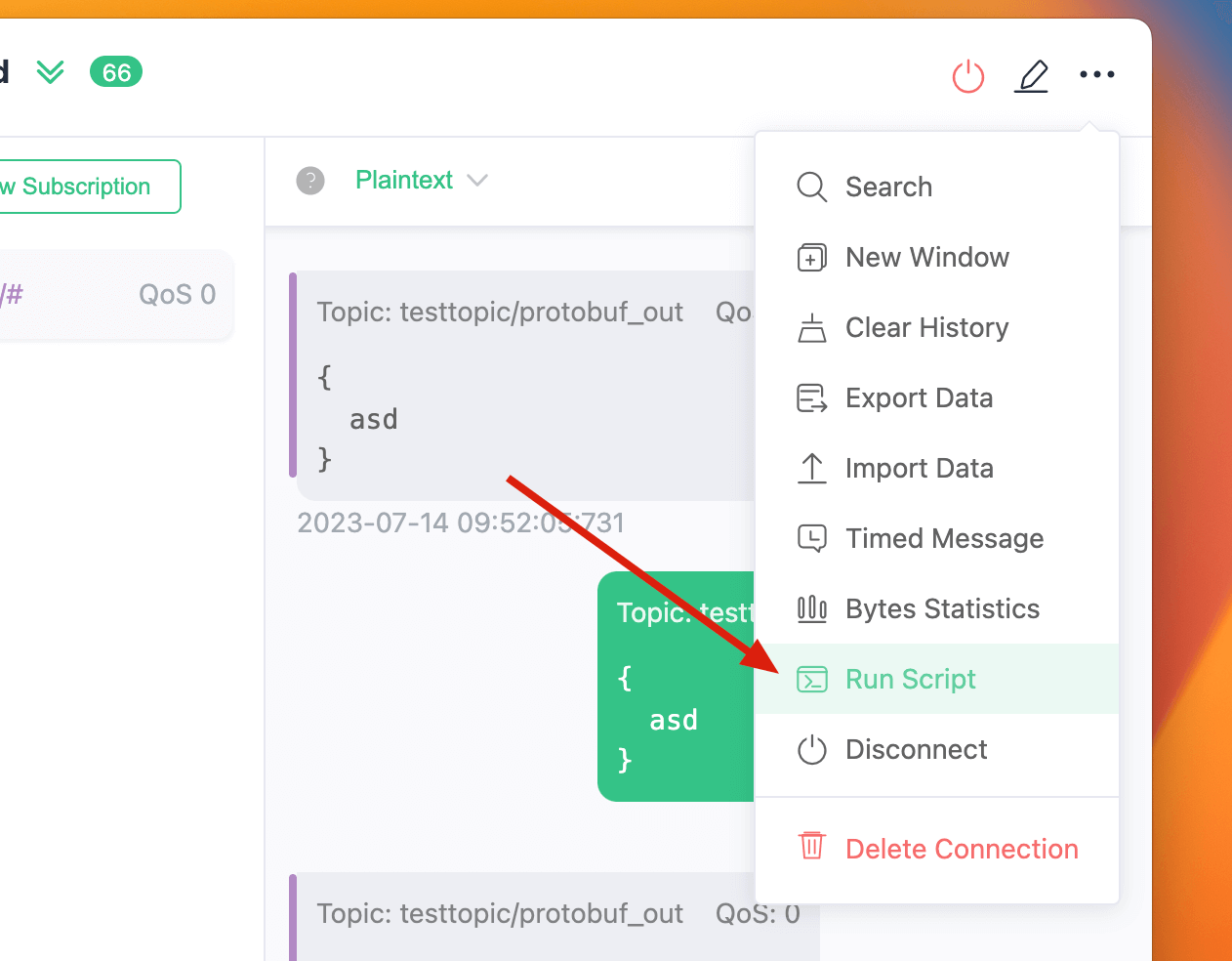
2. This will pop up a script window, choose from which script should be applied, options include publish, receive and all. Then, select the custom function or Schema you want to use.
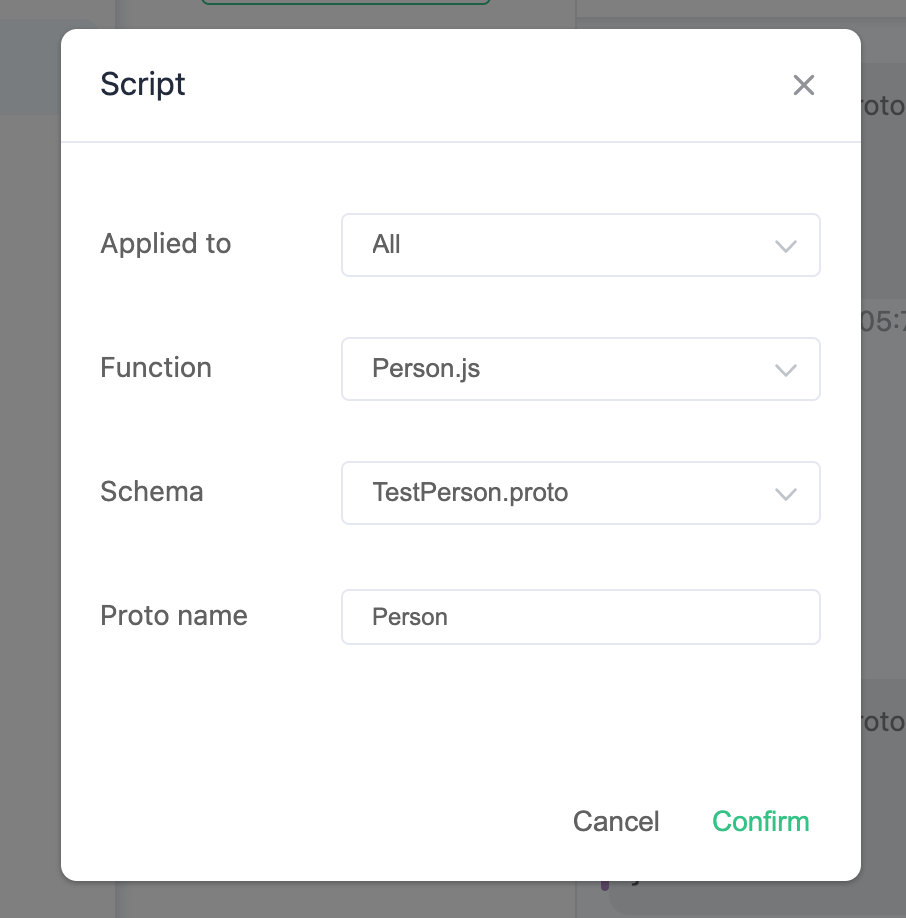
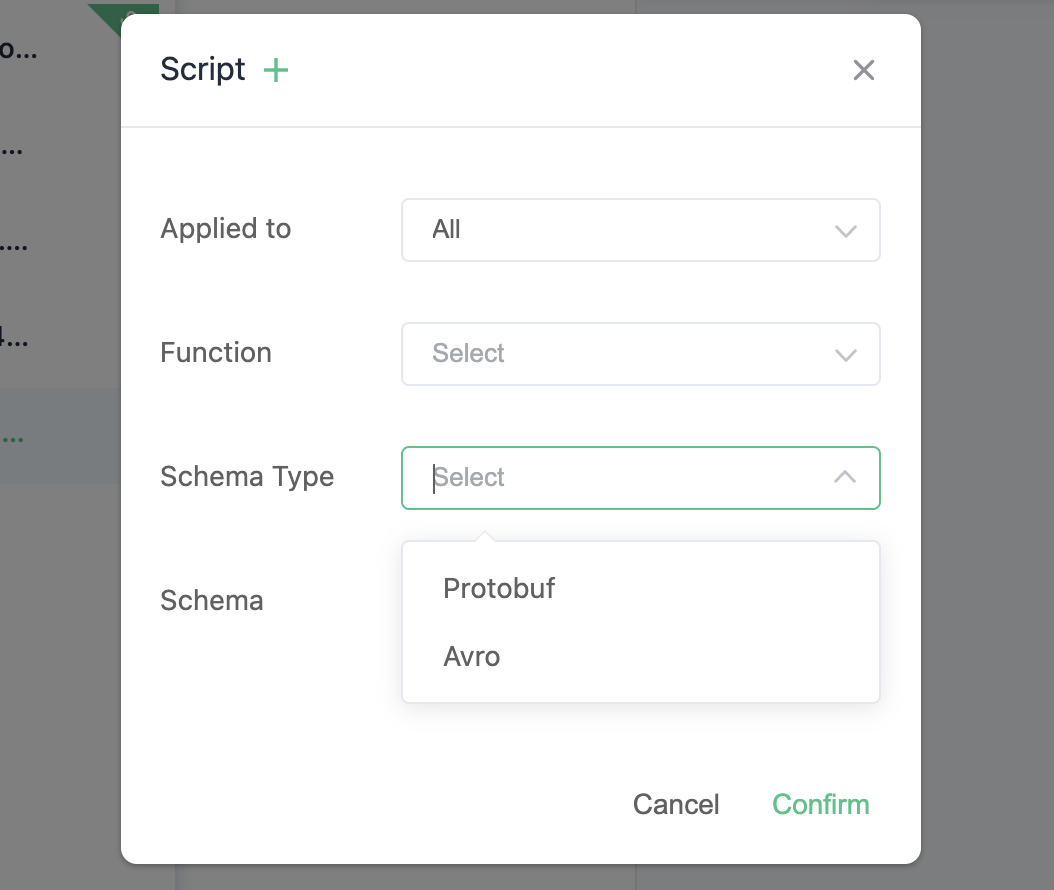
3. In the schema selection box, choose the schema you want to use. Currently, `Protobuf` and `Avro` schemas are supported.
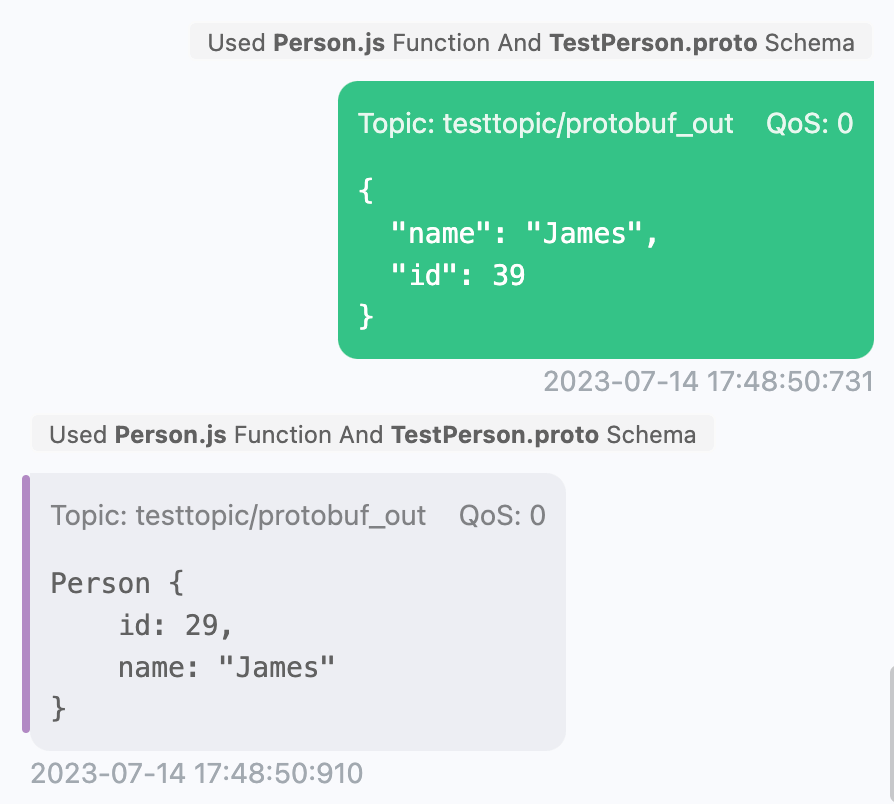
4. If you see a script usage prompt on the publish or subscribe message card, it indicates that the script function has been successfully invoked.
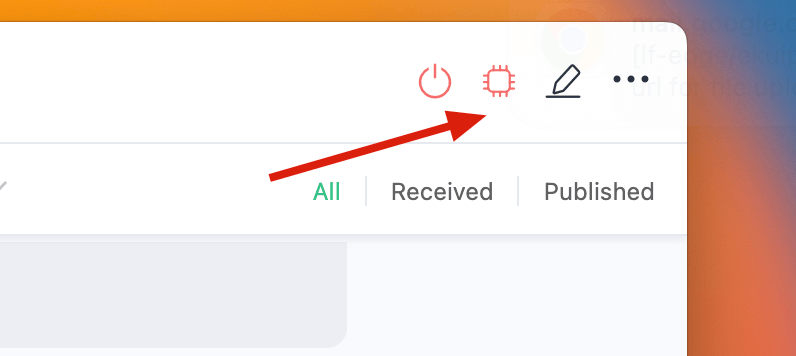
5. If you need to stop using the script, you can click the red `Stop Script` button in the top status bar, which will stop the script.
## Logs
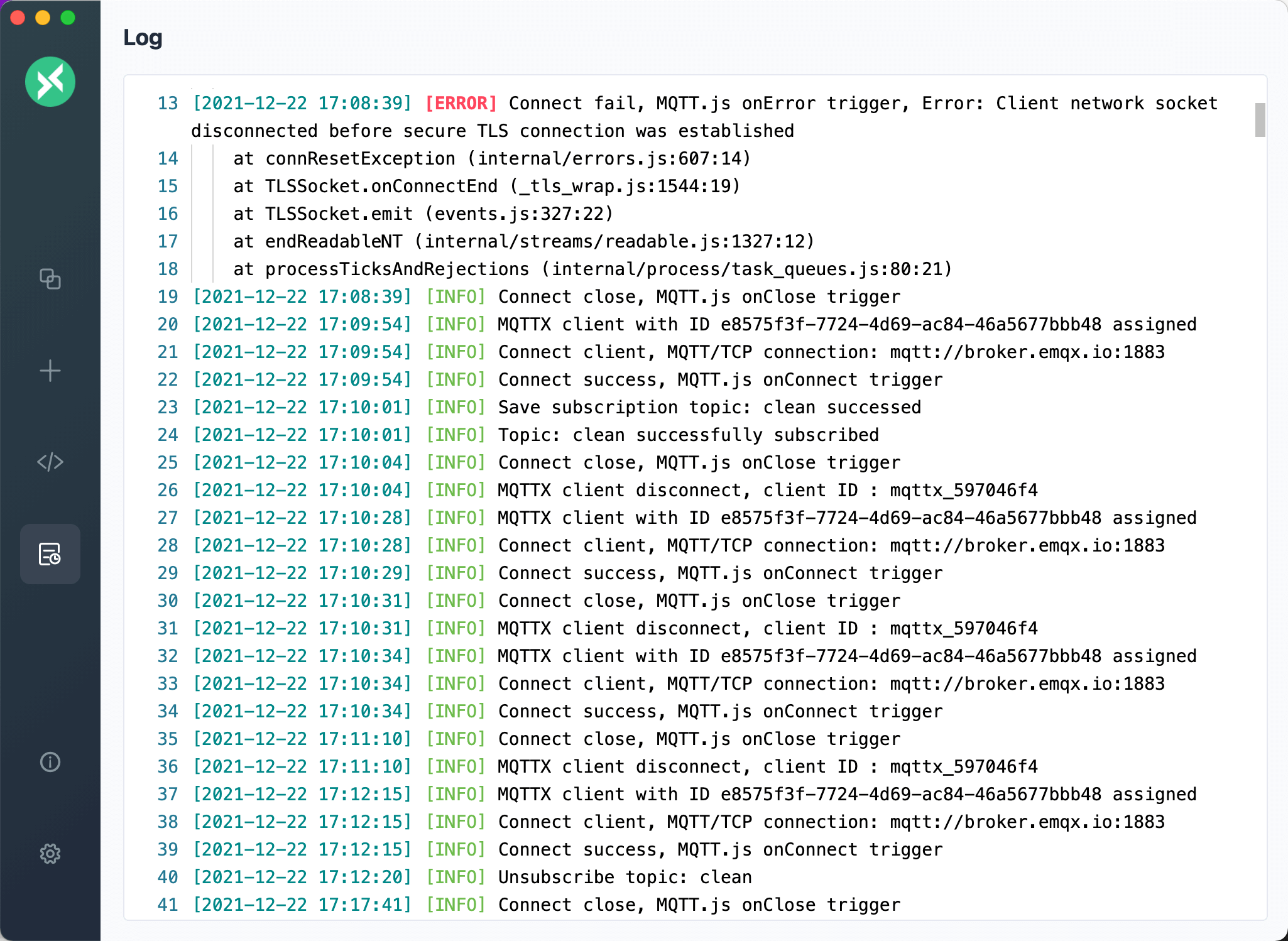
Starting with version v1.5.0, MQTTX has introduced a log function to help users debug connections and report errors. In a production environment, the log system displays information at four levels:
- DEBUG provides detailed debugging information, including MQTT.js packet details, to assist in troubleshooting.
- INFO provides feedback on user operational information.
- WARN issues warnings about unsafe actions or potential risks.
- ERROR generates an error message when a failure occurs.
You can change the log level in the Advanced section of the settings page.
By default, logs are written to the log file at the following locations depending on your operating system:
| OS | Log File Path |
| ------- | -------------------------------------------- |
| Linux | ~/.config/MQTTX/logs/log |
| macOS | ~/Library/Application Support/MQTTX/logs/log |
| Windows | %USERPROFILE%\AppData\Roaming\MQTTX\logs\log |
Each time MQTTX is closed, the current log file is renamed according to the timestamp in the format `YYYY-MM-DDThh-mm-ss.log` (UTC).
## Viewer
Starting from v1.11.0, MQTTX introduces the Viewer feature, providing MQTT data visualization capabilities to help users better understand and monitor message flows.
### Topic Tree (Beta)
The Topic Tree displays MQTT topics and messages in a hierarchical structure, allowing users to clearly understand the relationships between topics and the flow of messages.
> Note: The Topic Tree feature is currently in Beta and may have incomplete or unstable functionality.
The Topic Tree feature is in the Viewer menu under the `New Connection` section. To use it, create a connection and subscribe to relevant topics. Once the subscribed topics receive messages, the Topic Tree will update automatically.
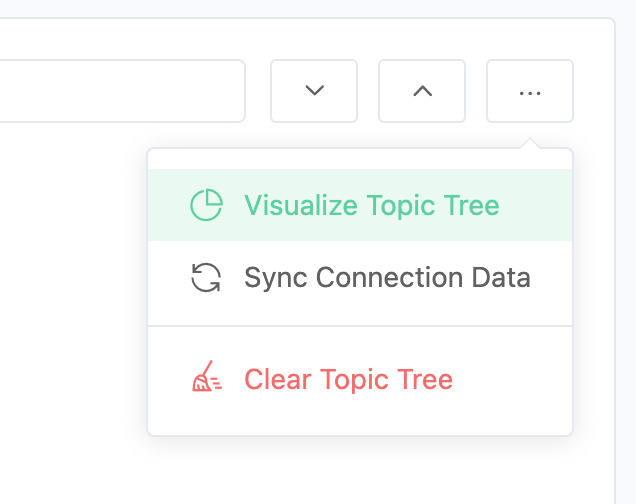
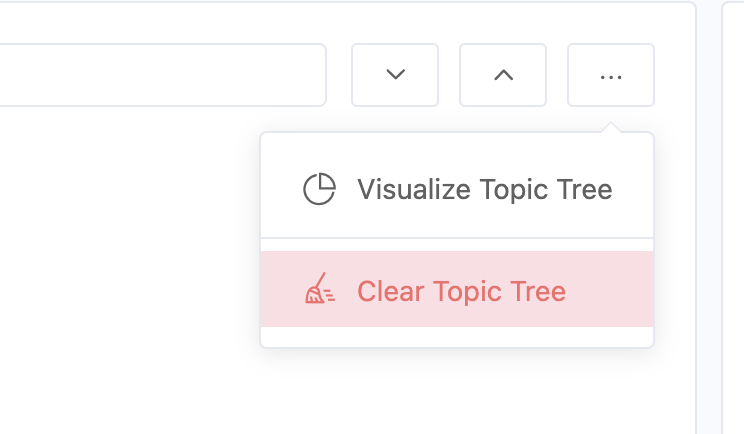
The page has a search box, an operation button area, a topic tree display area, and a details panel on the right. In the operation area, you can one-click to expand/collapse all nodes, view the visualized display, and clear the topic tree.
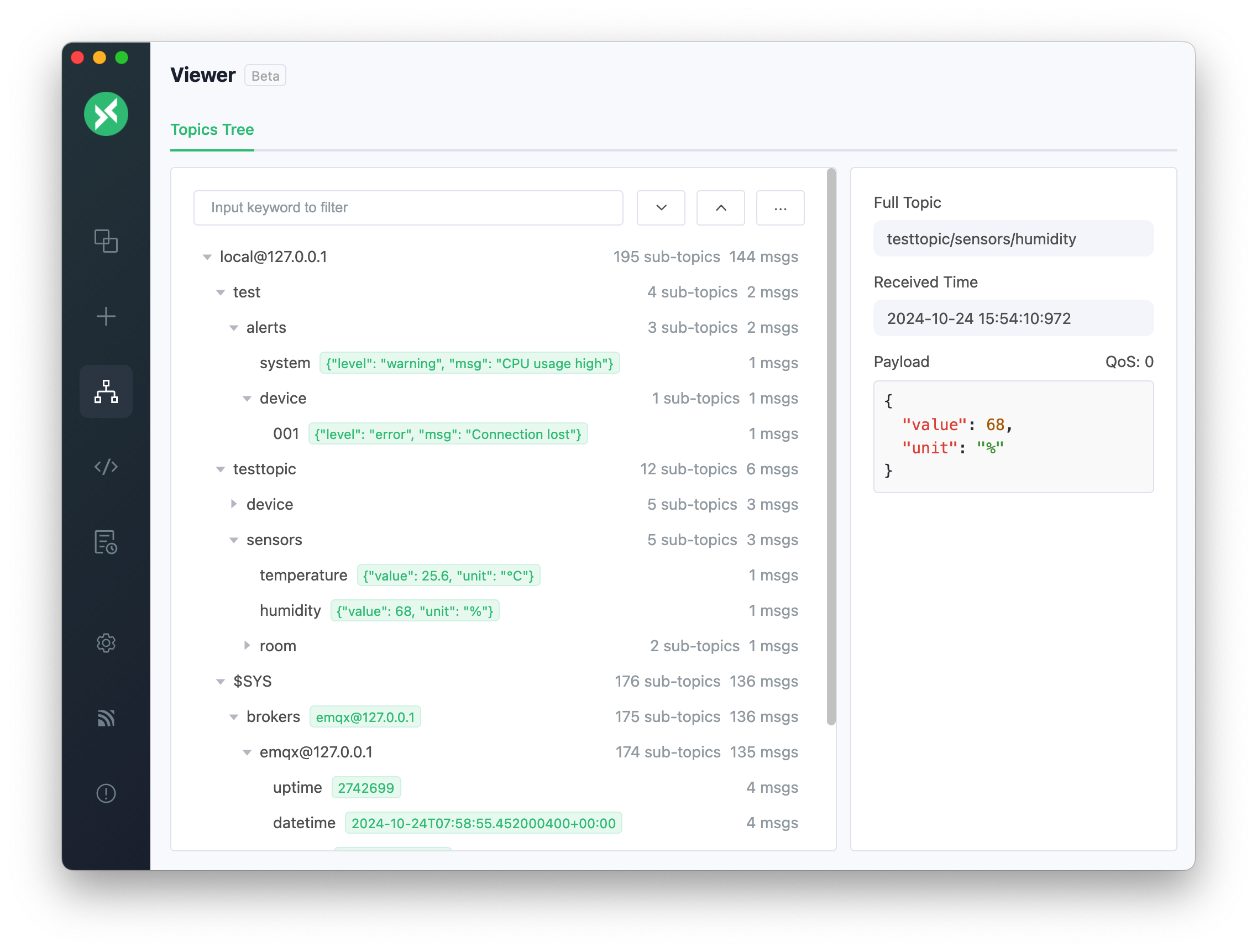
The nodes in the Topic Tree are divided into three types:
- Root node (Host node): Displays the client information receiving messages, including the client ID, Host information, connection name, and sub-topic nodes.
- Intermediate node: Contains sub-topic nodes. Clicking on it displays the current node's complete topic path and sub-topics.
- Leaf node: Displays the latest received message, including the complete topic path, reception time, Retain flag, and QoS value.
Each node name shows the number of sub-nodes and messages. Clicking the expand/collapse button before the node toggles the visibility of sub-nodes while clicking the node itself displays detailed information on the right.
Drag the divider to resize the details panel; MQTTX remembers its width. The Sub-Topics area shows the selected node's direct children, their count, and the depth below them.
Display limits for large topic trees
- The details panel can occupy 20%–60% of the width.
- Up to 100 sub-topics are listed, followed by `... and N more`. The title shows the count and depth, for example `Sub-Topics (55 · 2 levels)`.
- When the tree has more than 1,000 nodes, Expand All asks for confirmation first.
> Note: When you delete the corresponding connection or clear the messages in the connection, the content in the Topic Tree will also be cleared.
#### Visualize Topic Tree
Selecting `Visualize Topic Tree` from the More Operations menu displays the topic structure of the current connection graphically. This visual representation is more intuitive than the list format, making it easier to understand the distribution of topics.
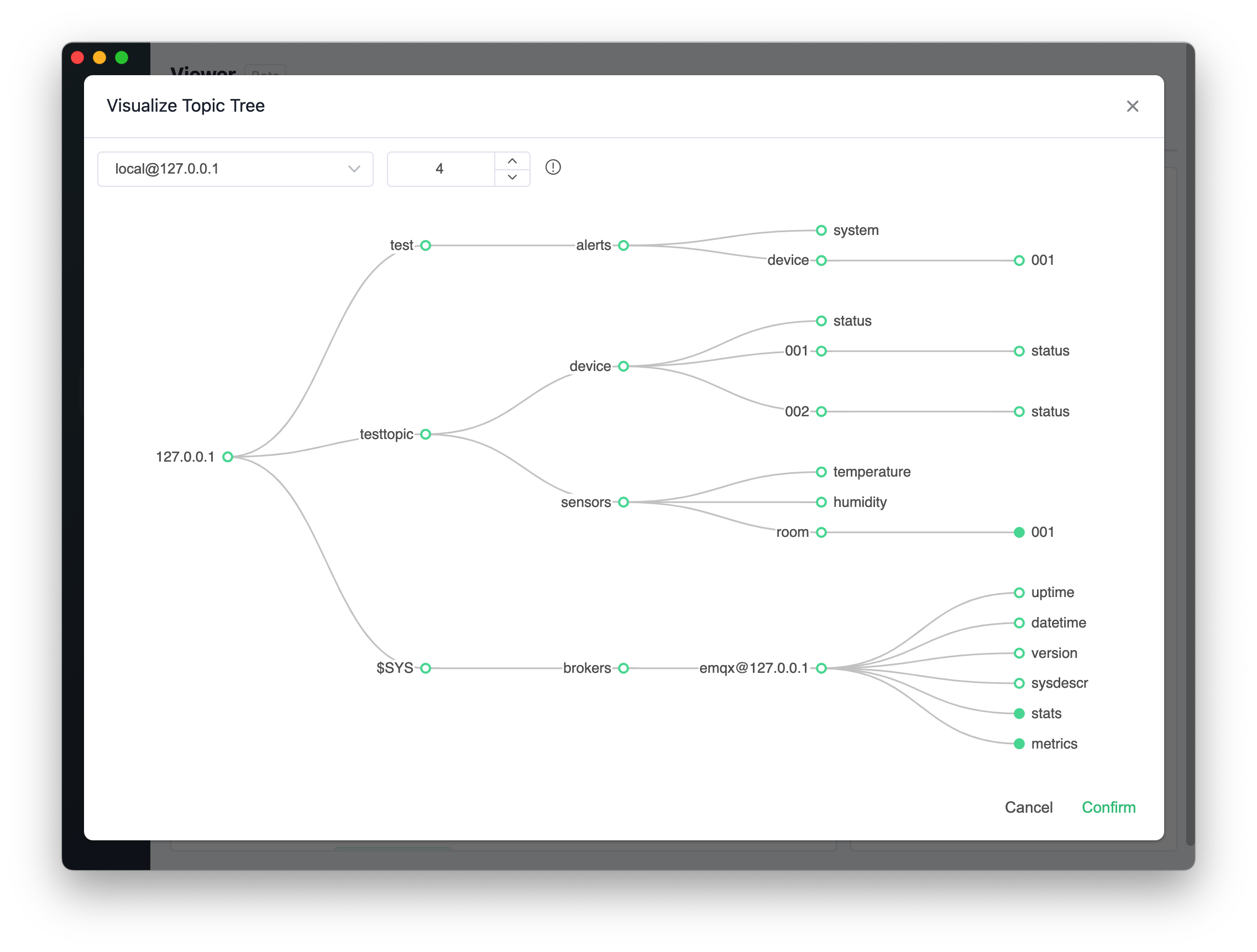
You can select different Host nodes at the top of the pop-up box and adjust the default expansion level (default is 4 layers). You can adjust the depth of the view at any time using the expand/collapse button. Hovering over a node displays its topic path, message count, and sub-node count.
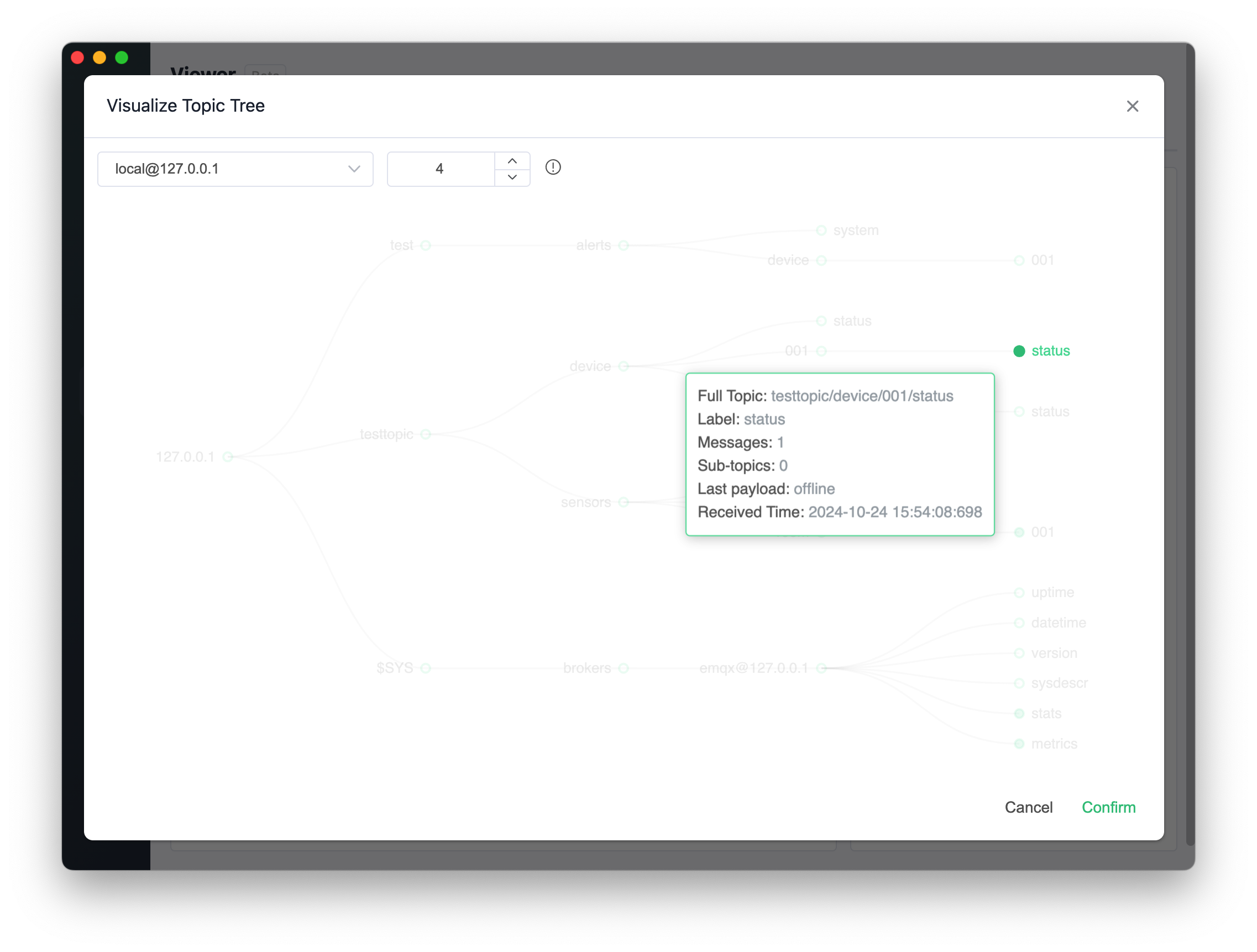
> Note: If the data updates in real time, the visualized tree will refresh according to the current expansion level. To view deeper data changes, increase the number of expansion levels.
#### Synchronize Connection Data
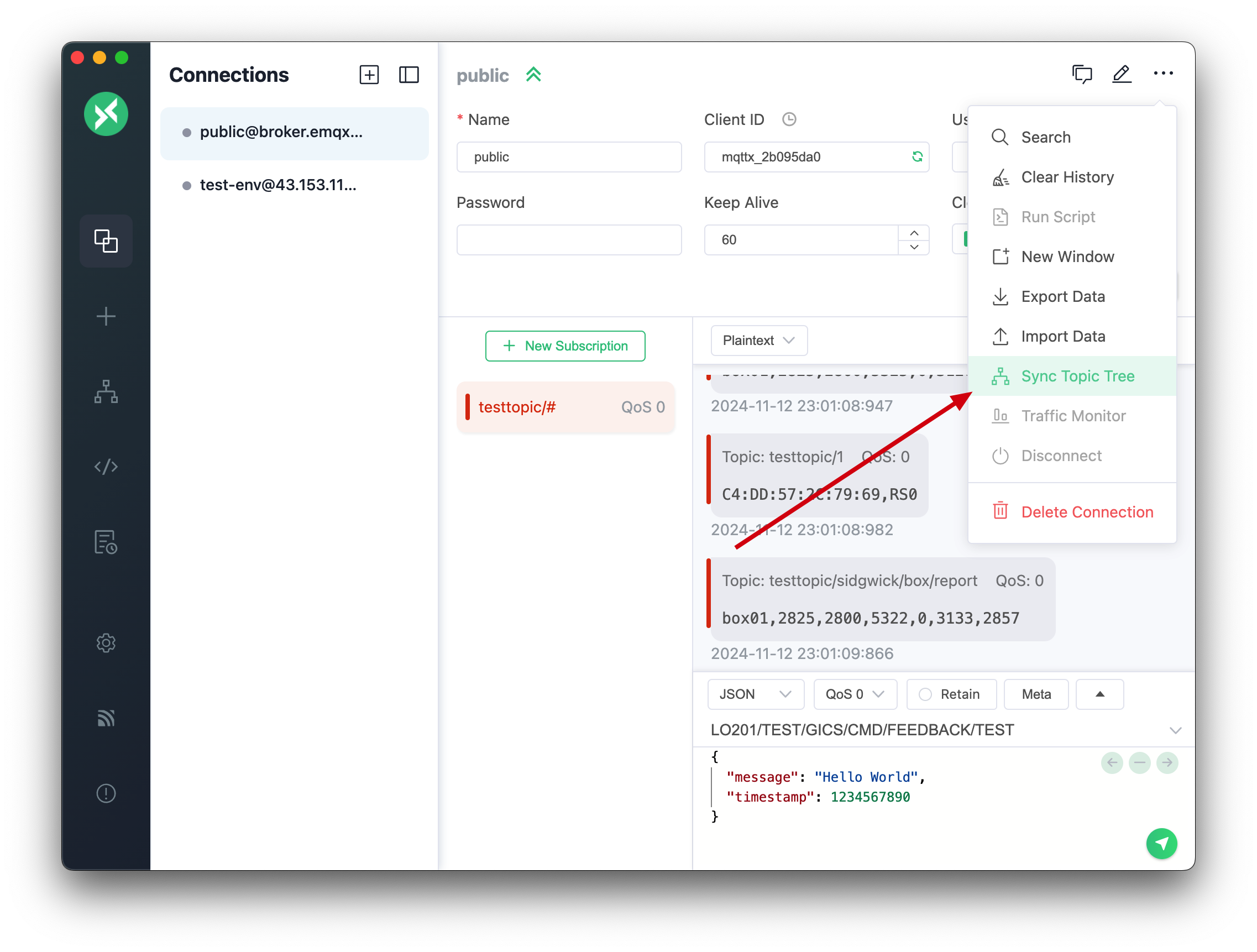
When the topic tree receives new messages, it will be automatically synchronized to the message list on the connection page. MQTTX also supports manually synchronizing the historical message data from the connection page to the topic tree view. You can synchronize in the following two ways:
1. On the connection page:
- Click the "Sync Topic Tree" option in the upper right corner drop-down menu
- Select the connection to synchronize
- The system will automatically convert the message records of the connection into a topic tree structure
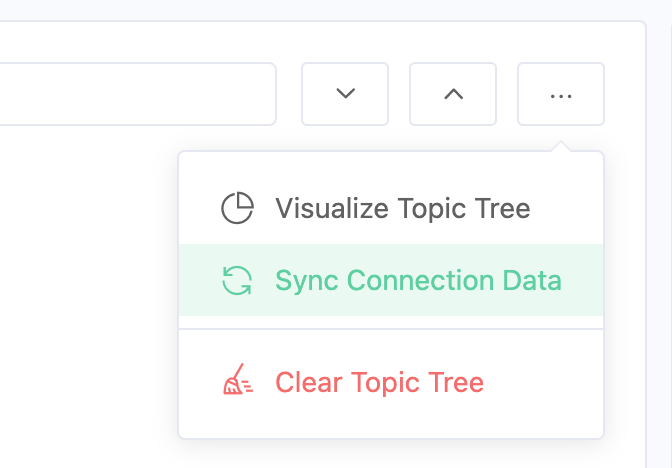
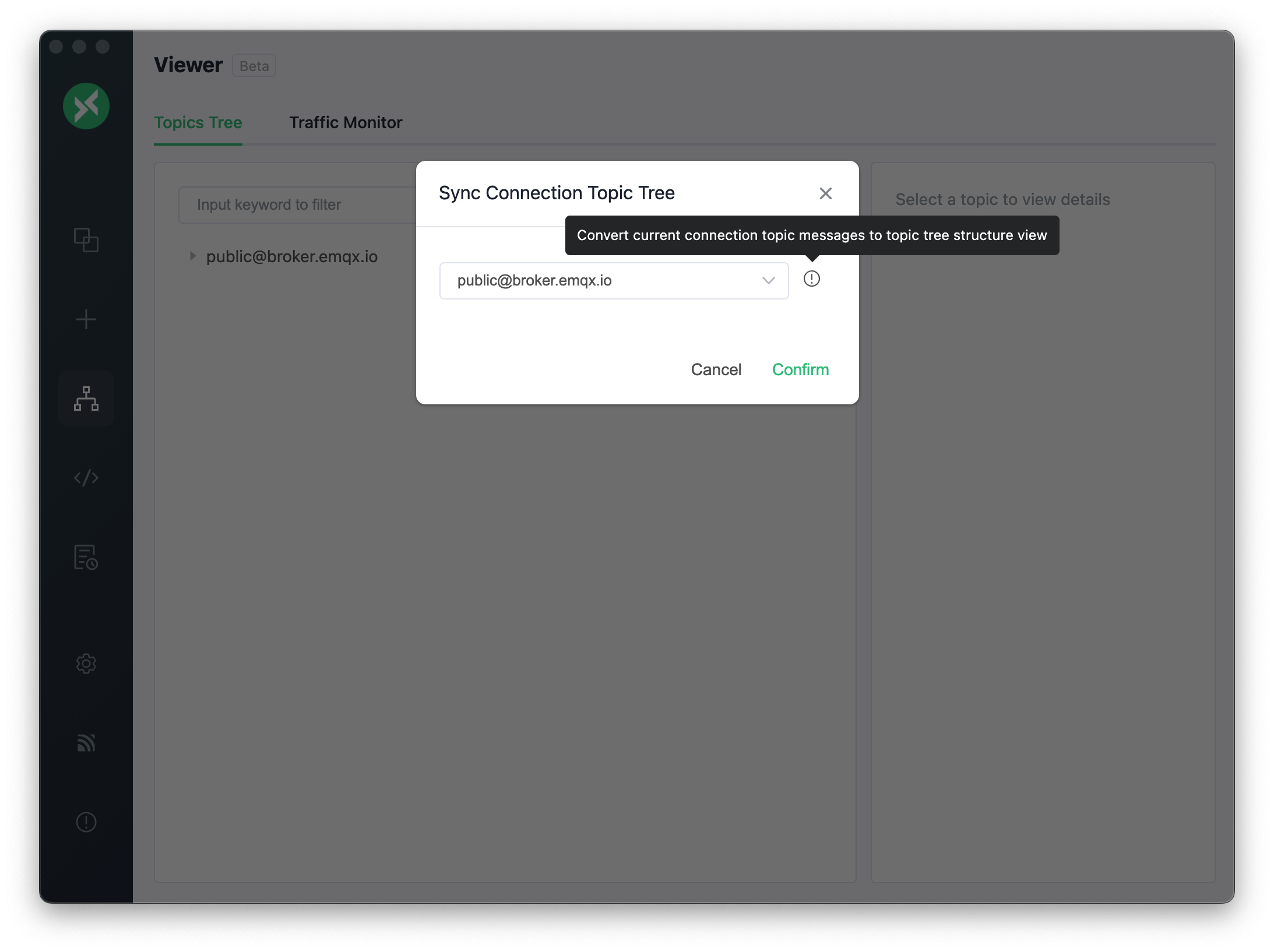
2. On the topic tree page:
- Click the "Sync Connection Data" option in the upper right corner drop-down menu
- Select the connection to synchronize
- View the synchronized topic tree view
> Note:
>
> - It is recommended to synchronize data when the connection is idle to ensure data accuracy
> - The synchronized topic tree will display the latest messages for each topic
#### Clear Topic Tree
Selecting the `Clear Topic Tree` option in the More Operations menu clears the content of the Topic Tree for the current connection.
### Dashboard
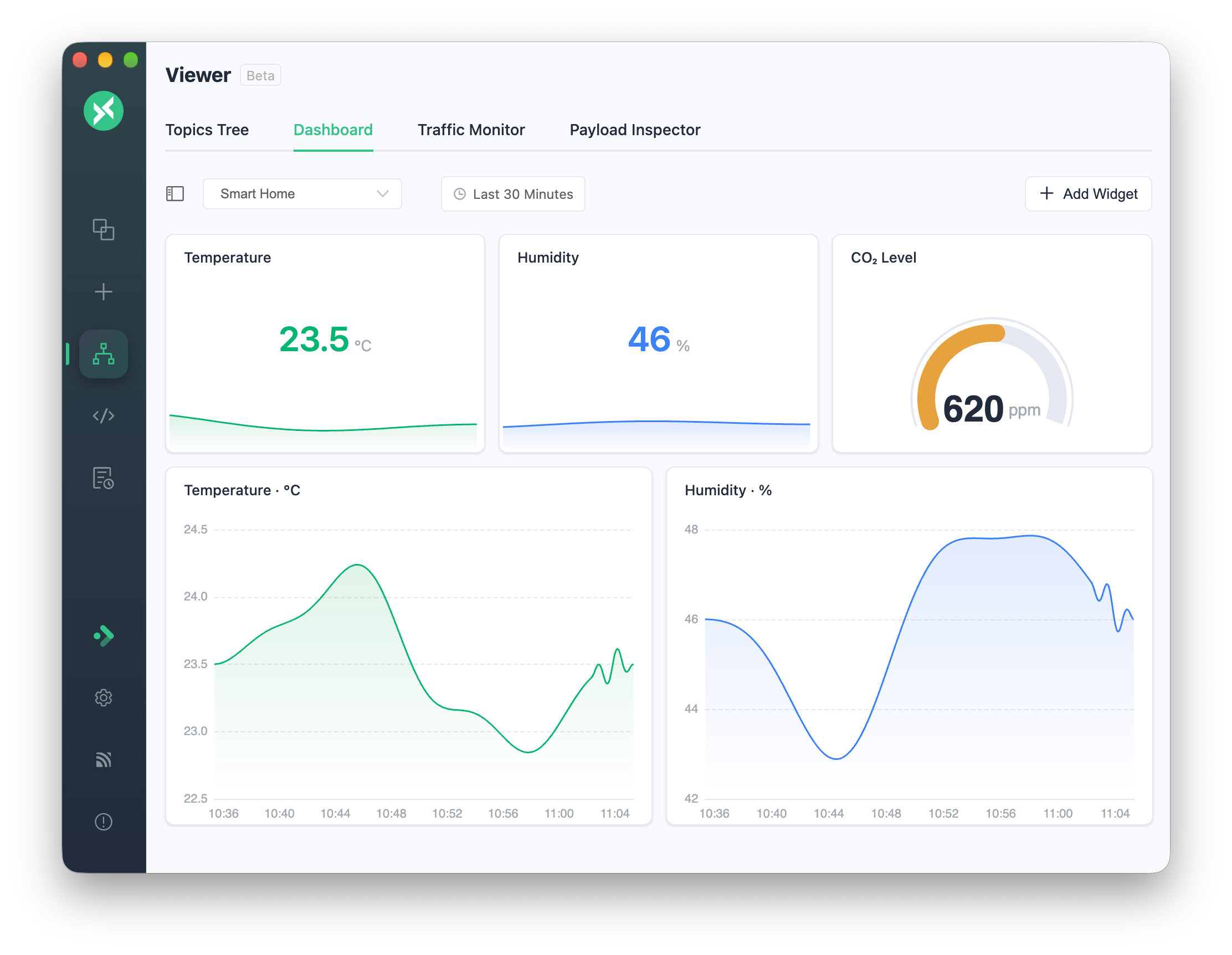
Use Dashboard to display MQTT message fields as numeric readings, gauges, and trend charts. This guide starts with connecting and receiving data, then covers widget configuration and checking live updates and local history.
Configure the view directly in **Viewer → Dashboard**; MQTTX Agent is not required. Choose a connection, topic filter, and payload field for each widget to display measurements from different sources together.
#### Connect and receive the data
1. Connect an MQTTX client to the broker that receives your device's messages.
2. Subscribe to the device topic or an MQTT topic filter, such as `factory/+/telemetry`.
3. Confirm that messages arrive in the connection's message list.
Dashboard uses the messages MQTTX receives. Choosing a topic filter for a widget does not subscribe the MQTT client to that topic.
Find the numeric fields to display in a received payload. For example:
```json
{
"deviceId": "line-01",
"temperature": 24.8,
"humidity": 56,
"pressure": 1.02
}
```
set a widget's **Value Field** to `temperature`, `humidity`, or `pressure` to read that value.
#### Choose a useful view for each measurement
- **Big Number** displays a current reading, such as temperature, pressure, or a counter sent by a device.
- **Gauge** places a reading within a range, such as humidity from 0 to 100%.
- **Line** shows changes over time for inspecting trends and fluctuations during a test.
For the JSON example in the preparation steps, add a temperature Big Number, humidity Gauge, and pressure Big Number. Add a temperature Line chart to inspect changes over time.
#### Create a Dashboard
1. Open **Viewer → Dashboard** from the left sidebar.
2. Select **Create Dashboard** and enter a name and description.
3. Select **Add Widget** and choose **Big Number**, **Line**, or **Gauge**.
4. Configure its data source and the options available for that widget type.
5. Drag and resize the widget to arrange your view. Add other measurements as needed.
Drag the right edge of the Dashboard list to change its width. Use a Dashboard's right-click menu or `⋯` menu to edit or delete it.
##### Bind a widget to a message field
Configure these fields under **Data Source**:
| Field | What to choose |
| -------------- | ------------------------------------------------------ |
| Connection | The MQTTX connection receiving the messages |
| Topic Pattern | The topic or MQTT filter that identifies the messages |
| Value Field | The JSON path to the value in the payload |
| Fallback Value | The value used when the requested field cannot be read |
Both live matching and history queries support MQTT `+` and `#` topic filters. An exact topic selects one device's readings; a filter includes messages from matching topics. A shared filter does not create a separate series for each device automatically.
##### Make the reading easy to interpret
Name the widget after the measurement. Configure the options available for its type, including color, decimal places, unit, range, thresholds, or line style. The editor shows **Smooth Lines** and **Area Fill** for line presentation where supported.
For the example above, give the temperature and pressure numeric widgets the units °C and bar, and set the humidity gauge range to 0–100%. A clear Line chart title, such as **Temperature trend (°C)**, identifies the plotted measurement and its unit.
The available controls depend on the widget type. Dashboard colors follow the Light, Dark, and Night themes.
#### Follow incoming readings and inspect history
1. Publish a message from the device or another MQTT client to a topic matched by the widget's filter. Confirm that the message appears in the selected connection's message list.
2. Compare the widget's reading with the selected payload field. If a fallback value appears, check the JSON path and field value.
3. Publish another message with a changed value and confirm that the numeric or Gauge reading updates, or that the Line chart receives another point. If it does not update, check the active connection, broker subscription, topic filter, and selected connection.
4. Select a time range in the toolbar that includes the received messages. Compare the displayed history with the locally stored message records.
The history query uses local message records. It does not retrieve earlier broker messages that MQTTX never received. Keep the source publishing to observe ongoing live updates.
Layout and history limits
- The Dashboard list width can be set from 160 to 400 pixels and is remembered.
- Widgets use a 12-column grid.
- Each widget shows up to 1,000 of the latest data points in the selected time range.
#### Example: ask MQTTX Agent to prepare a view
1. Configure and open [MQTTX Agent](https://mqttx.app/docs/agent), then select the Zero EMQX Skill with `/`.
2. Submit this request to create a temporary broker, publish sample messages, and prepare a Dashboard:
> Create a temporary Zero EMQX broker, save its connection as Factory Demo, connect, and subscribe to `factory/+/telemetry`. Publish 12 JSON messages with `deviceId` and varying `temperature`, `humidity`, and `pressure` values to `factory/line-01/telemetry`, one at a time. Create a Factory Overview dashboard with the three current readings and a temperature trend chart, then open it.
3. In Ask mode, review and approve the requested actions. Confirm that Factory Demo is connected and subscribed, and that it received separate JSON messages on `factory/line-01/telemetry`.
4. Open Factory Overview. Compare the current readings with the latest message and choose a history range that includes the sample messages to inspect the trend.
Continue editing the Dashboard with the manual controls described above. To use another broker or data source, first connect and subscribe, then change the widgets' data-source settings.
### Traffic Monitor
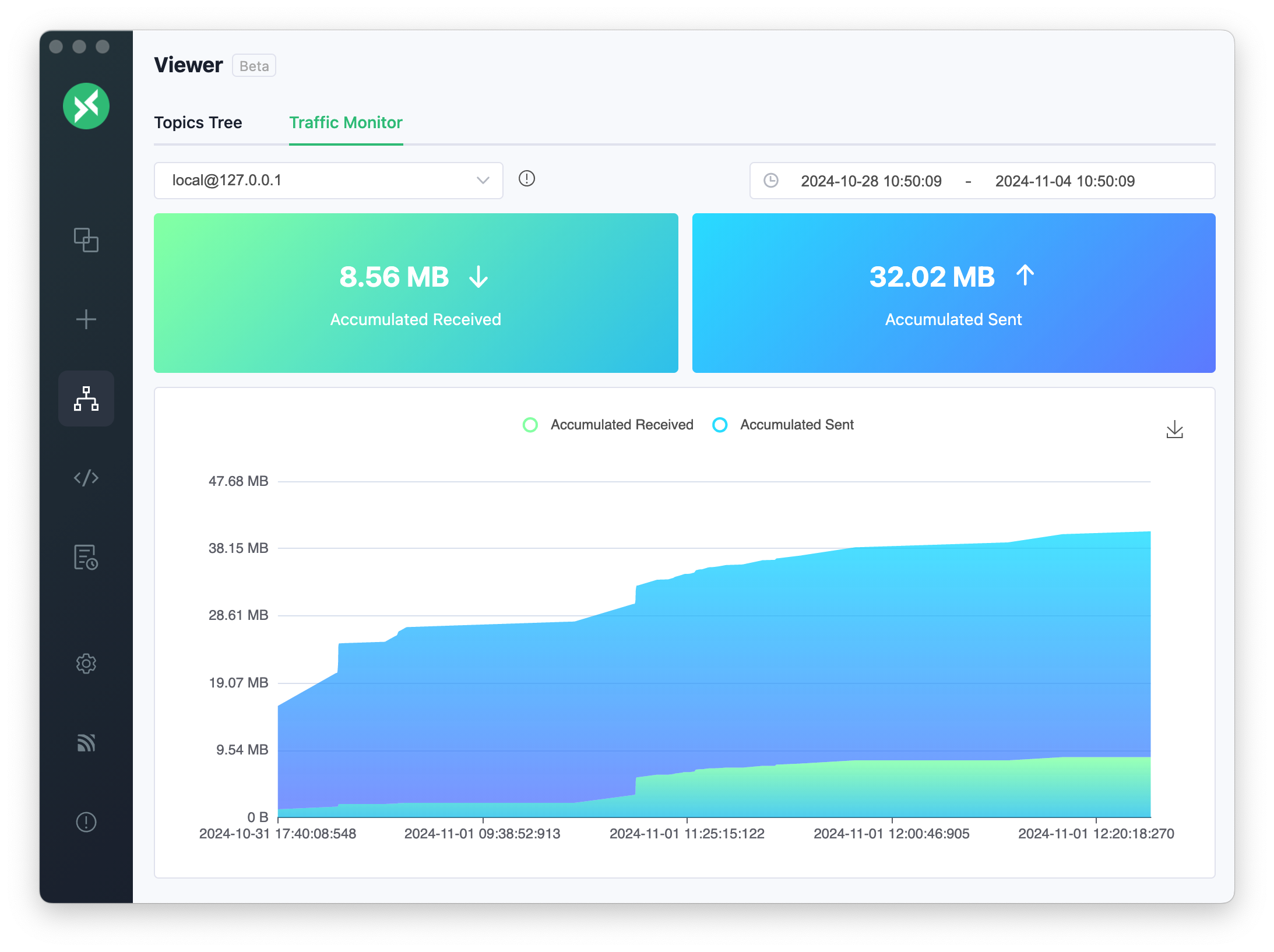
Starting from v1.11.1, the current bytes statistics function has been migrated to the Viewer menu and renamed Traffic Monitor. Visualizing the traffic data of the MQTT Broker helps users monitor the connection's data sending and receiving status in real-time, analyze the traffic trends and peaks, and identify potential network issues promptly, optimizing system performance and resource configuration.
There are two convenient ways to access the traffic monitor:
- Click the traffic monitor icon in the upper right corner of the connection page to enter directly
- Select `Viewer` -> `Traffic Monitor` from the left menu bar
When entering from the connection page, MQTTX will automatically subscribe to the `$SYS/#` system topic for you with no need to operate manually. If you are accessing directly from the menu, you need to manually subscribe to the system topic to see the monitoring data.
> Note: EMQX defaults to allowing only clients on the localhost to subscribe to the $SYS topic. If you encounter subscription failures when accessing EMQX remotely, you must modify the ACL rule settings. Please refer to the built-in ACL rule description in the EMQX documentation for specific configurations.
#### Top Control Bar
There is a connection selector on the top. When jumping from the connection page, it will automatically select the corresponding connection, and you can switch to monitor the connection and view its connection status. On the right is the time range selector, which displays data for the past 24 hours by default.
The time selector provides time ranges such as the past 5 minutes, 30 minutes, 1 hour, 1 day, and 1 week. Clicking on them lets you switch time ranges to view monitoring data for different periods.
#### Accumulated Value Statistics
The card displays the latest accumulated value, and the following is a line chart indicating the growth trend of the accumulated value.
#### Rate Statistics
The following are the rate statistics. The card displays the latest rate information, and the following shows the current time average sending and receiving rate.
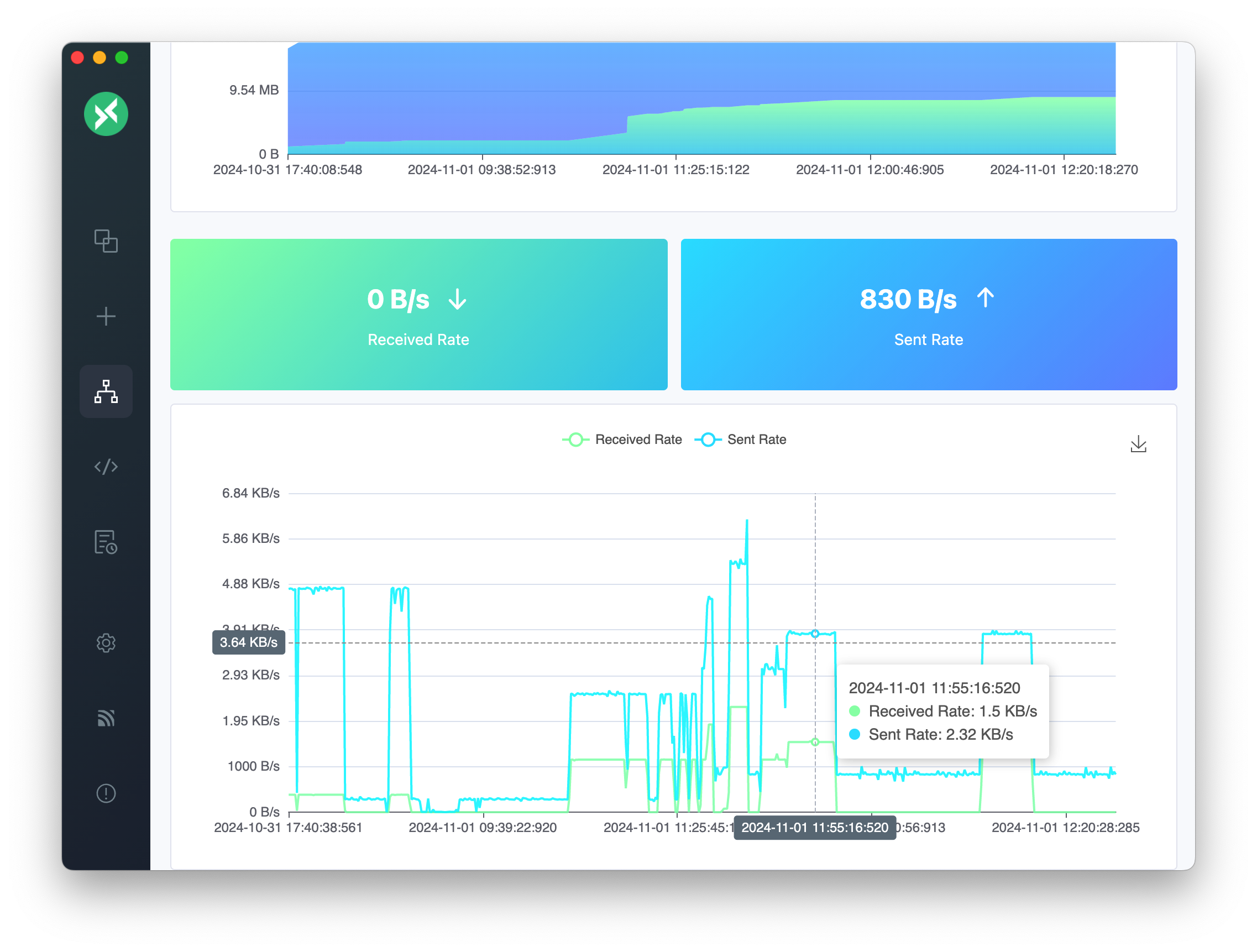
> Note: The rate data is calculated based on the time interval the MQTT Broker sends the system topic. The shorter the sampling interval, the more accurate the data. You can adjust the sending interval of the system topic in the MQTT Broker configuration to obtain more accurate data.
### Payload Inspector
Starting from v1.13.0, the Viewer includes a Payload Inspector for examining the messages of a single topic in detail.
Select `Viewer` -> `Payload Inspector` from the left menu bar, then choose a connection and a topic. You can filter messages by All, Received, or Published.
- **Diff View**: compares a message with the previous message on the same topic, highlighting what changed. Use the older and newer buttons to move through the message history, or jump back to the latest message. The topic needs at least two messages.
- **JSON Tree**: shows JSON payloads as a collapsible tree that you can search. Select `Visualize JSON Tree` to view the structure as a graph, set the expansion level, click nodes to expand or collapse them, and right-click a node to copy its subtree as JSON.
## Others
### Connection Operations
By clicking the action bar button at the top, you can quickly perform various connection operations such as disconnecting, deleting the current connection, importing and exporting data, and managing timed messages and byte statistics.
Right-click a connection in the connection list to duplicate it, open it in a new window, or copy its Host or full Broker address.
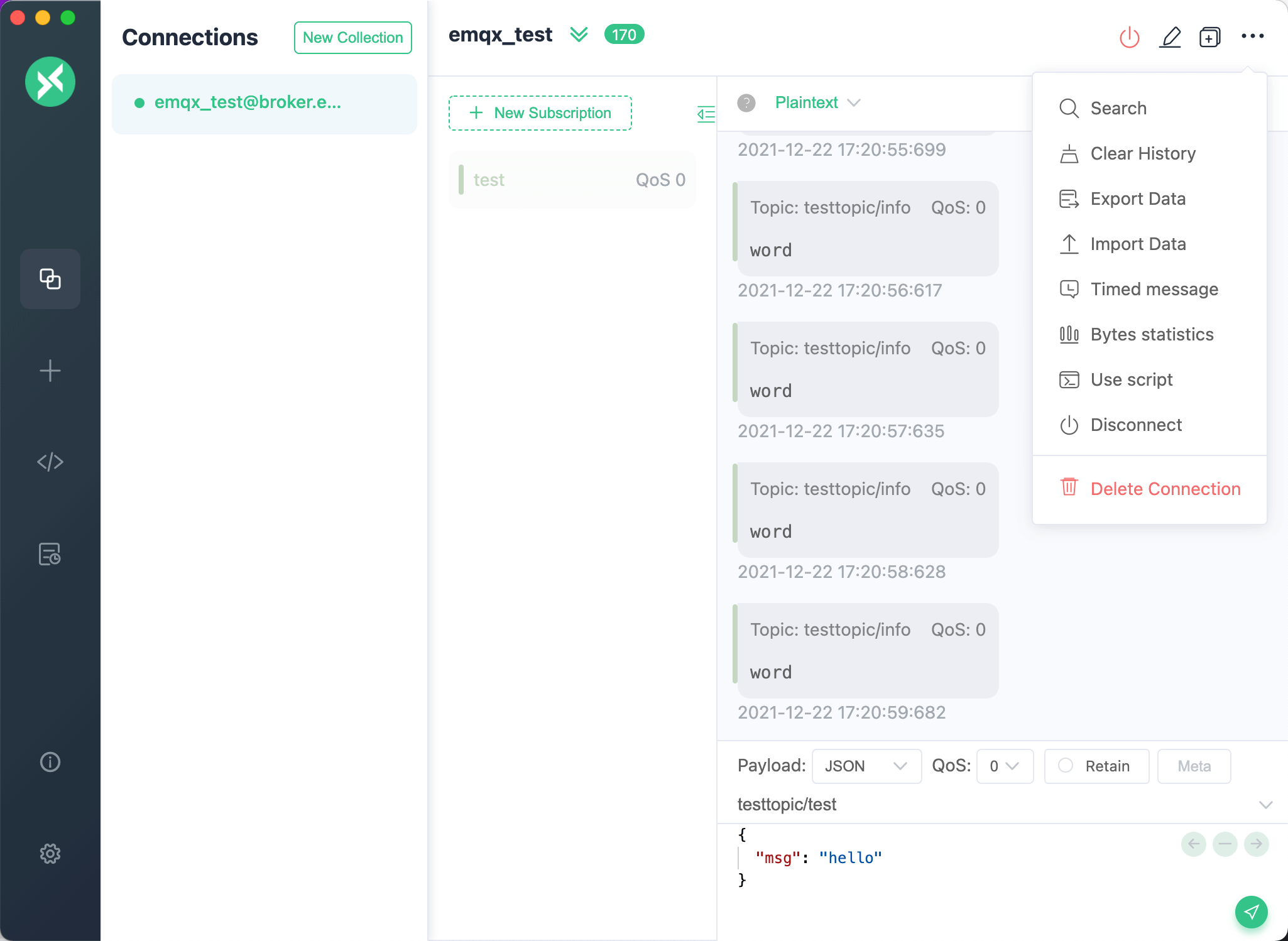
### Message Processing
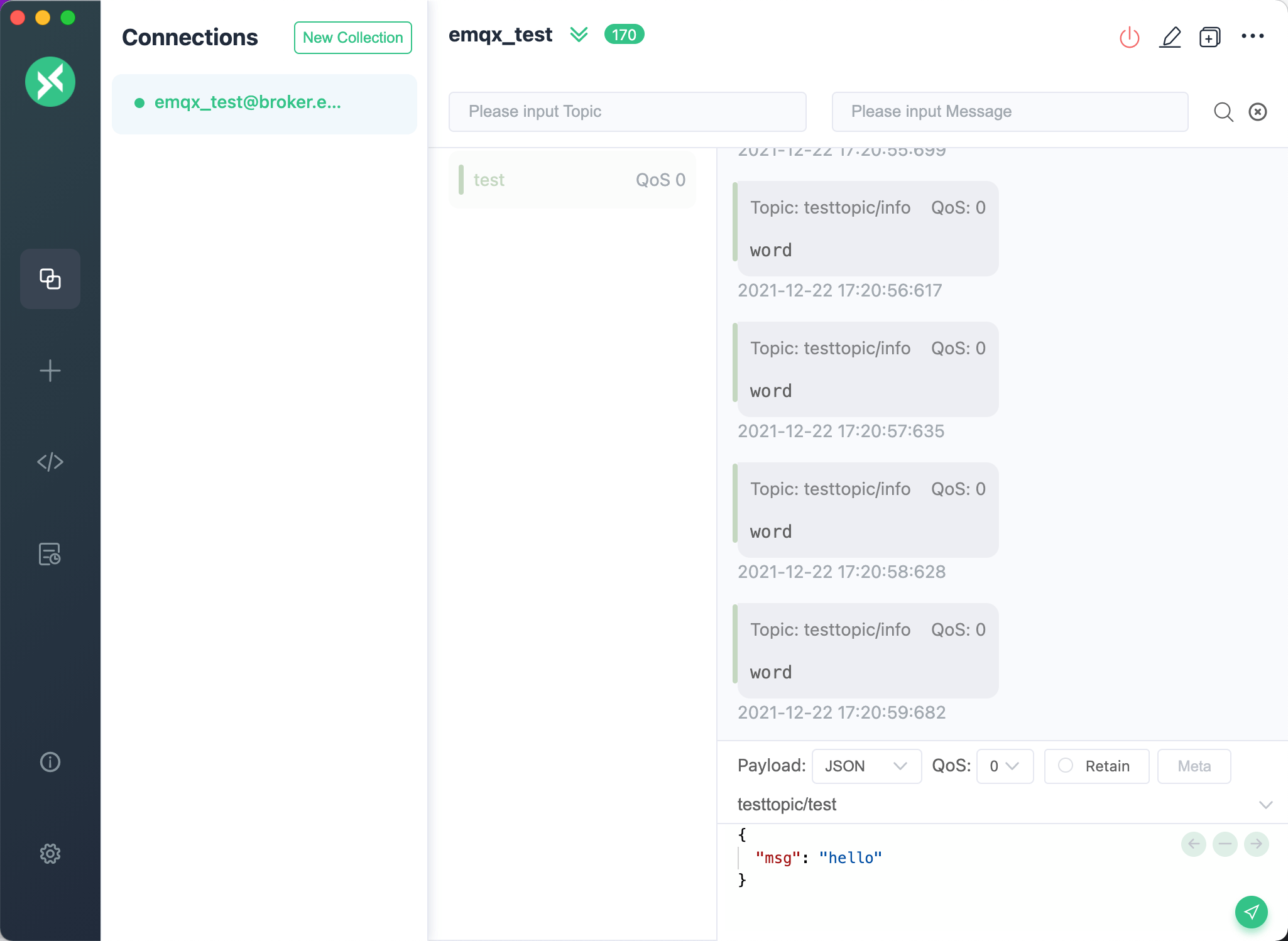
You can filter messages by selecting the "All", "Received", or "Published" buttons in the upper right corner of the message bar.
Click the action bar button at the top and choose the "Search" option, or use the shortcut. macOS users can use the command + f shortcut, while other users can use the control + f shortcut to open the topic search function, which allows for fuzzy queries of topics and payloads.
To clear the sent and received messages of the current connection, click the `Clear History` button in the toolbar at the top of the connection page. A confirmation dialog names the connection, and the messages are cleared only after you confirm.
### Check for Updates
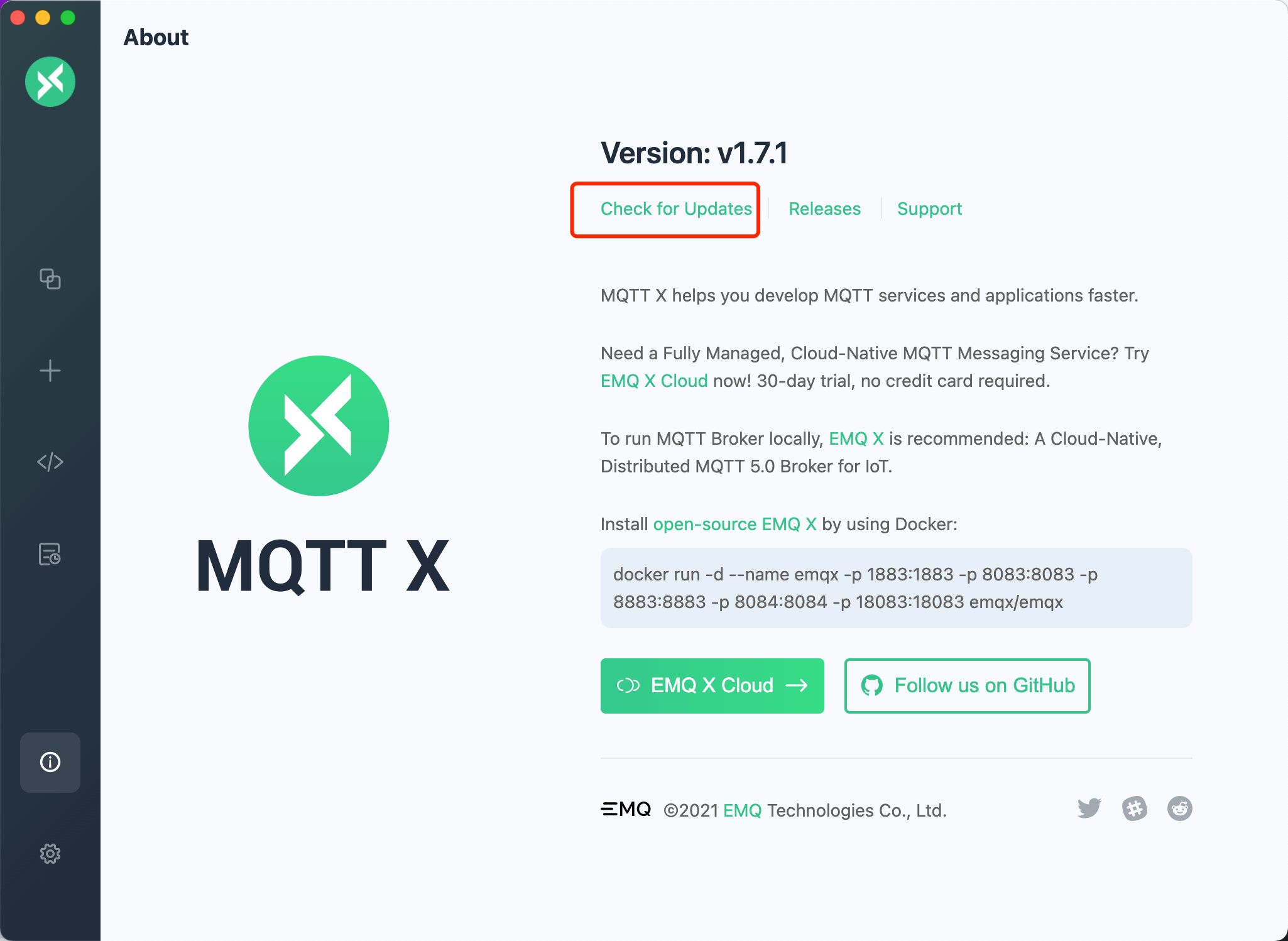
Click the "i" button at the bottom left to access the "About" page, where you can find information about the version of [MQTTX](https://mqttx.app) and related information about [EMQX](https://www.emqx.com/en). Click "Check for Updates" to check if there are newer versions available.
### Multi-Window
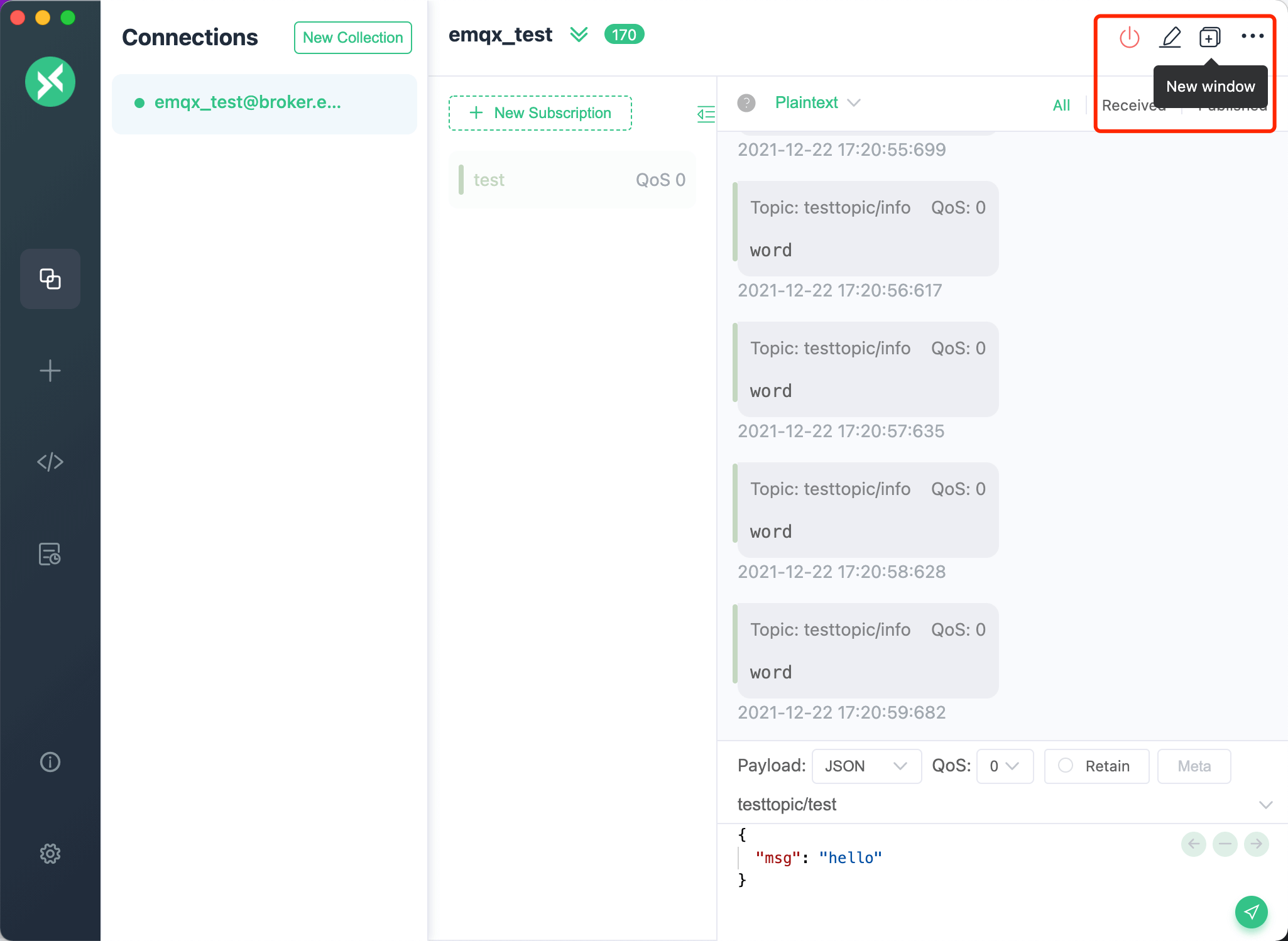
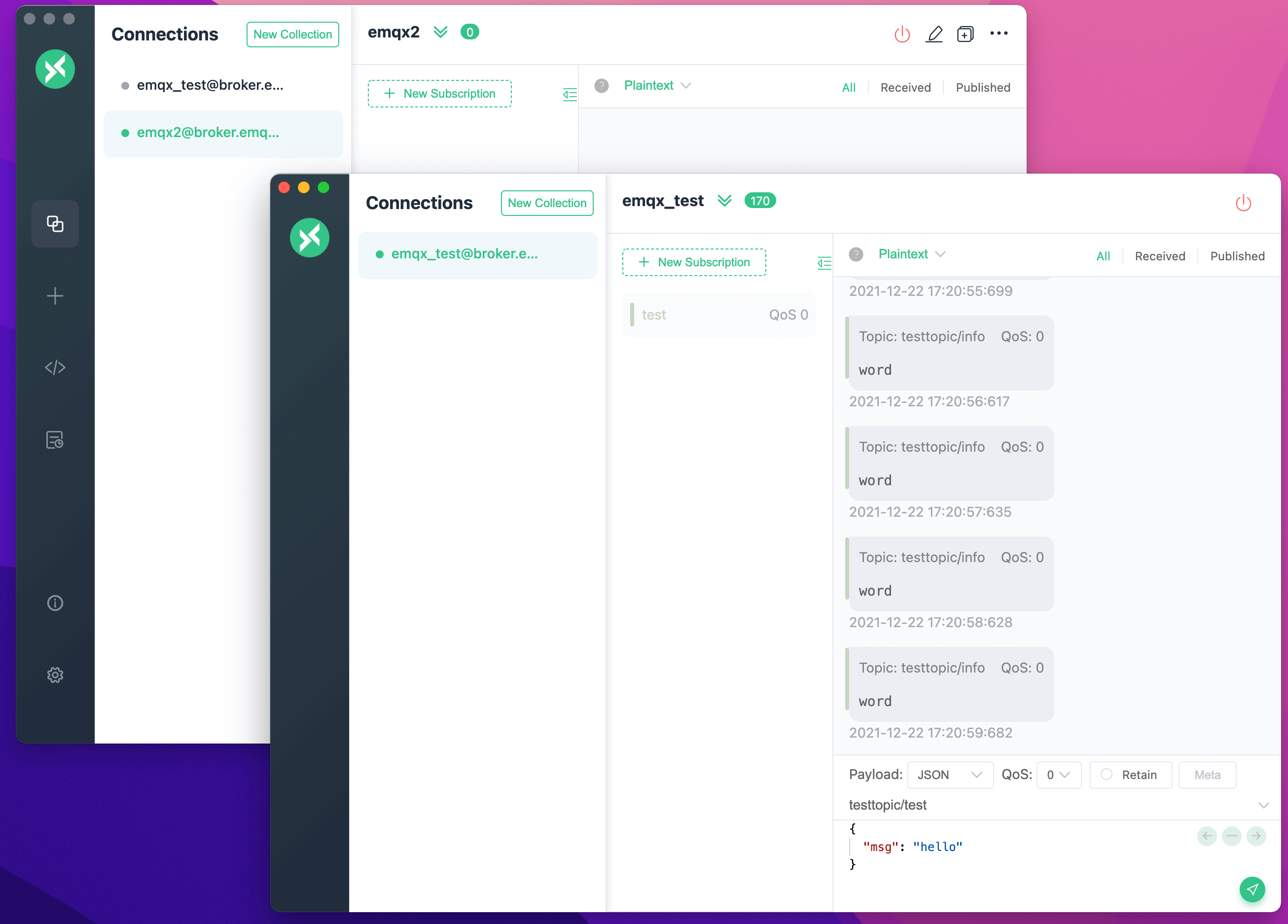
In the connection list, you can right-click and select "New Window" to create a new window for the connection. In the new window, you can establish connections, subscribe to topics, publish and receive messages, and perform other operations. If you have multiple connections or need to view received messages simultaneously, you can create multiple view windows and display them side by side. Starting from v1.4.1, users can also click the window button at the top to quickly create a new window.
### Timed Messages
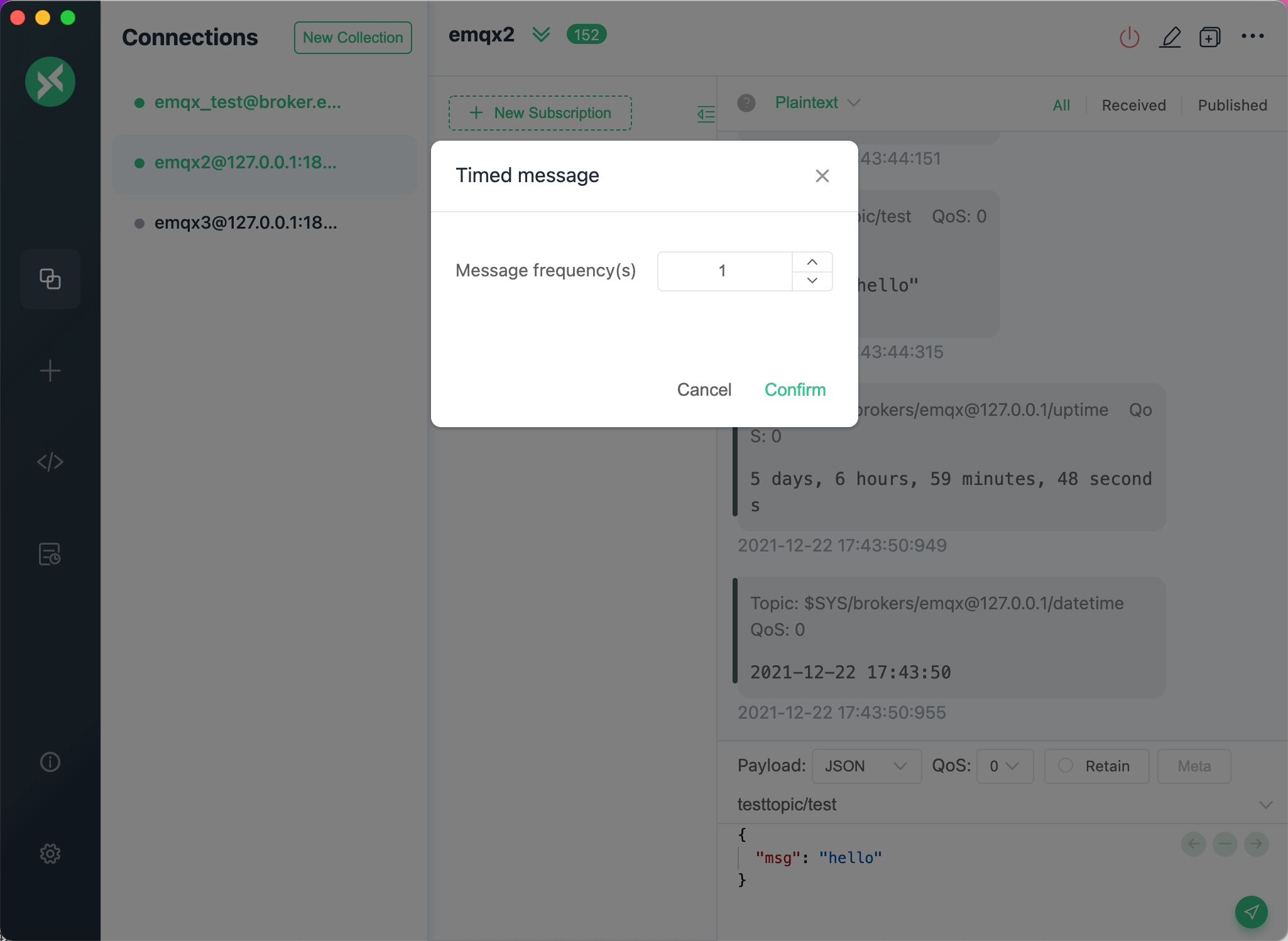
In the drop-down menu in the upper right corner, you can select the "Timed Message" option to set the sending frequency in seconds. After the setting is completed, manually send a message, and MQTTX will automatically send the message according to the specified frequency.
---
Source: https://mqttx.app/docs/agent
# MQTTX Agent
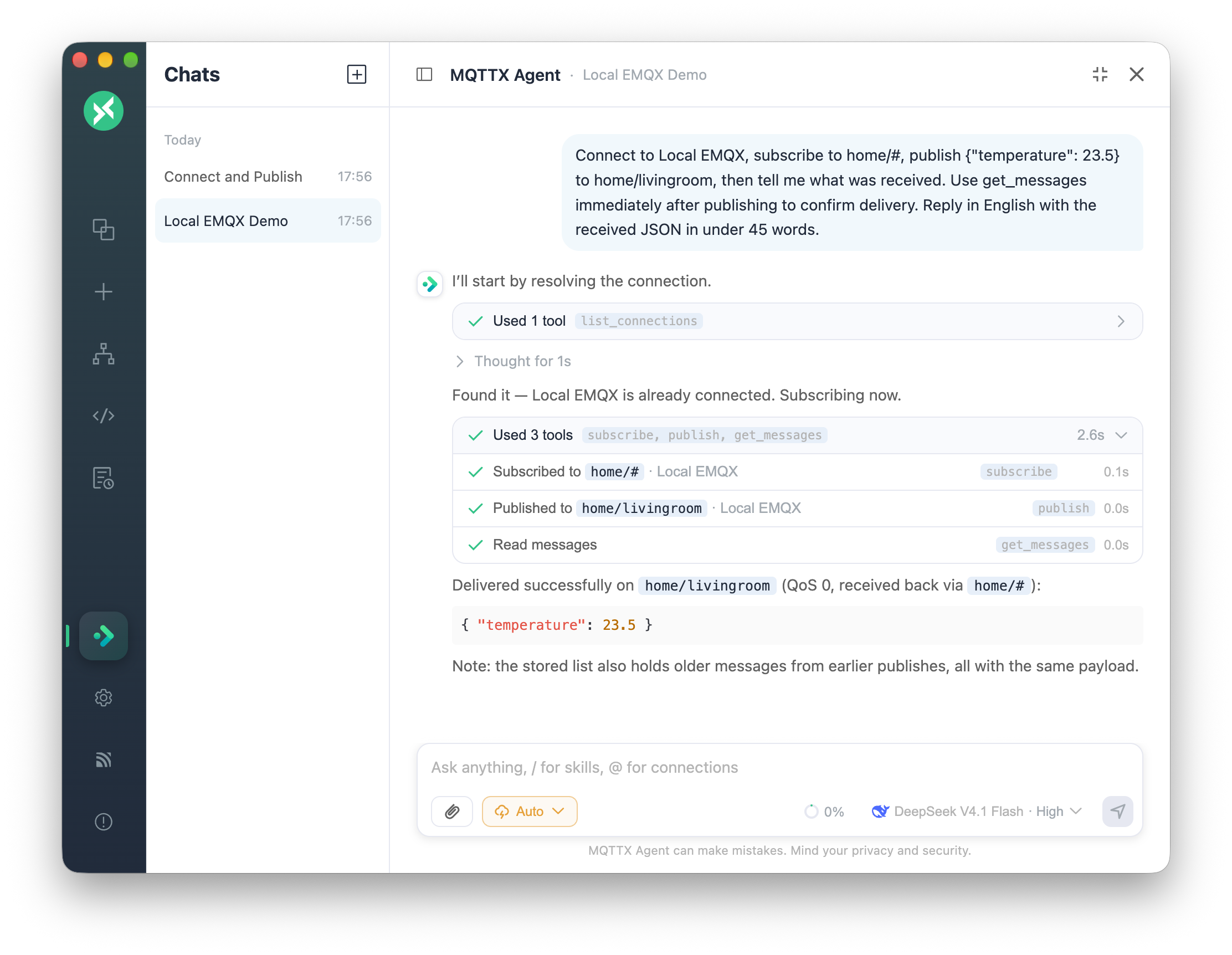
MQTTX Agent is an AI Agent built into the desktop client for operating MQTTX through natural language. Use this guide to configure a model provider, provide connection context, run MQTT tasks, and check their results.
Start with the provider and permission settings below. Then follow a task example to manage connections and messages, interact with a device using its supplied MQTT protocol, investigate traffic, or prepare code and payload processing. Keep tool results in the same conversation when continuing a task.
## Set up your model provider
1. Open **Settings → MQTTX Agent** and turn on **Enable MQTTX Agent**.
2. Configure your provider's **API Host**, **API Key**, and **Model**. Choose a model that supports tool calls for operations in MQTTX.
3. Open the Agent from the star button in the left sidebar. To use it alongside another view, open the floating window with `Cmd/Ctrl + J` or the **MQTTX Agent** button on a connection or script page.
4. Submit a read-only request, such as “List my existing MQTTX connections.” Check that the reply includes a tool result. If the request fails, check the provider endpoint, credentials, and tool-call support before running a task.
Common API hosts are listed below. Use the endpoint and credentials supplied by your provider.
| Provider | API Host |
| ------------ | -------------------------------------------------- |
| OpenAI | `https://api.openai.com/v1` |
| DeepSeek | `https://api.deepseek.com/v1` |
| Anthropic | `https://api.anthropic.com/v1` |
| xAI | `https://api.x.ai/v1` |
| Google | `https://generativelanguage.googleapis.com/v1beta` |
| SiliconFlow | `https://api.siliconflow.cn/v1` |
| Azure OpenAI | `https://.openai.azure.com` |
### Choose how to work
Use **full screen** for a longer conversation, or the **floating window** to keep the Agent beside messages, scripts, or a Dashboard. Active connections can continue receiving and saving messages while the full-screen conversation is open.
Drag the floating window's title bar to move it, or an edge or corner to resize it. MQTTX remembers its position and size. The expand button switches to full screen. `Esc` closes the floating window or returns from full screen to the floating window. Selecting another page in the left sidebar leaves full screen.
### Choose reasoning strength
Configure a supported reasoning level in **Settings → MQTTX Agent → Reasoning strength**, or in the composer's model menu below the model list.
- **Auto** uses the provider's default.
- **Off** disables reasoning.
- **Low** through **Max** request increasing reasoning effort.
The menu only lists levels supported by the selected model. Models without this control hide the setting. If a model does not support the level you selected previously, MQTTX uses the nearest supported level. The current level appears next to the model name.
## Give the Agent useful context
### Mention a connection
Type `@` in the composer and select a connection with `↑` / `↓` and `Enter`. The connection you are viewing appears first, and connected entries have a green dot. The Agent reads the mentioned connection before acting on your request.
A connection mention identifies the target when a conversation involves several devices or brokers. Include the topic, payload field, or expected result in the same request.
### Choose a Skill
Type `/` to choose a built-in Skill for client code, test data, schemas and codecs, custom functions, MQTT/EMQX knowledge, connection diagnostics, MQTTX CLI, or Zero EMQX. A Skill supplies guidance for the selected task.
The MQTTX CLI Skill prepares commands for manual execution in a terminal. The desktop Agent does not execute shell commands.
Generated code projects appear as ZIP file cards with controls to download the archive or show it in its folder. Files are stored under `agent-files` in the app data directory and are removed when you delete the conversation.
### Add a screenshot or file
Paste a screenshot, drop files onto the panel, or use the 📎 button to add context to a request. For example, include the payload you need to decode or the files used by a TLS connection.
Images are sent to the model. Text files are sent as text, with only the first 64 KB included for larger files. Certificate and key files are referenced by path; their contents are never sent to the model. The Agent can use their paths to configure TLS:
> Connect to broker.example.com on port 8883, using `ca.crt` as the CA, `client.crt` as the client certificate, and `client.key` as the private key.
## Review actions as the Agent works
Choose the permission mode before running a task. During execution, inspect each tool step and its result. Use the approval card to allow or deny a requested action:
- **Ask before actions** is the default. Reads run automatically. Creating, connecting, subscribing, publishing, deleting, and every MCP tool call wait for your approval. Choose **Allow once**, **Always allow this tool in this chat**, or **Deny** on the request card.
- **Auto** runs these operations without the approval prompt.
Script tests always require approval, including in Auto mode. **Always allow this tool in this chat** does not apply to script tests.
Switch the current conversation's mode from the pill in the composer. Set the default for new conversations in **Settings → MQTTX Agent → Default permission mode**. MQTTX asks you to confirm the risk the first time you select Auto.
### Continue a task that reaches the step limit
One reply can use up to **Max steps per reply** tool steps. The default is 50, and Settings supports values from 10 to 200. A reply that reaches the limit pauses and shows **Continue**. Select it to resume the work.
## Use MQTTX through conversation
### Manage connections and messages
Select an existing connection with `@`, or include the broker address, port, and required connection settings when requesting a new one. State which operations to perform: organize groups, configure TLS, connect or disconnect, manage subscriptions, or publish messages. For example:
> Connect Factory Demo, subscribe to `factory/+/telemetry`, and show the latest messages it receives.
Replace Factory Demo with the connection to use. Approve the requested actions, then open the connection and check its status, subscription list, and received messages. Keep using the same `@` connection context for further configuration or traffic checks.
### Interact with devices through natural language
Provide the device's MQTT protocol before requesting status checks or control. Include its telemetry topic, command topic and payload format, and state-report topic. Use the resulting messages to check what happened.
The following example assumes a study temperature sensor and fan implement this protocol:
| Purpose | Topic | JSON payload |
| --------------------- | ------------------------ | -------------------------- |
| Temperature telemetry | `home/study/temperature` | `{"temperature":29.4}` |
| Fan control command | `home/study/fan/set` | `{"power":"on","speed":2}` |
| Reported fan state | `home/study/fan/state` | `{"power":"on","speed":2}` |
1. Connect MQTTX to the devices' broker and subscribe to `home/study/temperature` and `home/study/fan/state`.
2. Confirm that temperature and fan-state messages are arriving. Provide the protocol definitions above in the Agent conversation and select the connection with `@`.
3. Submit the request:
> Check the study temperature and fan state. If the temperature is above 28°C, set the fan to speed 2 and inspect the new device report.
4. In **Ask before actions**, approve the control-command publish when the temperature condition is met. Check the tool result to confirm that the message was sent.
5. Inspect a new `home/study/fan/state` report after the command. Confirm that its power and speed values match `{"power":"on","speed":2}`. Without a matching new report, leave the device outcome unconfirmed.
Use the protocol implemented by the target device. This example follows the supplied protocol for this single request; it does not configure continuous control.
### Investigate unexpected behavior
Mention the connection and describe the unexpected behavior, the relevant topic, and the expected payload. Request the subscriptions, stored or newly arriving messages, and logs needed for the check. For example:
> Check the recent messages from Factory Demo. Explain which fields are present and point out any readings with a different payload structure.
Compare the explanation with the message and log entries returned by the tools. If the required messages are absent, check the connection and subscriptions, then receive new messages before repeating the request. For TLS issues, request local certificate inspection. Certificate and private-key contents stay local.
### Prepare code, data, and payload processing
Specify the language or payload format, the target topic, and an example input or expected output. Request client code, test messages, a Protobuf or Avro schema, or a JavaScript payload transformation. For example:
> Generate a Node.js MQTT client that subscribes to `factory/+/telemetry` and prints each message as JSON.
Review generated code and data against the requested topic and format. For transformation functions and schemas, request a test with representative input and check the output before applying the result. Script tests require approval in every permission mode. Applied transformation functions affect all connections, so review their scope before applying them.
### Explore and present your data
Connect and subscribe to the relevant topics, then confirm that messages are arriving. Request a Topic Tree, a summary of received messages, or Dashboard widgets for specific payload fields. For example, specify a temperature Line chart and humidity Gauge, along with the connection, topic filter, and field names.
Open the resulting view and compare it with the received topics and payloads. To configure widgets manually, follow the [Dashboard guide](https://mqttx.app/docs/advanced#dashboard). Dashboard works independently of the Agent.
## Check the result of a task
After the reply finishes, open the relevant MQTTX view and compare it with the tool results:
- For connection or subscription changes, check the connection status and subscription list.
- For publishing, inspect the publish result and, when the task needs a device response, a new received message.
- For generated code, schemas, or scripts, compare the output with the supplied examples and review any test results before use.
- For a data view, compare its fields and readings with messages received by the selected connection.
If a step failed or the required evidence is missing, include that result in the next request. Specify what remains to be checked rather than treating the task as complete.
## Continue an investigation across a conversation
Conversation history preserves earlier questions and tool results for later review. In full screen, conversations appear on the left. In the floating window, open them with the header's history button. Double-click a title in full screen or use its `···` menu to rename it. Deleting a conversation also deletes its messages and generated files.
For longer conversations, MQTTX Agent summarizes earlier turns automatically and continues with that summary. Select the **Earlier conversation compacted** divider to read it. The panel displays **Compacting the conversation…** while the summary is being prepared.
The context bar below the composer shows how much of the model's context window is in use. Hover over it for token counts and the compaction threshold. Counts from the last reply are exact; values marked `~` are estimates.
## Use tools from your MCP servers
MCP connects tools from external systems to the same conversation. Configure your servers in **Settings → MQTTX Agent → MCP Server Configuration**. Streamable HTTP and SSE URLs are supported:
```json
{
"mcpServers": {
"weather": { "url": "http://127.0.0.1:8000/mcp" },
"legacy": { "url": "http://127.0.0.1:8001/sse" }
}
}
```
After saving the configuration, request an operation supported by one of the servers and inspect the tool result. Available external operations depend on the configured servers. Every MCP tool call asks for approval in Ask mode.
## Capability reference
The Agent can:
- Read connection configuration, TLS certificate information, and groups; create, update, and delete connections.
- Create a free temporary Zero EMQX broker and save its connection.
- Connect and disconnect, subscribe and unsubscribe, and publish Plaintext, JSON, Base64, or Hex messages.
- Start and stop timed publishing, read stored messages, wait for new messages, and clear a connection's messages.
- Inspect certificates and private keys locally, without sending their contents to the model.
- Write, test, and apply transformation functions and schemas; generate client code and test data.
- Build and read the Topic Tree; create Dashboards and widgets and change their grid position and size.
- Read logs, change supported application settings, and call configured MCP tools.
## Message history and privacy
MQTTX can keep receiving and saving messages while the connection and its subscriptions remain active, including after you leave the connection page. Available history depends on the messages MQTTX actually received and saved.
Your conversation and tool results are sent to the model provider you configure. When tools read a connection, saved passwords are masked and certificate or private-key files are returned as paths, without their file contents. Text entered directly in the conversation is sent as written, so keep credentials out of your requests.
## Example: connect MQTT operations to a data view
1. Configure the model provider and open the Agent. Type `/` and select the Zero EMQX Skill.
2. Submit this request:
> Create a temporary Zero EMQX broker, save its connection as Factory Demo, connect, and subscribe to `factory/+/telemetry`. Publish 12 JSON messages with `deviceId` and varying `temperature`, `humidity`, and `pressure` values to `factory/line-01/telemetry`, one at a time. Create a Factory Overview dashboard with the three current readings and a temperature trend chart, then open it.
3. In Ask mode, review and approve the requested creation, connection, subscription, publishing, and Dashboard actions. Creating the saved connection and connecting to the broker are separate steps; the request includes both.
4. Open Factory Demo. Confirm that it is connected, that the subscription exists, and that separate JSON messages arrived on the specified topic.
5. Open Factory Overview and compare its current readings with the latest received message. Select a history range that includes the messages to inspect the temperature trend.
The Zero EMQX broker is isolated and free, expires according to the lifecycle returned by the service, and is intended for testing. Check the returned lifecycle when using it. Its password stays in the saved connection rather than being returned to the model. Dashboard displays data received by the connection. See [Dashboard](https://mqttx.app/docs/advanced#dashboard) for the manual setup and data-source controls.
---
Source: https://mqttx.app/docs/troubleshooting
# Troubleshooting Guide
When encountering issues with MQTTX, providing detailed information can significantly speed up the resolution process. This guide outlines the essential information to collect for most troubleshooting scenarios, especially for UI-related problems, debugging MQTT packets, or when Developer Tools access is needed.
## Information to Collect
**1. Screenshot of the Issue**
A clear screenshot depicting the problem. Please ensure any sensitive information is redacted.
**2. Steps to Reproduce**
Provide a detailed, step-by-step account of how to reproduce the issue consistently. The more specific you are, the easier it will be to diagnose.
**3. System and MQTTX Information**
Collect this information to help understand the environment:
- **MQTTX Version**: Click the "i" button (About) at the bottom left of the MQTTX interface to find the version information.
- **Operating System**: Specify your OS and version (e.g., Windows 10 Pro, macOS Sonoma 14.2, Ubuntu 22.04 LTS).
**4. Network Environment**
Describe your network setup:
- Are you using a VPN, corporate proxy, Zscaler, or any other local firewall software?
- Are there any specific network configurations that might interfere with MQTTX's connectivity or rendering?
**5. Developer Tools Console Errors**
For UI-related issues, white screens, rendering errors, or unexpected behavior in the interface, the Developer Tools console is invaluable.
- **How to Open Developer Tools:**
- **Using Keyboard Shortcuts:**
- **Windows/Linux:** `Ctrl + Shift + I`
- **macOS:** `Cmd + Opt + I`
- **Using Menu:**
- Click on the top menu `View` -> `Toggle Developer Tools`
- **Using the Console:**
- Once Developer Tools are open, click on the **`Console`** tab.
- Look for any error messages (usually highlighted in red) or warnings that appear when you reproduce the issue.
- Copy and paste the relevant error messages in full.
- **Important Note on Developer Tools:**
- Developer Tools are not loaded by default in MQTTX to optimize performance and maintain a smaller application bundle size.
- They are designed to load only when explicitly invoked using the shortcuts or menu. This allows for on-site debugging in production environments, which is crucial when encountering visual glitches or functional impairments in the UI, enabling inspection of network traffic, console logs, and performance profiling.
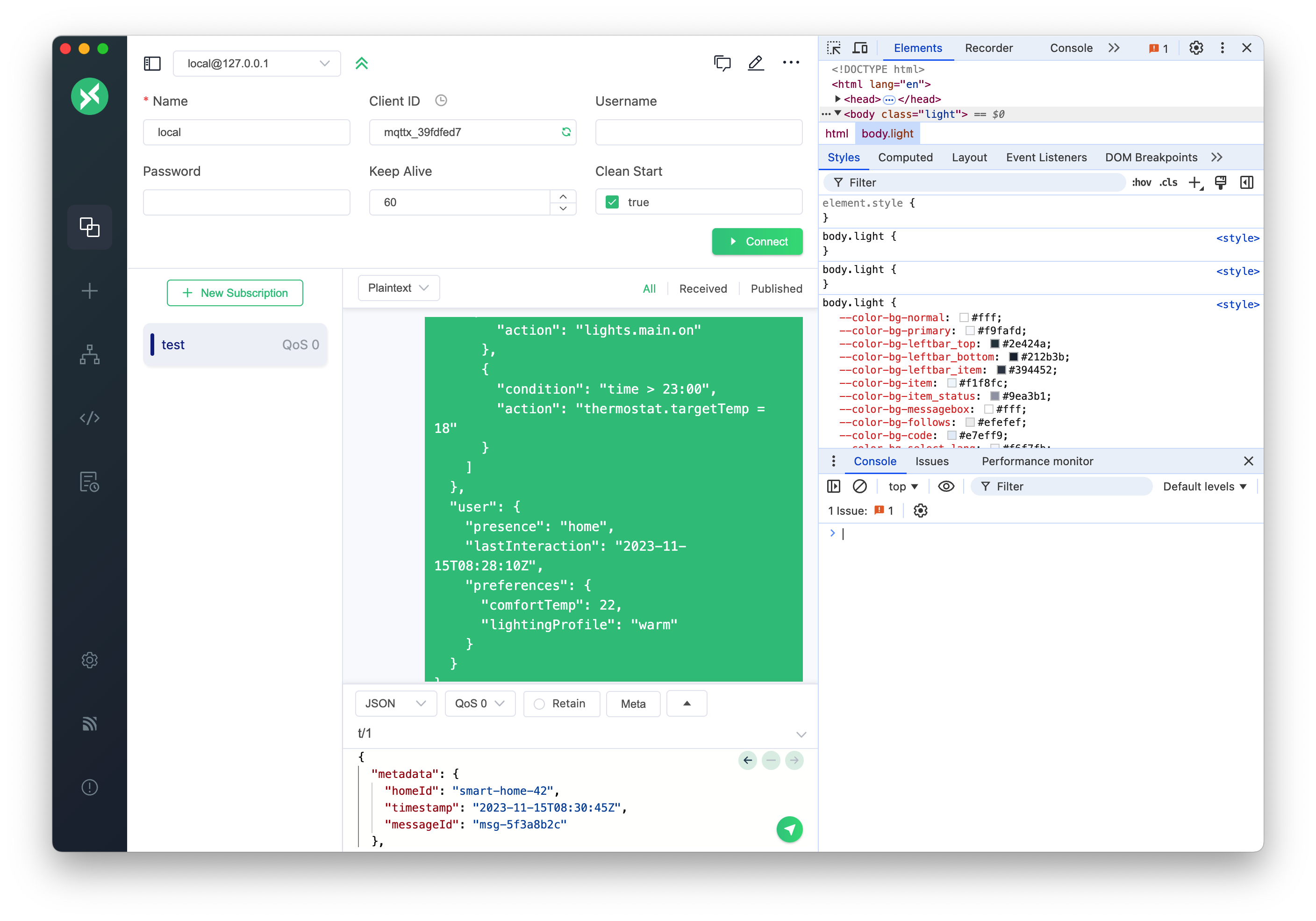
**6. MQTTX Logs**
MQTTX generates logs that can provide insights into its operations and any errors encountered.
- **Log Levels**: The log system displays information at four levels:
- `DEBUG`: Detailed debugging information, including MQTT.js packet details, to assist in troubleshooting.
- `INFO`: Feedback on user operational information.
- `WARN`: Warnings about unsafe actions or potential risks.
- `ERROR`: Error messages when a failure occurs.
- **Log File Locations**:
| OS | Log File Path |
| ------- | ---------------------------------------------- |
| Linux | `~/.config/MQTTX/logs/log` |
| macOS | `~/Library/Application Support/MQTTX/logs/log` |
| Windows | `%USERPROFILE%\AppData\Roaming\MQTTX\logs\log` |
- **Log Rotation**: Each time MQTTX is closed, the current log file is renamed with a timestamp (e.g., `[YY]-[MM]-[DD]T[hh]:[mm].log`), and a new `log` file is created on the next launch. Please provide the relevant log file(s).
## Addressing White Screens or Rendering Errors
Through keyboard shortcuts (`Ctrl + Shift + I` / `Cmd + Opt + I`) or menu options (`View` -> `Toggle Developer Tools`), you can access Developer Tools to diagnose issues like white screens or unexpected rendering behavior in production environments. Since DevTools are disabled by default for performance reasons, these access methods provide essential mechanisms for users and contributors to directly obtain debugging information when these problems occur, facilitating faster root-cause analysis.
_(A future improvement could involve capturing `console.error` messages automatically and providing an option to upload them, which would reduce the need for manual log collection.)_
By providing this information, you can help the development team and community understand and resolve your issue more effectively.
---
Source: https://mqttx.app/docs/faq
# FAQ
## What is the MQTT Client?
An [MQTT client](https://www.emqx.com/en/blog/mqtt-client-tools) is a device or software component that utilizes the MQTT library and connects to an [MQTT Broker](https://www.emqx.com/en/blog/the-ultimate-guide-to-mqtt-broker-comparison) over the network. It facilitates the publishing and subscribing of messages in the MQTT communication protocol. The client can act as a publisher, sending messages to the broker, or as a subscriber, receiving messages from the broker. It's also possible for a client to perform both publishing and subscribing functions simultaneously.
MQTT clients can vary in form, ranging from small resource-constrained devices to full-fledged computer software with graphical user interfaces, designed for testing and development purposes. Essentially, any device or software component that establishes a connection to an MQTT service using the TCP/IP protocol can be referred to as an MQTT client.
## Why choose MQTTX?
MQTTX is an all-in-one MQTT client tool that offers a seamless experience across multiple platforms. Whether you prefer a desktop application, a command-line interface (CLI), or a web-based client, MQTTX has you covered. It provides a user-friendly interface for managing MQTT connections, subscribing to topics, publishing messages, and exploring the MQTT protocol. With MQTTX, you can test MQTT/TCP, MQTT/TLS, and [MQTT over WebSockets](https://www.emqx.com/en/blog/connect-to-mqtt-broker-with-websocket) connections, making it suitable for a wide range of use cases. Its versatility and convenience make it an excellent choice for MQTT development, testing, and learning.
## Why does MQTTX Desktop use the UI design of chat software?
Based on the understanding of the MQTT protocol's pub/sub model, MQTTX adopts the UI design of chat software to simplify the operation logic of the interface. For example, when creating a new connection as "User A" and subscribing to a "Topic," it resembles joining a chat channel. Similarly, creating another connection as "User B" and publishing a message to the subscribed "Topic" allows "User A" to receive the message on their page. This design approach helps users quickly grasp and test MQTT-related content by emulating the communication style of chat software, which is analogous to how devices in the IoT world can utilize MQTT's pub/sub feature for inter-device communication.
## Is MQTTX free?
Yes, MQTTX is completely free. It is an open-source project available under the [Apache-2.0 LICENSE](https://github.com/emqx/MQTTX/blob/main/LICENSE).
## What should I do if I encounter issues with MQTTX?
If you encounter any issues or problems with MQTTX, here are a few steps you can take:
1. Visit the [MQTTX GitHub repository](https://github.com/emqx/MQTTX) and go to the [Issues](https://github.com/emqx/MQTTX/issues?q=is%3Aissue+is%3Aopen+sort%3Aupdated-desc) tab. You can check if your issue has already been reported or create a new issue to provide feedback and describe the problem you're facing.
2. Another option is to participate in the [MQTTX GitHub Discussions](https://github.com/emqx/MQTTX/discussions) section. Here, you can engage with the community, ask questions, and share your feedback.
3. If you prefer direct communication, you can reach out to the MQTTX community through their official channels for assistance and to provide feedback on any issues you may be experiencing.
Remember, the MQTTX community is there to help, so don't hesitate to ask for support and provide detailed information about the problem you're encountering.
---
Source: https://mqttx.app/docs/learning-resources
# Learning Resources
## MQTT Programming
### Server-side
- [MQTT in Python with Paho Client: Beginner's Guide 2024](https://www.emqx.com/en/blog/how-to-use-mqtt-in-python)
- [MQTT with Java: A Beginner's Guide with Examples & FAQs](https://www.emqx.com/en/blog/how-to-use-mqtt-in-java)
- [MQTT with Node.js: A Beginner's Guide with Examples & FAQs](https://www.emqx.com/en/blog/how-to-use-mqtt-in-nodejs)
- [How to use MQTT in PHP](https://www.emqx.com/en/blog/how-to-use-mqtt-in-php)
- [How to Use MQTT in Golang with Paho Client](https://www.emqx.com/en/blog/how-to-use-mqtt-in-golang)
- [How to Use MQTT in Rust with Rumqttc Client](https://www.emqx.com/en/blog/how-to-use-mqtt-in-rust)
- [How to Use MQTT in C# with MQTTnet](https://www.emqx.com/en/blog/connecting-to-serverless-mqtt-broker-with-mqttnet-in-csharp)
- [How to Use MQTT in Dart](https://www.emqx.com/en/blog/how-to-use-mqtt-in-dart)
### Front-end
- [JavaScript MQTT Client: A Beginner's Guide to MQTT.js](https://www.emqx.com/en/blog/mqtt-js-tutorial)
- [A Quickstart Guide to Using MQTT over WebSocket](https://www.emqx.com/en/blog/connect-to-mqtt-broker-with-websocket)
- [How to use MQTT in the Vue project](https://www.emqx.com/en/blog/how-to-use-mqtt-in-vue)
- [How to Use MQTT in The React Project](https://www.emqx.com/en/blog/how-to-use-mqtt-in-react)
- [How to Use MQTT in The Angular Project](https://www.emqx.com/en/blog/how-to-use-mqtt-in-angular)
- [How to use MQTT in the Electron project](https://www.emqx.com/en/blog/how-to-use-mqtt-in-electron)
- [MQTT with Qt6: A Beginner's Guide with Examples](https://www.emqx.com/en/blog/how-to-create-an-mqtt-application-in-qt6)
- [Using MQTT in Unity with M2MqttUnity Library: A Step-by-Step Guide](https://www.emqx.com/en/blog/using-mqtt-in-unity-with-m2mqttunity-library-a-step-by-step-guide)
### Mobile
- [How to Use MQTT in The React Native Project](https://www.emqx.com/en/blog/how-to-use-mqtt-in-react-native)
- [CocoaMQTT v2.0: The first iOS MQTT 5.0 client](https://www.emqx.com/en/blog/ios-mqtt5-client)
- [Android and MQTT: Step by Step Guide](https://www.emqx.com/en/blog/android-connects-mqtt-using-kotlin)
- [How to Use MQTT in the Flutter Project](https://www.emqx.com/en/blog/using-mqtt-in-flutter)
- [Securing MQTT on Android with SSL/TLS: A Step-by-Step Guide](https://www.emqx.com/en/blog/android-mqtt-ssl-tls-authentication)
### Embedded Hardware
- [How to Use MQTT on Raspberry Pi with Paho Python Client](https://www.emqx.com/en/blog/use-mqtt-with-raspberry-pi)
- [MicroPython MQTT Tutorial Based on Raspberry Pi](https://www.emqx.com/en/blog/micro-python-mqtt-tutorial-based-on-raspberry-pi)
- [MQTT on ESP32: A Beginner's Guide](https://www.emqx.com/en/blog/esp32-connects-to-the-free-public-mqtt-broker)
- [Using MQTT on ESP8266: A Quick Start Guide](https://www.emqx.com/en/blog/esp8266-connects-to-the-public-mqtt-broker)
- [Remotely Control an LED with ESP8266 and MQTT](https://www.emqx.com/en/blog/esp8266_mqtt_led)
## MQTT Tutorials
### MQTT Basics
- [MQTT Publish-Subscribe Pattern](https://www.emqx.com/en/blog/mqtt-5-introduction-to-publish-subscribe-model)
- [How to Establishing an MQTT Connection?](https://www.emqx.com/en/blog/how-to-set-parameters-when-establishing-an-mqtt-connection)
- [MQTT Topics and Wildcards](https://www.emqx.com/en/blog/advanced-features-of-mqtt-topics)
- [MQTT Session Guide](https://www.emqx.com/en/blog/mqtt5-new-feature-clean-start-and-session-expiry-interval)
- [MQTT QoS and Protocol Flows](https://www.emqx.com/en/blog/introduction-to-mqtt-qos)
### MQTT Advanced
- [Retained Messages](https://www.emqx.com/en/blog/mqtt5-features-retain-message)
- [Will Messages](https://www.emqx.com/en/blog/use-of-mqtt-will-message)
- [Request / Response](https://www.emqx.com/en/blog/mqtt5-request-response)
- [User Properties](https://www.emqx.com/en/blog/mqtt5-user-properties)
- [Topic Alias](https://www.emqx.com/en/blog/mqtt5-topic-alias)
- [Payload Format Indicator & Content Type](https://www.emqx.com/en/blog/mqtt5-new-features-payload-format-indicator-and-content-type)
- [Shared Subscriptions](https://www.emqx.com/en/blog/introduction-to-mqtt5-protocol-shared-subscription)
- [Subscription Options](https://www.emqx.com/en/blog/an-introduction-to-subscription-options-in-mqtt)
- [Subscription Identifier](https://www.emqx.com/en/blog/subscription-identifier-and-subscription-options)
- [Keep Alive](https://www.emqx.com/en/blog/mqtt-keep-alive)
- [Message Expiry Interval](https://www.emqx.com/en/blog/mqtt-message-expiry-interval)
- [Maximum Packet Size](https://www.emqx.com/en/blog/best-practices-of-maximum-packet-size-in-mqtt)
- [Reason Codes & Quick Reference](https://www.emqx.com/en/blog/mqtt5-new-features-reason-code-and-ack)
- [Enhanced Authentication](https://www.emqx.com/en/blog/leveraging-enhanced-authentication-for-mqtt-security)
- [Control Packets](https://www.emqx.com/en/blog/introduction-to-mqtt-control-packets)
---
Source: https://mqttx.app/docs/development
# Development
## Development Guide
Use Git, Yarn, and Node.js 22 for development, matching [`.nvmrc`](https://github.com/emqx/MQTTX/blob/main/.nvmrc). Check [`package.json`](https://github.com/emqx/MQTTX/blob/main/package.json) and `.nvmrc` when switching branches. Familiarity with Vue.js, Electron, and TypeScript is recommended.
For contributions, fork the repository first and use your fork’s URL in the clone command. If you use [nvm](https://github.com/nvm-sh/nvm), run `nvm use` as shown below; otherwise, select the required Node.js version with your version manager.
```shell
# Clone the repository
git clone https://github.com/emqx/MQTTX.git
# Install dependencies
cd MQTTX
nvm use
yarn install
# Compile and hot reload for development
yarn run electron:serve
# Compile and compress to build a production version
yarn run electron:build
```
After the building is successful, the corresponding installation file for the successful building will appear in the `dist_electron` directory.
If you need to package it as an installation package for an independent operating system, please refer to the following command:
```shell
# For Windows
yarn run electron:build-win
# For Linux
yarn run electron:build-linux
# For macOS
yarn run electron:build-mac
```
## Contributing
Please make sure to read the [Contributing Guide](https://github.com/emqx/MQTTX/blob/main/.github/CONTRIBUTING.md) before making a pull request.
---
Source: https://mqttx.app/docs/cli
# Introduction
[MQTTX CLI](https://mqttx.app/cli) is the command-line edition of MQTTX. Use it to debug MQTT connections from a terminal, automate tests in shell scripts or CI, and benchmark brokers without a graphical interface. It runs on macOS, Windows, and Linux.
See [Installation](https://mqttx.app/docs/cli/downloading-and-installation) to choose the one-line install script, a binary, Homebrew, npm, or Docker installation. The [Get Started guide](https://mqttx.app/docs/cli/get-started) covers commands and options.
## Preview
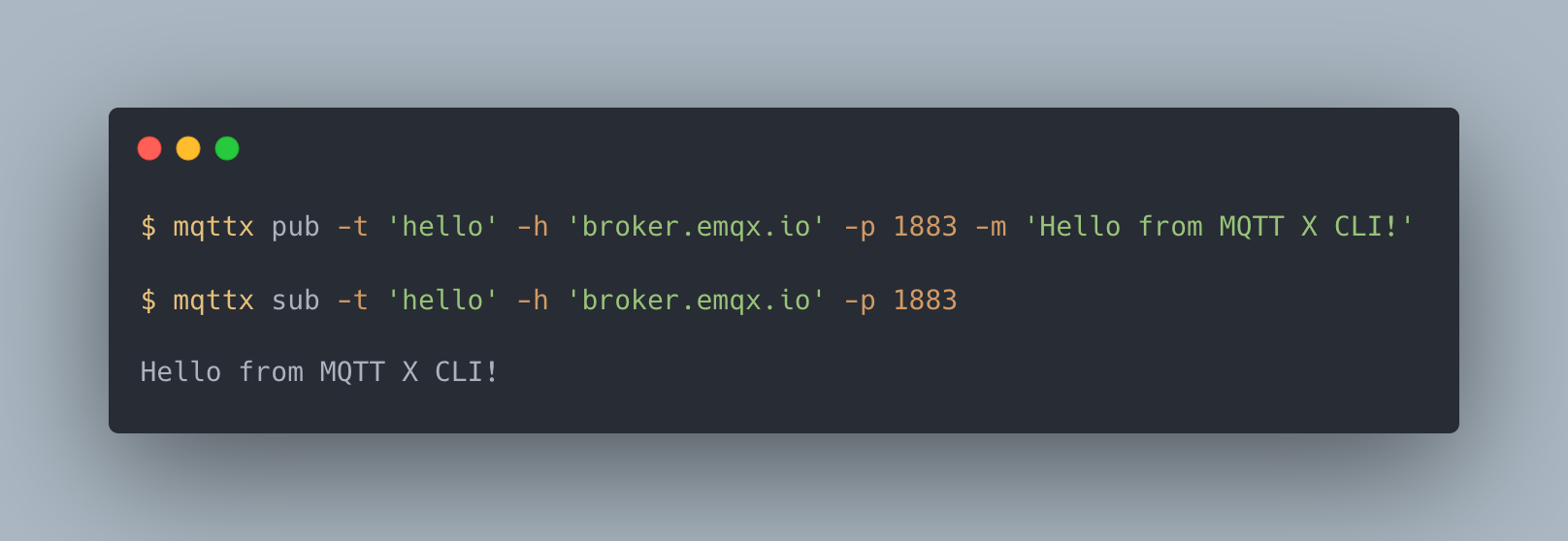
## Main Features
- Connect, publish, and subscribe with `mqttx conn`, `mqttx pub`, and `mqttx sub`.
- Use MQTT 3.1, 3.1.1, and 5.0 over TCP, TLS, WebSocket, or secure WebSocket, with one-way or two-way TLS authentication.
- Configure MQTT 5.0 properties, including user properties, response topics, correlation data, and CONNACK Response Information.
- Read messages from stdin, pipe received messages to other tools, or save received messages to files.
- Save and load connection options as JSON or YAML for repeatable tests.
- Encode and decode JSON, Base64, Hex, CBOR, and MsgPack payloads, with Protobuf and Avro schema support.
- Run connection, publishing, and subscription benchmarks with `mqttx bench`.
- Generate IoT test data with `mqttx simulate`, using built-in or custom scenarios.
- Use the [MQTTX CLI skill](https://mqttx.app/docs/cli/agent-skill) to let external AI agents run tests and diagnose MQTT problems.
---
Source: https://mqttx.app/docs/cli/downloading-and-installation
# Installation
MQTTX CLI runs on Windows, macOS, and Linux. Install it with one of:
- [Install script](#install-script) (recommended)
- [Homebrew](#homebrew) (macOS)
- [NPM](#npm)
- [Docker](#docker)
- [Desktop client](https://mqttx.app/docs/advanced#install-mqttx-cli)
- [Manual download](#manual-download)
## Install Script
Installs the right build for your OS and CPU into your home directory. No sudo needed.
macOS and Linux:
```shell
curl -fsSL https://emqx.sh/mqttx | sh
```
Windows (PowerShell):
```powershell
irm https://emqx.sh/mqttx.ps1 | iex
```
Run it again to update. On Alpine Linux, install `curl` first (`apk add curl`).
`mqttx` goes to `~/.local/bin` on macOS and Linux, or `%LOCALAPPDATA%\Programs\mqttx-cli\bin` on Windows (added to PATH). If the command is not found, the script prints the PATH line to add.
### Options
| Variable | Description |
| ------------------------------------ | -------------------------------------------------- |
| `MQTTX_VERSION` | Version to install, e.g. `1.13.0`. Default: latest |
| `MQTTX_INSTALL_DIR`, `MQTTX_BIN_DIR` | Where the binary and the `mqttx` command go |
```shell
curl -fsSL https://emqx.sh/mqttx | MQTTX_VERSION=1.13.0 sh
```
### Uninstall
On macOS and Linux, remove the command and the installed files:
```shell
rm ~/.local/bin/mqttx
rm -rf ~/.local/share/mqttx-cli
```
On Windows, delete `%LOCALAPPDATA%\Programs\mqttx-cli` and remove its `bin` folder from your user PATH in Settings > Environment Variables.
## Homebrew
On macOS, install with Homebrew:
```shell
brew install emqx/mqttx/mqttx-cli
```
## NPM
Requires Node.js.
```shell
npm install mqttx-cli -g
```
## Docker
First, pull the image:
```shell
docker pull emqx/mqttx-cli
```
### Interactive Mode
To start an interactive shell session within the container (allowing multiple commands):
```shell
docker run -it --rm emqx/mqttx-cli
```
Once inside the container's shell, you can run `mqttx` commands (e.g., `mqttx conn`, `mqttx pub`). For example:
```shell
❯ docker run -it --rm emqx/mqttx-cli
/app # mqttx conn -h broker.emqx.io -p 1883
✔ Connected
- Press Ctrl+C to disconnect and exit
```
### One-off Command Execution
To execute a single MQTTX command directly without entering the shell:
```bash
# Example: Connect to a broker
docker run --rm emqx/mqttx-cli mqttx conn -h broker.emqx.io -p 1883
# Example: Publish a message
docker run --rm emqx/mqttx-cli mqttx pub -t test -m "hello world" -h broker.emqx.io
# Example: Subscribe to a topic
docker run --rm emqx/mqttx-cli mqttx sub -t test -h broker.emqx.io
```
## Manual Download
Download packaged binaries from the MQTTX CLI [download page](https://mqttx.app/cli#download), the [releases page](https://github.com/emqx/MQTTX/releases), or [More Downloads](https://www.emqx.com/en/downloads/MQTTX). Choose the asset that matches your platform and CPU architecture:
| Platform | Asset |
| ------------------- | ------------------------- |
| macOS Intel | `mqttx-cli-macos-x64` |
| macOS Apple Silicon | `mqttx-cli-macos-arm64` |
| Linux x86-64 | `mqttx-cli-linux-x64` |
| Linux ARM64 | `mqttx-cli-linux-arm64` |
| Alpine x86-64 | `mqttx-cli-alpine-x64` |
| Alpine ARM64 | `mqttx-cli-alpine-arm64` |
| Windows x64 | `mqttx-cli-win-x64.exe` |
| Windows ARM64 | `mqttx-cli-win-arm64.exe` |
The example below downloads the latest published release on macOS or Linux and installs it for your user without sudo:
```shell
curl -fLo mqttx https://github.com/emqx/MQTTX/releases/latest/download/mqttx-cli-linux-x64
chmod +x mqttx
mkdir -p ~/.local/bin && mv mqttx ~/.local/bin/mqttx
```
Replace `mqttx-cli-linux-x64` with the asset name for your platform. For a system-wide install, run `sudo install -m 755 mqttx /usr/local/bin/mqttx` instead of moving the file into `~/.local/bin`.
To install a specific version, select its assets on the [releases page](https://github.com/emqx/MQTTX/releases).
On Windows, download the `.exe` asset for your architecture and run it from a terminal.
> Note: When using commands that require input string data, please be aware to use `double quotes` in Windows cmd, while `single quotes` can be used in PowerShell. Additionally, the paths use `\` while in other operating systems they use `/`.
## Verify Installation
After installation, you can verify that the installation is successful by running the following command:
```shell
mqttx -v
```
---
Source: https://mqttx.app/docs/cli/get-started
# Get Started
After installing it, run `mqttx` on the terminal.
## Quick Start
Connect
```shell
mqttx conn -h 'broker.emqx.io' -p 1883 -u 'admin' -P 'public'
```
Subscribe
```shell
mqttx sub -t 'hello' -h 'broker.emqx.io' -p 1883
```
Publish
```shell
# Publish a single message
mqttx pub -t 'hello' -h 'broker.emqx.io' -p 1883 -m 'from MQTTX CLI'
# Publish multiple messages (multiline)
mqttx pub -t 'hello' -h 'broker.emqx.io' -p 1883 -lm
# Publish a random payload of specified size
mqttx pub -t 'hello' -h 'broker.emqx.io' -p 1883 --payload-size 1KB
```
Benchmark
```bash
# Connect Benchmark
mqttx bench conn -c 5000
# Subscribe Benchmark
mqttx bench sub -c 5000 -t bench/%i
# Publish Benchmark
mqttx bench pub -c 5000 -t bench/%i
```
Simulate
```bash
# Specify a local built-in scenario and start the simulation
mqttx simulate -sc tesla -c 10
# Specify a scenario file and start the simulation
mqttx simulate -f -c 10
# List the built-in scenarios
mqttx ls -sc
```
Version Check
```shell
mqttx check
```
For every command, you can use the `--help` option to get more information.
For running commands (like `conn`, `sub`), simply press `Ctrl+C` to disconnect and exit.
## Basic Usage
```shell
mqttx --help
```
| Options | Description |
| ------------- | ------------------------- |
| -v, --version | Output the version number |
| -h, --help | Display help for command |
| Command | Description |
| -------- | --------------------------------------------------- |
| check | Check for updates |
| init | Initialize the configuration file |
| conn | Create a connection and connect to MQTT Broker |
| pub | Publish a message to a topic |
| sub | Subscribes to one or multiple topics |
| bench | MQTT Benchmark in performance testing |
| simulate | Simulate publishing scenario-specific MQTT messages |
### Connection
```shell
mqttx conn --help
```
| Options | Description |
| -------------------------------------------------- | ------------------------------------------------------------------------------------------------------------------------------------------ |
| -V, --mqtt-version \<5.0/3.1.1/3.1\> | the MQTT version (default: 5.0) |
| -h, --hostname \ | the broker host (default: "localhost") |
| -p, --port \ | the broker port |
| -i, --client-id \ | the client id |
| --no-clean | disable Clean Session / Clean Start (enabled by default) |
| -k, --keepalive \ | send a ping every SEC seconds (default: 30) |
| -u, --username \ | the username |
| -P, --password \ | the password |
| -am, --authentication-method \ | the authentication method, supports SCRAM-SHA-1, SCRAM-SHA-256, SCRAM-SHA-512 |
| -l, --protocol \ | the protocol to use, mqtt, mqtts, ws, or wss (default: mqtt) |
| --path \ | the path of websocket (default: /mqtt) |
| -wh, --ws-headers \ | headers for WebSocket options (only works with MQTT over WebSocket connections, e.g. -wh "Authorization: Bearer token") |
| --key \ | path to the key file |
| --cert \ | path to the cert file |
| --ca \ | path to the ca certificate |
| --insecure | do not verify the server certificate |
| --alpn \ | set one or multiple ALPN (Application Layer Protocol Negotiation) protocols |
| -rp, --reconnect-period \ | interval between two reconnections, disable auto reconnect by setting to 0 (default: 1000ms) |
| --maximum-reconnect-times \ | the maximum reconnect times (default: 10) |
| -up, --user-properties \ | the user properties of MQTT 5.0 (e.g. -up "name: mqttx cli") |
| -Wt, --will-topic \ | the will topic |
| -Wm, --will-message \ | the will message |
| -Wq, --will-qos \<0/1/2\> | the will qos |
| -Wr, --will-retain | send a will retained message (default: false) |
| -Wd, --will-delay-interval \ | the will delay interval in seconds |
| -Wpf, --will-payload-format-indicator | will message is UTF-8 encoded character data or not |
| -We, --will-message-expiry-interval \ | lifetime of the will message in seconds |
| -Wct, --will-content-type \ | description of the will message's content |
| -Wrt, --will-response-topic \ | topic name for a response message |
| -Wcd, --will-correlation-data \ | correlation data for the response message |
| -Wup, --will-user-properties \ | the user properties of will message |
| -se, --session-expiry-interval \ | the session expiry interval in seconds |
| --rcv-max, --receive-maximum \ | the receive maximum value |
| --maximum-packet-size \ | the maximum packet size the client is willing to accept |
| --topic-alias-maximum \ | the topic alias maximum value |
| --req-response-info | the client requests response information from the server |
| --no-req-problem-info | do not request problem information from the server |
| -so, --save-options \[PATH\] | save the parameters to the local configuration file, which supports `json` and `yaml` format, default path is `./mqttx-cli-options.json` |
| -lo, --load-options \[PATH\] | load the parameters from the local configuration file, which supports `json` and `yaml` format, default path is `./mqttx-cli-options.json` |
| --debug | enable debug mode for MQTT.js (default: false) |
| --help | display help for conn command |
### Subscribe
```shell
mqttx sub --help
```
| Options | Description |
| -------------------------------------------------- | ------------------------------------------------------------------------------------------------------------------------------------------ |
| -V, --mqtt-version \<5.0/3.1.1/3.1\> | the MQTT version (default: 5.0) |
| -h, --hostname \ | the broker host (default: "localhost") |
| -p, --port \ | the broker port |
| -i, --client-id \ | the client id |
| -q, --qos \<0/1/2...\> | the QoS of the message (default: 0) |
| --no-clean | disable Clean Session / Clean Start (enabled by default) |
| -t, --topic \ | the message topic |
| -k, --keepalive \ | send a ping every SEC seconds (default: 30) |
| -u, --username \ | the username |
| -P, --password \ | the password |
| -am, --authentication-method \ | the authentication method, supports SCRAM-SHA-1, SCRAM-SHA-256, SCRAM-SHA-512 |
| -l, --protocol \ | the protocol to use, mqtt, mqtts, ws, or wss (default: mqtt) |
| --path \ | the path of websocket (default: /mqtt) |
| -wh, --ws-headers \ | headers for WebSocket options (only works with MQTT over WebSocket connections, e.g. -wh "Authorization: Bearer token") |
| -nl, --no_local \[FLAG...\] | the no local MQTT 5.0 flag |
| -rap, --retain-as-published \[FLAG...\] | the retain as published MQTT 5.0 flag |
| -rh, --retain-handling \<0/1/2...\> | the retain handling MQTT 5.0 |
| --key \ | path to the key file |
| --cert \ | path to the cert file |
| --ca \ | path to the ca certificate |
| --insecure | do not verify the server certificate |
| --alpn \ | set one or multiple ALPN (Application Layer Protocol Negotiation) protocols |
| -rp, --reconnect-period \ | interval between two reconnections, disable auto reconnect by setting to 0 (default: 1000ms) |
| --maximum-reconnect-times \ | the maximum reconnect times (default: 10) |
| -up, --user-properties \ | the user properties of MQTT 5.0 (e.g. -up "name: mqttx cli") |
| -f, --format \ | format the message body, support base64, json, hex, binary, cbor and msgpack |
| -v, --verbose | turn on verbose mode to display incoming MQTT packets |
| --output-mode \ | choose between the default and clean mode, which outputs the complete MQTT packet data, allowing users to pipe the output as they wish |
| --file-save \ | Save the received message as a file |
| --file-write \ | continuously write the received message into a specified file |
| --delimiter \[CHARACTER\] | append a delimiter to the end of each message, default is "\\n" |
| -Wt, --will-topic \ | the will topic |
| -Wm, --will-message \ | the will message |
| -Wq, --will-qos \<0/1/2\> | the will qos |
| -Wr, --will-retain | send a will retained message (default: false) |
| -Wd, --will-delay-interval \ | the will delay interval in seconds |
| -Wpf, --will-payload-format-indicator | will message is UTF-8 encoded character data or not |
| -We, --will-message-expiry-interval \ | lifetime of the will message in seconds |
| -Wct, --will-content-type \ | description of the will message's content |
| -Wrt, --will-response-topic \ | topic name for a response message |
| -Wcd, --will-correlation-data \ | correlation data for the response message |
| -Wup, --will-user-properties \ | the user properties of will message |
| -se, --session-expiry-interval \ | the session expiry interval in seconds |
| -si, --subscription-identifier \ | the identifier of the subscription |
| --rcv-max, --receive-maximum \ | the receive maximum value |
| --maximum-packet-size \ | the maximum packet size the client is willing to accept |
| --topic-alias-maximum \ | the topic alias maximum value |
| --req-response-info | the client requests response information from the server |
| --no-req-problem-info | do not request problem information from the server |
| -Cup, --conn-user-properties \ | the connect user properties of MQTT 5.0 (e.g. -Cup "name: mqttx cli") |
| -so, --save-options \[PATH\] | save the parameters to the local configuration file, which supports `json` and `yaml` format, default path is `./mqttx-cli-options.json` |
| -lo, --load-options \[PATH\] | load the parameters from the local configuration file, which supports `json` and `yaml` format, default path is `./mqttx-cli-options.json` |
| --help | display help for sub command |
| -Pp, --protobuf-path \ | the path to the .proto file that defines the message format for Protocol Buffers (protobuf) |
| -Pmn, --protobuf-message-name \ | the name of the protobuf message type (must exist in the .proto file) |
| -Ap, --avsc-path \ | the path to the .avsc file that defines the avro schema for AVRO decoding |
| --debug | enable debug mode for MQTT.js (default: false) |
> **Note:** In POSIX shells, use single quotes around topics with a `$` prefix, such as `'$share/test/test'` for shared subscriptions. Double quotes still allow the shell to expand `$share` as a variable, changing the topic.
### Publish
```shell
mqttx pub --help
```
| Options | Description |
| -------------------------------------------------- | ------------------------------------------------------------------------------------------------------------------------------------------ |
| -V, --mqtt-version \<5.0/3.1.1/3.1\> | the MQTT version (default: 5.0) |
| -h, --hostname \ | the broker host (default: "localhost") |
| -p, --port \ | the broker port |
| -i, --client-id \ | the client id |
| -q, --qos \<0/1/2\> | the QoS of the message (default: 0) |
| --no-clean | disable Clean Session / Clean Start (enabled by default) |
| -t, --topic \ | the message topic |
| -m, --message \ | the message body (default: "Hello From MQTTX CLI") |
| -S, --payload-size \ | generate a random payload of specified size (e.g., 1KB, 512B, 2MB); ignored if -m, -s, -M, or --file-read is present |
| -r, --retain | send a retained message (default: false) |
| -s, --stdin | read the message body from stdin |
| -M, --multiline | read lines from stdin as multiple messages |
| -lm, --line-mode | enter interactive mode to send messages line by line (equivalent to -s -M) |
| --file-read \ | read the message body from a file |
| -u, --username \ | the username |
| -P, --password \ | the password |
| -am, --authentication-method \ | the authentication method, supports SCRAM-SHA-1, SCRAM-SHA-256, SCRAM-SHA-512 |
| -f, --format \ | the format type of the input message, support base64, json, hex, binary, cbor and msgpack |
| -l, --protocol \ | the protocol to use, mqtt, mqtts, ws, or wss (default: mqtt) |
| --path \ | the path of websocket (default: /mqtt) |
| -wh, --ws-headers \ | headers for WebSocket options (only works with MQTT over WebSocket connections, e.g. -wh "Authorization: Bearer token") |
| --key \ | path to the key file |
| --cert \ | path to the cert file |
| --ca \ | path to the ca certificate |
| --insecure | do not verify the server certificate |
| --alpn \ | set one or multiple ALPN (Application Layer Protocol Negotiation) protocols |
| -rp, --reconnect-period \ | interval between two reconnections, disable auto reconnect by setting to 0 (default: 1000ms) |
| --maximum-reconnect-times \ | the maximum reconnect times (default: 10) |
| -up, --user-properties \ | the user properties of MQTT 5.0 (e.g. -up "name: mqttx cli") |
| -pf, --payload-format-indicator | the payload format indicator of the publish message |
| -e, --message-expiry-interval \ | the lifetime of the publish message in seconds |
| -ta, --topic-alias \ | value that is used to identify the topic instead of using the topic name |
| -rt, --response-topic \ | string which is used as the topic name for a response message |
| -cd, --correlation-data \ | used by the sender of the request message to identify which request the response message is for when it is received |
| -si, --subscription-identifier \ | the identifier of the subscription |
| -ct, --content-type \ | a description of the content of the publish message |
| -Wt, --will-topic \ | the will topic |
| -Wm, --will-message \ | the will message |
| -Wq, --will-qos \<0/1/2\> | the will qos |
| -Wr, --will-retain | send a will retained message (default: false) |
| -Wd, --will-delay-interval \ | the will delay interval in seconds |
| -Wpf, --will-payload-format-indicator | will message is UTF-8 encoded character data or not |
| -We, --will-message-expiry-interval \ | lifetime of the will message in seconds |
| -Wct, --will-content-type \ | description of the will message's content |
| -Wrt, --will-response-topic \ | topic name for a response message |
| -Wcd, --will-correlation-data \ | correlation data for the response message |
| -Wup, --will-user-properties \ | the user properties of will message |
| -se, --session-expiry-interval \ | the session expiry interval in seconds |
| --rcv-max, --receive-maximum \ | the receive maximum value |
| --maximum-packet-size \ | the maximum packet size the client is willing to accept |
| --topic-alias-maximum \ | the topic alias maximum value |
| --req-response-info | the client requests response information from the server |
| --no-req-problem-info | do not request problem information from the server |
| -Cup, --conn-user-properties \ | the connect user properties of MQTT 5.0 (e.g. -Cup "name: mqttx cli") |
| -so, --save-options \[PATH\] | save the parameters to the local configuration file, which supports `json` and `yaml` format, default path is `./mqttx-cli-options.json` |
| -lo, --load-options \[PATH\] | load the parameters from the local configuration file, which supports `json` and `yaml` format, default path is `./mqttx-cli-options.json` |
| --help | display help for pub command |
| -Pp, --protobuf-path \ | the path to the .proto file that defines the message format for Protocol Buffers (protobuf) |
| -Pmn, --protobuf-message-name \ | the name of the protobuf message type (must exist in the .proto file) |
| -Ap, --avsc-path \ | the path to the .avsc file that defines the avro schema for AVRO encoding |
| --debug | enable debug mode for MQTT.js (default: false) |
## Configuration File
The configuration file stores the default values of various settings, providing a simplified and customizable experience for MQTTX CLI. After initialization, it will be stored in the user's home directory, with the path `$HOME/.mqttx-cli/config`.
### Features
**default**:
- output
- text: Default mode, provides concise output with key information.
- log: Displays detailed log output with date and time stamps.
**mqtt**:
- protocol: Default is `mqtt`. Supported options include `mqtt`, `mqtts`, `ws`, `wss`.
- host: Default is `localhost`.
- port: Default is `1883`.
- max_reconnect_times: Default is `10`.
- username: Default is empty.
- password: Default is empty.
The `output` setting in the default section controls the CLI output display. Users can choose different modes according to their needs. If you want to integrate with some logging scripts, the log mode is recommended.
In the `mqtt` section, if the command line does not provide these parameters, the configuration items from the configuration file will be used.
`max_reconnect_times` controls the number of reconnection attempts. Once this set number is reached, the connection will automatically close to prevent infinite reconnections. Note: This is an MQTTX configuration and not a part of the MQTT protocol.
If configuration items like username and password are not requried, they can be omitted from the configuration file.
### Initializing Configuration
The configuration file is not provided by default. To create or update the configuration file, run the `init` command. This will prompt you to enter the desired values:
```shell
mqttx init
? Select MQTTX CLI output mode Text
? Select the default MQTT protocol MQTT
? Enter the default MQTT broker host broker.emqx.io
? Enter the default MQTT port 1883
? Enter the maximum reconnect times for MQTT connection 5
? Enter the default username for MQTT connection authentication admin
? Enter the default password for MQTT connection authentication ******
Configuration file created/updated at /Users/.mqttx-cli/config
```
### Example Configuration File
```ini
[default]
output = text
[mqtt]
host = broker.emqx.io
port = 1883
protocol = mqtt
max_reconnect_times = 5
username = admin
password = public
```
### Example CLI Output
1. **log**
```shell
mqttx conn
[5/24/2024] [11:26:17 AM] › … Connecting...
[5/24/2024] [11:26:17 AM] › ✔ Connected
```
2. **text**
```shell
mqttx conn
✔ Connected
```
## Benchmark
The bench command is used to test the performance of the broker. It has basically the same as the normal command options, the following will only list the new or changed options.
### Connect Benchmark
```shell
mqttx bench conn --help
```
| Options | Description |
| ------------------------------- | ---------------------------------------------------- |
| -c, --count \ | the number of connections (default: 1000) |
| -i, --interval \ | interval of connecting to the broker (default: 10ms) |
| -I, --client-id \ | the client id, support %i (index) variable |
### Subscribe Benchmark
```shell
mqttx bench sub --help
```
| Options | Description |
| ------------------------------- | ------------------------------------------------------------------------------ |
| -c, --count \ | the number of connections (default: 1000) |
| -i, --interval \ | interval of connecting to the broker (default: 10ms) |
| -I, --client-id \ | the client id, support %i (index) variable |
| -t, --topic \ | the message topic, support %u (username), %c (client id), %i (index) variables |
| -v, --verbose | print history received messages and rate |
### Publish Benchmark
```shell
mqttx bench pub --help
```
| Options | Description |
| ---------------------------------------- | ----------------------------------------------------------------------------------- |
| -c, --count \ | the number of connections (default: 1000) |
| -i, --interval \ | interval of connecting to the broker (default: 10ms) |
| -im, --message-interval \ | interval of publishing message to the broker (default: 1000ms) |
| -L, --limit \ | the number of messages to publish, 0 means unlimited (default: 0) |
| -I, --client-id \ | the client id, support %i (index) variable |
| -t, --topic \ | the message topic, support %u (username), %c (client id), %i (index) variables |
| -S, --payload-size \ | generate a random payload of specified size (e.g., 1KB, 512B, 2MB) |
| -v, --verbose | print history received messages and rate |
| --file-read \ | read the message body from the file |
| --split \[CHARACTER\] | split the input message in a single file by a specified character, default is "\\n" |
| ~~-s, --stdin~~ | ~~read the message body from stdin~~ |
| ~~-M, --multiline~~ | ~~read lines from stdin as multiple messages~~ |
### Typical stress test scenario
#### Connection test
Create 10000 connections at a rate of one connection every 10ms, with client ID `mqttx-bench-%i`:
```shell
mqttx bench conn -c 10000 -i 10 -I "mqttx-bench-%i"
```
If you are using EMQX, you can check the number of connections in EMQX after all connections have been established via `EMQX Dashboard` or by running `./bin/emqx_ctl listeners` to see the information about the number of connections in EMQX.
```shell
tcp:default
listen_on : :1883
acceptors : 16
proxy_protocol : false
running : true
current_conn : 10000
max_conns : 1024000
```
#### Throughput test
Start 500 clients, subscribe to topic `mqttx/bench/t`:
```shell
mqttx bench sub -c 500 -t mqttx/bench/t
```
Then start 20 publishers, publishing messages to the topic `mqttx/bench/t` at a rate of 10 messages per second with the message `mqttx bench test`:
```shell
mqttx bench pub -c 20 -im 100 -t mqttx/bench/t -m "mqttx bench test"
```
Then, go back to the subscribing client, you can see the total number of messages received and the real-time message rate:
```shell
Received total: 10989500, rate: 100000/s
```
## Simulate
For simulating MQTT publish message in specific scenarios.
It has basically the same as the [Publish Benchmark](#publish-benchmark) command options, the following will only list the new or changed options.
```shell
mqttx simulate --help
```
| Options | Description |
| --------------------------------- | ------------------------------------------------------------------------------------------------------------------------------------------------------------------ |
| -sc, --scenario \ | the name of the built-in scenario to simulate |
| -f, --file \ | file path of a local custom scenario script |
| -t, --topic \ | the message topic, optional, supports variables such as %u (username), %c (client id), %i (index), %sc (scenario). Default topic format is `mqttx/simulate/%sc/%c` |
One of the `--scenario` and `--file` parameters must be specified, and if both are specified, the `--file` parameter is preferred.
### Custom IoT Data Script
Example:
> Note: The simulation file must use the CommonJS specification.
```js
/**
* MQTTX Scenario file example
*
* This script generates random temperature and humidity data.
*/
function generator(faker, options) {
return {
// If no topic is returned, use the topic in the command line parameters.
// Topic format: 'mqttx/simulate/myScenario/' + clientId,
message: JSON.stringify({
temp: faker.number.int({ min: 20, max: 80 }), // Generate a random temperature between 20 and 80.
hum: faker.number.int({ min: 40, max: 90 }), // Generate a random humidity between 40 and 90.
})
}
}
// Export the scenario module
module.exports = {
name: 'myScenario', // Name of the scenario
generator, // Generator function
}
```
Assuming we save the above JavaScript code as a `tempAndHum.js` file, we can then use the following command to start 10 simulated MQTT clients that publish messages:
```shell
mqttx simulate --file ./tempAndHum.js -c 10
```
For more examples and detailed editing guides, please refer to the [scripts-example](https://github.com/emqx/MQTTX/tree/main/scripts-example/IoT-data-scenarios) in the MQTTX GitHub repository, or see how to use [faker.js](https://fakerjs.dev/) to generate various types of random data.
> **Note:** From v1.9.10 onwards, simulation scripts require faker.js v8 or above. If using older versions, update your code with the [faker.js upgrade guide](https://fakerjs.dev/guide/upgrading.html) for compatibility.
### Built-in Scenarios
MQTTX CLI has built-in some common scenarios, which can be specified by the `--scenario` parameter, for example:
```shell
mqttx simulate --scenario tesla
```
You can use the `ls` command to list all the built-in scenarios:
```shell
mqttx ls --scenarios
```
This command will output a table that shows the name and description of each built-in scenario. If you want to use one of them in the simulate command, simply specify the scenario name in the `--scenario` option:
```shell
mqttx simulate --scenario
```
List of built-in scenarios:
| Scenario Name | Description |
| ------------- | -------------------------------------------------------- |
| tesla | Simulate Tesla vehicle data |
| IEM | Simulation to generate Industrial Energy Monitoring data |
| smart_home | Simulation to generate Smart Home data |
| weather | Simulation to generate advanced weather station's data. |
If no publish topic is specified, built-in scenarios use the following default topic format:
```plaintext
mqttx/simulate/%sc/%c
```
Where `%sc` is replaced with the scenario name and `%c` is replaced with the client ID. For example, when running the `tesla` scenario, messages will be published to topics like `mqttx/simulate/tesla/`.
To receive all messages from a specific scenario, you can subscribe using wildcards:
```shell
# Subscribe to all messages from the tesla scenario
mqttx sub -t 'mqttx/simulate/tesla/#'
# Subscribe to all messages from all scenarios
mqttx sub -t 'mqttx/simulate/#'
```
## List
The `list` command provides an overview of available resources.
> Currently, it supports listing built-in scenarios.
```shell
mqttx list --help
```
| Options | Description |
| ---------------- | --------------------------- |
| -sc, --scenarios | list the built-in scenarios |
## Options Management
> **Note:** This feature was previously called "Configuration." As of v1.10.0, it has been renamed to "Options Management." The previous `--config` and `--save` commands have been updated to `--load-options` and `--save-options`.
MQTTX CLI supports importing and exporting options, allowing users to save command parameters to a local options file for future use. The options file supports `json` and `yaml` formats, with the default path being `./mqttx-cli-options.json`.
The parameters for the `conn`, `pub`, `sub`, `benchmark`, and `simulate` commands can all be saved and loaded. Below are examples for exporting and importing options for the `conn` command:
### Export Options
```shell
# Save to default path
mqttx conn --save-options
# Save to a specified path
mqttx conn --save-options ../custom/mqttx-cli-options.json
# Save to a specified path and specify the format as yaml
mqttx conn --save-options ../custom/mqttx-cli-options.yaml
```
### Import Options
```shell
# Import options from the default path
mqttx conn --load-options
# Import options from a specified path
mqttx conn --load-options ../custom/mqttx-cli-options.json
# Import options from a specified path and specify the format as yaml
mqttx conn --load-options ../custom/mqttx-cli-options.yaml
```
## Payload Size
MQTTX CLI supports payload size display and generation features for convenient message size testing and monitoring.
### Payload Size Display
The subscribe command automatically displays the payload size of received messages:
```shell
mqttx sub -t topic
# Example output:
# topic: test, qos: 0, size: 10B
# Hello World
```
### Payload Size Generation
Use the `--payload-size` parameter to generate random payloads of specified sizes:
```shell
# Generate a 1KB random payload
mqttx pub -t test --payload-size 1KB
# Supported formats: B (bytes), KB, MB, GB
mqttx pub -t test --payload-size 512B
mqttx pub -t test --payload-size 2.5MB
# Use specified payload size in performance testing
mqttx bench pub -c 100 -t test --payload-size 1KB
```
> **Note:** The `--payload-size` parameter is ignored if `-m`, `-s`, `-M`, or `--file-read` parameters are present. Generated payload size cannot exceed the MQTT protocol maximum limit (256MB), and it's recommended to check your MQTT Broker configuration to confirm the supported maximum message size.
## Data Pipeline
MQTTX CLI provides flexible data pipeline processing capabilities, allowing you to handle MQTT data quickly without complex coding.
### Receiving and Processing Data
Using clean mode with jq tool, you can efficiently process MQTT data. Here are examples of subscribing and extracting data:
1. Extract message payload:
```shell
mqttx sub -t topic --output-mode clean | jq '.payload'
```
2. Extract comprehensive message information:
```shell
mqttx sub -t topic --output-mode clean | jq '{
topic,
payload,
retain: .packet.retain,
userProperties: .packet.properties.userProperties
}'
```
These examples demonstrate how to leverage MQTTX CLI and jq to build custom data processing pipelines for IoT data.
### Data Input and Publishing
MQTTX CLI accepts piped input data via `--stdin` (or `-s`) option, supporting various data sources for MQTT publishing. Here are common usage patterns:
1. Quick publish using `echo`:
```bash
echo "hello world" | mqttx pub -t "test" -s
```
2. Publish file content using `cat`:
```shell
cat message.txt | mqttx pub -t "test" -s
```
3. Input file using redirection:
```shell
mqttx pub -t "test" -s < message.txt
```
4. Interactive multi-line input:
```shell
mqttx pub -t "topic" -s -M
hello # Sends immediately
world # Each line sends as separate message
# End input
```
> Note: `-s -M` combination is equivalent to `--line-mode`.
Different processing modes for piped data:
1. Prepare test data:
```bash
echo -e "line1\nline2\nline3" > message.txt
```
2. Bulk mode - send all content as one message:
```bash
cat message.txt | mqttx pub -t "test" -s
# Sends one message:
# line1
# line2
# line3
```
3. Line-by-line mode - send each line as separate message:
```bash
cat message.txt | mqttx pub -t "test" -s -M
# Sends three messages:
# Message1: line1
# Message2: line2
# Message3: line3
```
While piped input is ideal for quick data publishing, use `--split` parameter for more complex data splitting requirements.
> Note: Pipe commands may vary across operating systems. Use appropriate command syntax for your OS.
## File Read and Write
MQTTX CLI offers file read and write capabilities to seamlessly handle message payloads as file inputs and outputs over MQTT, enhancing the ease of integration and automation in data workflows.
### File Reading
Use the following command to read a message from a file:
```shell
mqttx pub -t topic --file-read path/to/file
```
> **Note:** Files must not exceed 256MB due to MQTT protocol constraints. Verify the payload size limit of your MQTT Broker before transmitting.
### File Writing
To write incoming messages to a file, use:
```shell
mqttx sub -t topic --file-write path/to/file
```
The `--file-write` option appends each message to a file, separated by a newline character (`\n`) by default, making it ideal for logging or accumulating text data. If you wish to change the delimiter, you can use the `--delimiter` option. For example, `--delimiter ','` will separate each message with a comma.
For file transfer and to save messages as separate files, use:
```shell
mqttx sub -t topic --file-save path/to/file
```
Existing files will be automatically renumbered and saved to prevent overwrites.
Do not use `--file-write` and `--file-save` together.
### Type Format
You can specify the file format for sending or saving; if not specified, it defaults to plaintext (utf-8) format.
```shell
mqttx pub -t topic --file-read path/to/file --format
mqttx sub -t topic --file-save path/to/file --format
```
Currently, we support the following data formats for output to file:
- json
- base64
- hex
- binary
- cbor
- msgpack
> **Note:** msgpack and cbor are binary formats that offer better compression and transmission efficiency than JSON for large data. When using these formats, message input/output will use JSON.
When a user transfers a file with an extension in the following formats without specifying the `--format` parameter, it will automatically recognize the file format as binary. If the transferred file is not in the following formats and needs to be transmitted in binary format, you must manually specify the `--format binary` parameter.
| Extension | File Format | Description |
| ---------------------------------------------------------------- | ----------- | ---------------------------------------------------------------------- |
| `.png`, `.jpg`, `.jpeg`, `.gif`, `.bmp`, `.ico`, `.tif`, `.tiff` | Image | Common image file formats for pictures and graphics |
| `.mp4`, `.avi`, `.mov`, `.mkv`, `.flv`, `.wmv`, `.mpeg`, `.3gp` | Video | Standard video file formats for movies and clips |
| `.mp3`, `.wav`, `.flac`, `.aac`, `.ogg`, `.wma`, `.m4a`, `.m4p` | Audio | Audio file formats for music and sound recordings |
| `.zip`, `.gz`, `.rar`, `.tar`, `.7z`, `.bz2`, `.xz`, `.jar` | Compressed | Compressed file formats for archive and data compression |
| `.bin`, `.exe`, `.dll`, `.so`, `.dmg`, `.iso`, `.img` | Binary | Binary file formats for executables, system libraries, and disk images |
| `.pdf`, `.epub` | Document | Binary formats for documents and ebooks |
| `.netp`, `.pcap`, `.pcapng`, `.cap` | Network | Network packet capture and protocol analysis data formats |
| `.dmp`, `.trace` | Debug | Memory dump and trace file formats |
| `.db`, `.sqlite`, `.mdb`, `.frm`, `.myd`, `.myi` | Database | Various database file and table structure formats |
| `.dat`, `.raw`, `.log`, `.blob` | General | General binary data and log file formats |
| `.hex`, `.rom`, `.fw` | System | System firmware and ROM image formats |
| `.pkt`, `.mpack` | Message | Data packet and MessagePack formats |
| `.parquet`, `.orc` | Columnar | Columnar storage formats for big data analysis |
## Check for Update
The `check` command is used to check for the latest version of MQTTX CLI. This command will notify if a new version is available and provide a link to download the latest version.
### Usage
Run the following command to check for updates:
```shell
mqttx check
```
### Example Output
If a new version is available, the following message will be displayed:
```shell
A new version of MQTTX CLI is available: 1.9.8 → 1.9.10
https://github.com/emqx/MQTTX/releases/tag/v1.9.10
```
Download the latest version from the [MQTTX Downloads](https://mqttx.app/downloads) page or the [GitHub releases page](https://github.com/emqx/MQTTX/releases). After downloading, replace the current version to stay up to date.
---
Source: https://mqttx.app/docs/cli/agent-skill
# AI Agent Skill
MQTTX CLI ships with an Agent Skill that teaches AI coding agents how to operate the `mqttx` command correctly and safely. The skill lives in the MQTTX repository at [`skills/mqttx-cli`](https://github.com/emqx/MQTTX/tree/main/skills/mqttx-cli) and covers connection checks, publishing and subscribing, MQTT 5 features, TLS and SCRAM authentication, payload codecs and schemas, benchmarks, data simulation, configuration, and troubleshooting.
## Install or Update MQTTX CLI with an Agent
[INSTALL.md](https://github.com/emqx/MQTTX/blob/main/INSTALL.md) provides installation and update instructions written for agents, including environment detection, package selection, and version verification. Give your agent this prompt:
> Read https://raw.githubusercontent.com/emqx/MQTTX/main/INSTALL.md and follow its instructions to install or update MQTTX CLI for this environment. Verify the executable path and version.
## Install the Skill
Install it with the [Skills CLI](https://github.com/vercel-labs/skills):
```shell
npx skills add emqx/MQTTX --skill mqttx-cli
```
To install from a local checkout, run `npx skills add . --skill mqttx-cli` from the repository root. You can also copy the entire `skills/mqttx-cli` directory (including `references`) into your agent's supported skills directory, or ask the agent to read its [`SKILL.md`](https://github.com/emqx/MQTTX/blob/main/skills/mqttx-cli/SKILL.md) directly.
## What the Skill Covers
The skill's `SKILL.md` routes the agent to a dedicated reference document per task, so the agent only reads what it needs:
| Task | Reference |
| -------------------------------------------------------------------------------------------- | ----------------------------------------------------------------------------------------------------------------------------- |
| `conn`, `pub`, `sub`, bounded checks and round trips | [Basic workflows](https://github.com/emqx/MQTTX/blob/main/skills/mqttx-cli/references/workflows.md) |
| Transport, TLS/mTLS, WebSocket headers, credentials, SCRAM | [Connections and authentication](https://github.com/emqx/MQTTX/blob/main/skills/mqttx-cli/references/connections.md) |
| MQTT 3/5, QoS, retained messages, sessions, wills, request/response, subscription properties | [MQTT features](https://github.com/emqx/MQTTX/blob/main/skills/mqttx-cli/references/mqtt-features.md) |
| Text/binary input, interactive line mode, files, codecs, Protobuf/Avro, random payloads | [Payloads and files](https://github.com/emqx/MQTTX/blob/main/skills/mqttx-cli/references/payloads.md) |
| `bench conn`, `bench pub`, `bench sub`, `simulate`, `ls --scenarios`, custom generators | [Benchmarks and simulation](https://github.com/emqx/MQTTX/blob/main/skills/mqttx-cli/references/benchmarks-and-simulation.md) |
| `init`, `check`, help/version, INI defaults, JSON/YAML options | [Configuration and utilities](https://github.com/emqx/MQTTX/blob/main/skills/mqttx-cli/references/configuration.md) |
| Exact flag availability by command and version-specific caveats | [Capability map](https://github.com/emqx/MQTTX/blob/main/skills/mqttx-cli/references/capabilities.md) |
| Failures and diagnosis | [Troubleshooting](https://github.com/emqx/MQTTX/blob/main/skills/mqttx-cli/references/troubleshooting.md) |
## Try It
Once installed, give your agent a task such as:
> Use the mqttx-cli skill to verify a publish/subscribe round trip against my local broker at 127.0.0.1:1883. Use a unique topic under mqttx-test/, finish within 15 seconds, and report the result.
---
Source: https://mqttx.app/docs/cli/faq
# FAQ
## What is MQTTX CLI?
MQTTX CLI (`mqttx`) is a free, open-source (Apache-2.0) MQTT 5.0 command-line client by EMQ. It runs on Windows, macOS, and Linux and lets you connect to MQTT brokers, publish and subscribe to messages, run benchmarks, and simulate IoT data from the terminal, without a graphical interface.
## How do I install MQTTX CLI?
On macOS and Linux, run:
```shell
curl -fsSL https://emqx.sh/mqttx | sh
```
On Windows, run `irm https://emqx.sh/mqttx.ps1 | iex` in PowerShell. See [Installation](https://mqttx.app/docs/cli/downloading-and-installation) for Homebrew, NPM, Docker and other options.
## How do I test an MQTT broker from the command line?
Subscribe in one terminal and publish in another:
```shell
mqttx sub -t 'hello' -h 'broker.emqx.io' -p 1883
mqttx pub -t 'hello' -h 'broker.emqx.io' -p 1883 -m 'from MQTTX CLI'
```
To only check that the broker accepts a connection, run `mqttx conn -h 'broker.emqx.io' -p 1883`.
## How do I connect over TLS or WebSocket?
Use `-l, --protocol` to choose `mqtt`, `mqtts`, `ws`, or `wss`. For TLS, pass `--ca`, and for mutual TLS also `--cert` and `--key`. Use `--insecure` only for testing, because it skips server certificate verification. For WebSocket, `--path` sets the path (default `/mqtt`) and `-wh` adds headers. See [Connection](https://mqttx.app/docs/cli/get-started#connection) for all options.
## Which MQTT versions does MQTTX CLI support?
MQTT 5.0, 3.1.1, and 3.1. MQTT 5.0 is the default; choose another version with `-V, --mqtt-version`. MQTT 5.0 features are available as options, such as user properties (`-up`), session expiry interval (`-se`), and retain handling on `sub` (`-rh`).
## Can MQTTX CLI benchmark an MQTT broker?
Yes. `mqttx bench conn`, `mqttx bench sub`, and `mqttx bench pub` measure connection, subscribe, and publish performance with many concurrent clients, for example `mqttx bench pub -c 5000 -t bench/%i`. See [Benchmark](https://mqttx.app/docs/cli/get-started#benchmark).
## Can MQTTX CLI generate simulated IoT data?
Yes. `mqttx simulate` publishes data from built-in scenarios (list them with `mqttx ls -sc`) or from your own JavaScript scripts, for example `mqttx simulate -sc tesla -c 10`. See [Simulate](https://mqttx.app/docs/cli/get-started#simulate).
## How do I avoid retyping the same options?
Save options to a JSON or YAML file with `-so, --save-options` and load them later with `-lo, --load-options`. Run `mqttx init` to create a default configuration file. See [Configuration File](https://mqttx.app/docs/cli/get-started#configuration-file).
## Can AI coding agents use MQTTX CLI?
Yes. The [mqttx-cli Agent Skill](https://mqttx.app/docs/cli/agent-skill) teaches AI coding agents such as Claude Code and Cursor to run MQTTX CLI correctly for connection checks, pub/sub round trips, benchmarks, and troubleshooting. Install it with `npx skills add emqx/MQTTX --skill mqttx-cli`.
## How do I check for updates?
Run `mqttx check` to see whether a newer version of MQTTX CLI is available.
---
Source: https://mqttx.app/docs/cli/development
# Development
## Development Guide
Use Git, Yarn, and Node.js 18 for development, matching [`cli/.nvmrc`](https://github.com/emqx/MQTTX/blob/main/cli/.nvmrc). Check [`cli/package.json`](https://github.com/emqx/MQTTX/blob/main/cli/package.json) and `.nvmrc` when switching branches. Familiarity with Node.js, MQTT, and TypeScript is recommended.
For contributions, fork the repository first and use your fork’s URL in the clone command. If you use [nvm](https://github.com/nvm-sh/nvm), run `nvm use` as shown below; otherwise, select the required Node.js version with your version manager.
```shell
# Clone the repository
git clone https://github.com/emqx/MQTTX.git
cd MQTTX/cli
nvm use
yarn install
# Compile and hot reload for development
yarn run dev
# Compile and compress to build a production version
yarn run build
```
When developing, you can use the `yarn link` command to link the `MQTTX CLI` to the global for easy debugging.
After a successful build, the corresponding files of the successful build will appear in the `dist` directory and need to be used in the `Node.js` environment.
If you need to package a binary executable, please refer to the following command.
```shell
# Install pkg lib
npm install pkg -g
# Build binary
pkg package.json
```
After a successful build, you will see the binary executable for each system in the `release` directory.
## Contributing
Please make sure to read the [Contributing Guide](https://github.com/emqx/MQTTX/blob/main/.github/CONTRIBUTING.md) before making a pull request.
---
Source: https://mqttx.app/docs/web
# Introduction
[MQTTX Web](https://mqttx.app/web) is the browser edition of MQTTX. Open the [online client](https://mqttx.app/web-client) to test MQTT connections and messages without installing a desktop app, or deploy it yourself with Docker.
MQTTX Web connects through WebSocket (`ws://` or `wss://`). The hosted HTTPS client requires `wss://`; the broker must expose a WebSocket listener. See [Get Started](https://mqttx.app/docs/web/get-started) for connection settings.
## Preview
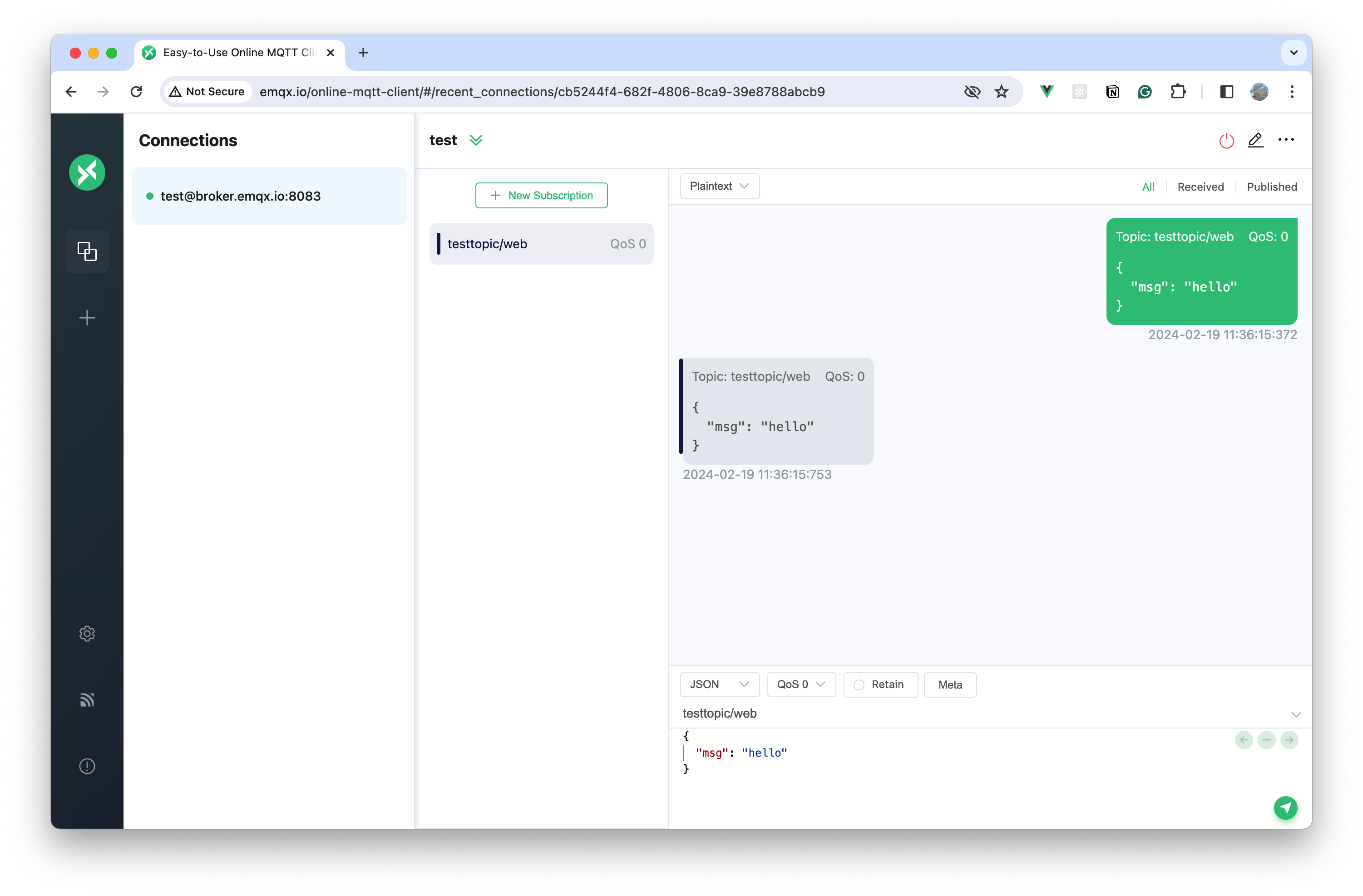
## Main Features
- Publish and subscribe with MQTT 3.1.1 and 5.0 over WebSocket.
- Manage multiple connections and subscriptions in a chat-style interface.
- Mark subscriptions with colors and inspect sent and received messages.
- Configure MQTT 5.0 properties, including user properties and request-response metadata.
- [Deploy with Docker](https://mqttx.app/docs/web/get-started#privatization-deployment) to run the client in your own environment.
---
Source: https://mqttx.app/docs/web/get-started
# Get Started
You can visit our [online address](https://mqttx.app/web-client) to use MQTTX Web, or [private deployment](#privatization-deployment) to your server.
> Creating connections, subscribing, and publishing messages follow the same basic workflow as MQTTX Desktop. See the Desktop [Getting Started](https://mqttx.app/docs/get-started) guide for these steps, and use the [Advanced](https://mqttx.app/docs/advanced) guide only for features available in Web. The differences below describe the Web version’s limits.
## Differences Between Web and Desktop Versions
- The Web version only supports connecting to the MQTT Broker via WebSocket and does not support TCP connections. For more information, please refer to the [WebSocket connection guide](https://www.emqx.com/en/blog/connect-to-mqtt-broker-with-websocket).
- In the online version of MQTTX Web, we use the `https://` protocol for security reasons. Therefore, it is impossible to use the `ws://` protocol to connect to the MQTT Broker; the `wss://` protocol must be used. If you need to use the `ws://` protocol, you can [deploy it over HTTP](#privatization-deployment) or [download the desktop and command line clients](https://mqttx.app/downloads). For more details, please visit the [migration announcement](https://www.emqx.com/en/blog/mqttx-web-migration-announcement).
- MQTTX Web cannot configure client certificate and private key files for mutual TLS authentication. Use MQTTX Desktop or CLI for connections that require these files.
MQTTX Web supports managing connections and subscriptions and viewing sent and received messages. Desktop features such as MQTTX Agent and Viewer (Topic Tree, Dashboard, and Traffic Monitor) are not available in Web.
Self-hosting does not remove browser transport restrictions: a deployment served over HTTPS still requires `wss://`.
## Privatization Deployment
We provide [Docker image](https://hub.docker.com/r/emqx/mqttx-web) for users who want to privatize deployment, you can quickly deploy it through the following command, you can also refer to [Development Guide](https://mqttx.app/docs/web/development#development-guide) to build and deploy by yourself.
```shell
docker pull emqx/mqttx-web
docker run -d --name mqttx-web -p 80:80 emqx/mqttx-web
```
---
Source: https://mqttx.app/docs/web/faq
# FAQ
## What is MQTTX Web?
MQTTX Web is a free, open-source (Apache-2.0) MQTT 5.0 client that runs in the browser. It connects to MQTT brokers over WebSocket, so you can test MQTT without downloading or installing anything. Open it at [mqttx.app/web-client](https://mqttx.app/web-client).
## Which MQTT versions and protocols does MQTTX Web support?
MQTTX Web supports MQTT 5.0 and 3.1.1 over MQTT over WebSocket (`ws://` and `wss://`). Browsers cannot open raw TCP connections, so MQTT over TCP and TLS on ports such as 1883 and 8883 are not supported. Use [MQTTX Desktop](https://mqttx.app/docs) or [MQTTX CLI](https://mqttx.app/docs/cli) for those.
## Why can't I connect with ws:// on the hosted version?
The hosted MQTTX Web is served over `https://`, and browsers block insecure `ws://` connections from secure pages. Use `wss://` instead, or deploy MQTTX Web yourself over `http://`. See [Differences Between Web and Desktop Versions](https://mqttx.app/docs/web/get-started#differences-between-web-and-desktop-versions).
## Does MQTTX Web support mutual TLS?
MQTTX Web cannot configure client certificate and private key files for mutual (two-way) TLS authentication. Use MQTTX Desktop or MQTTX CLI when you need to supply these files.
## Can I deploy MQTTX Web on my own server?
Yes. Run the official Docker image:
```shell
docker run -d --name mqttx-web -p 80:80 emqx/mqttx-web
```
You can also build it from source and change defaults such as the broker address and base URL. See [Development](https://mqttx.app/docs/web/development).
## How is MQTTX Web different from MQTTX Desktop?
Creating connections, subscribing, and publishing messages follow the same basic workflow, but Web supports only WebSocket connections and requires `wss://` when served over HTTPS. It cannot configure client certificate files, and Desktop features such as MQTTX Agent and Viewer are not available. See [Web Get Started](https://mqttx.app/docs/web/get-started) for the differences and deployment options, and the Desktop [Get Started](https://mqttx.app/docs/get-started) guide for the shared workflow.
---
Source: https://mqttx.app/docs/web/development
# Development
## Development Guide
Use Git, Yarn, and Node.js 18 for development, matching [`web/.nvmrc`](https://github.com/emqx/MQTTX/blob/main/web/.nvmrc). Check [`web/package.json`](https://github.com/emqx/MQTTX/blob/main/web/package.json) and `.nvmrc` when switching branches. Familiarity with Vue.js, MQTT, and TypeScript is recommended.
For contributions, fork the repository first and use your fork’s URL in the clone command. If you use [nvm](https://github.com/nvm-sh/nvm), run `nvm use` as shown below; otherwise, select the required Node.js version with your version manager.
```shell
# Clone the repository
git clone https://github.com/emqx/MQTTX.git
cd MQTTX/web
nvm use
yarn install
# Compile and hot reload for development
yarn run serve
# Compile and compress to build a production version
yarn run build
# Compiles for production & serve generated files of site locally
yarn run start
# Compiles and prepares for Docker containerization
yarn run build:docker
# Build Docker image
docker build -t mqttx-web .
# Run Docker image
docker run -p 80:80 mqttx-web
```
After a successful build, the corresponding files of the successful build will appear in the `dist` directory.
## Modify Configuration
If you need to make personalized settings, such as modifying the default connection path, deployment path, or output path, you can make the corresponding modifications in the `web/.env` or `web/.env.docker` files. These two files correspond to different packaging requirements, and you can choose to modify them according to your actual situation.
| Configuration Item | Description |
| ------------------------ | ----------------------------------------------------------------------------------------- |
| VUE_APP_PAGE_TITLE | The title is displayed in the browser's title bar |
| VUE_APP_PAGE_DESCRIPTION | A brief page description for SEO purposes |
| VUE_APP_DEFAULT_HOST | The default address of the MQTT broker server connections |
| BASE_URL | The root URL where the application is deployed. Useful for constructing links and routing |
| VUE_APP_OUTPUT_DIR | The directory where the build files will be placed after compilation |
## Contributing
Please make sure to read the [Contributing Guide](https://github.com/emqx/MQTTX/blob/main/.github/CONTRIBUTING.md) before making a pull request.
# MQTTX Blog
> Product news, release notes, and practical guides for MQTTX Desktop, CLI, and Web. Newest first.
---
Source: https://mqttx.app/blog/mqttx-1-13-2-released
# MQTTX 1.13.2 Released: MQTTX Agent and Dashboard
> MQTTX 1.13.2 uses MQTTX Agent to automate MQTT tests, compare messages, and investigate failures, with independent Dashboard views for telemetry.
> Language: en · Published: 2026-10-26 · Category: Release Notes · Version: 1.13.2 · Canonical: https://mqttx.app/blog/mqttx-1-13-2-released · Translation: [中文](https://mqttx.app/zh/blog/mqttx-1-13-2-released.md)
MQTTX 1.13.2 is now officially released. The desktop Copilot becomes **MQTTX Agent**, which can execute MQTT tests, compare results, and investigate failures from natural-language requests. **Dashboard** is available for the first time to compare telemetry readings and trends visually. This release also adds GZIP decompression and improves connection management and everyday debugging.
> [Download MQTTX 1.13.2](https://github.com/emqx/MQTTX/releases/tag/v1.13.2) · [Official downloads](https://mqttx.app/downloads)
## MQTTX Agent: Automate MQTT testing and verification 🤖
MQTTX Agent is an AI Agent built into the desktop client. Give it a test goal and expected result, and it can break down the task, use connection, subscription, publishing, message, and log tools, then execute the test, compare actual results, and report its findings. Actions request approval according to the selected permission mode. The Agent can also generate test data, client examples, schemas, and data-processing scripts.
### Automatically verify connections and publish/subscribe messaging
Give the Agent a Pub/Sub test goal and it can check the connection, subscribe, publish a message, wait for or query received messages, compare the Topic and Payload, and report the actual QoS and results of each step. For example:
> Verify message exchange on my current connection: use a unique topic under `mqttx-test/` to send one JSON message with a unique test ID and timestamp at QoS 1. The expected result is a received message with the same topic and test data. Complete the verification and summarize each step; if it fails or no matching message arrives, inspect the logs and report where it failed.
The Agent bases its conclusion on the returned connection state, message records, and logs; without a matching received message, reception remains unconfirmed. In Ask mode, connection, subscription, and publishing actions request approval.
### Test device commands against reported state
Device interaction can also be part of an MQTT protocol test. Provide the command topic, Payload format, state-report topic, and expected state, and the Agent can send the command, wait for a new report, and compare the result. For example:
> Using the device protocol I provided, verify the study fan's speed-2 control: send the command, wait for a new state report, compare `power` and `speed` with the expected values, and report the conclusion and supporting message. If no new report arrives, mark the result unconfirmed.
The Agent checks the outcome against a new device-state or command-execution report. Ask mode requests approval before actions such as publishing control messages.
### Tools and workspace for the task
Mention a connection with `@` to work with its configuration, subscriptions, and messages. Type `/` to choose Skills for client code, test data, schemas, custom functions, diagnostics, or Zero EMQX. For connection checks, publish/subscribe tests, data simulation, and benchmarks, the MQTTX CLI Skill prepares commands that you copy and run in a terminal. Configured MCP servers can contribute external tools alongside MQTTX operations.
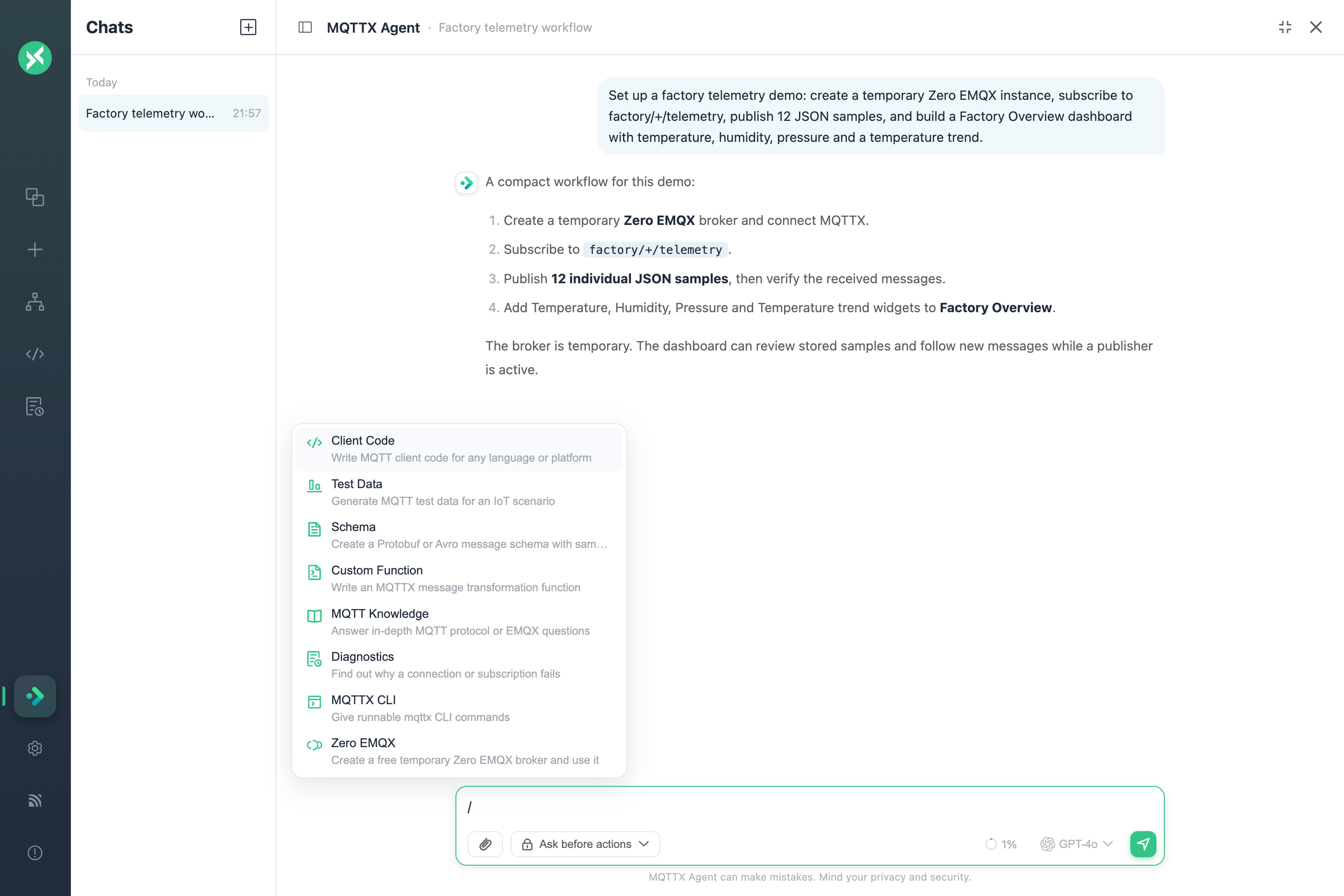
For payload transformations and Protobuf or Avro schemas, provide representative input and expected output. The Agent can run the test, compare its output, and report the result. Script tests require approval in every permission mode, including Auto. Applied transformation functions affect all connections, so check their scope before applying them.
The Agent supports full-screen use and a movable, resizable floating window, opened with `Cmd/Ctrl + J`, so messages and the conversation remain visible together. Tool steps and results are clear, with improved spacing for paragraphs, lists, code, and tables.
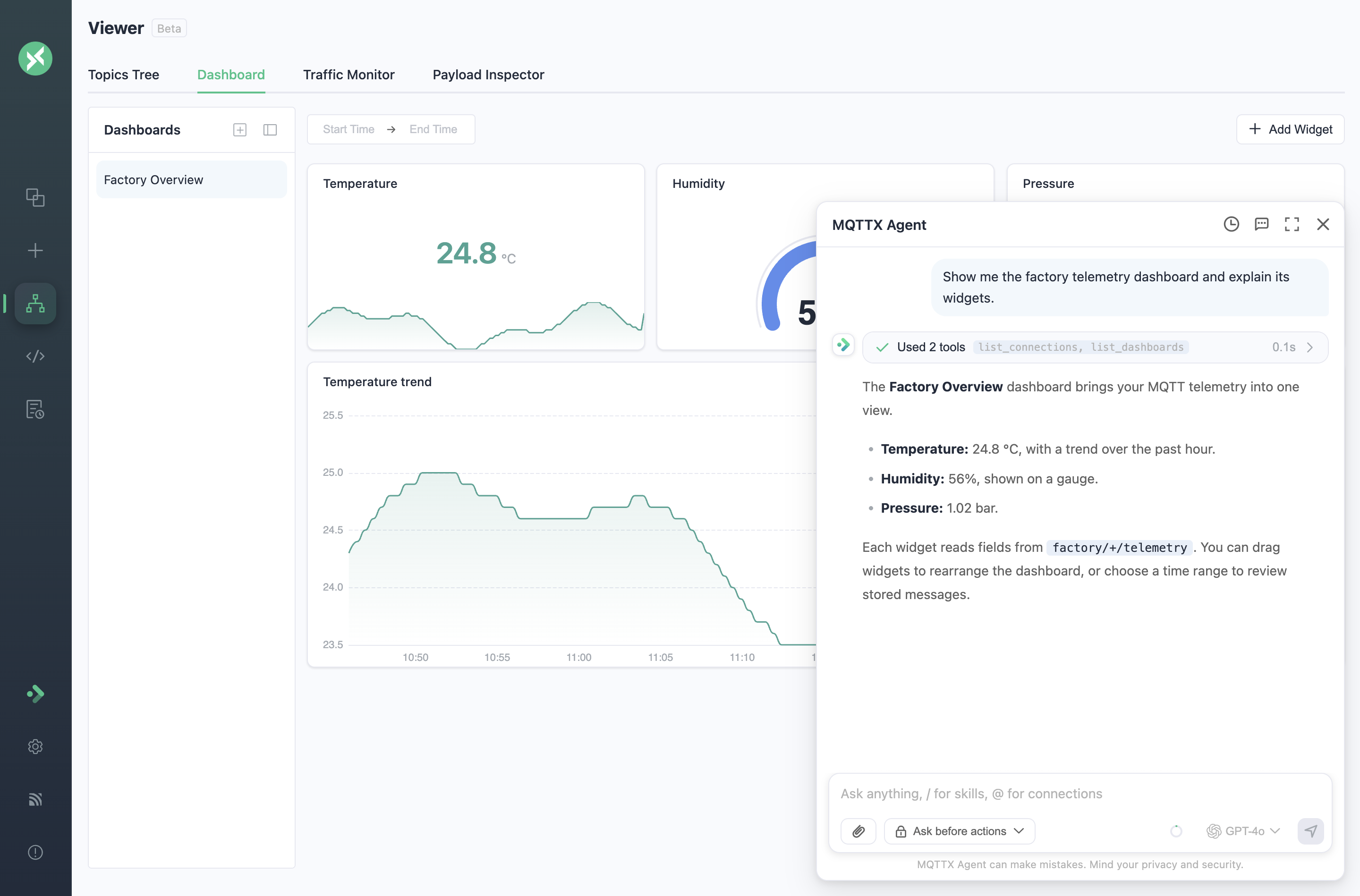
This release adds context usage and automatic compaction, plus selectable reasoning strength for supported models. It also improves model-parameter compatibility, connection context after a reload, and the `@` menu, and fixes subscription counts.
## Dashboard: Device metrics and trends in one view 📊
Dashboard turns message fields into readings, gauges, and charts for observing temperature, humidity, pressure, and other metrics without comparing each payload. It can be configured manually for existing connections, independently of the Agent.
During telemetry tests, these views make readings and changes before and after a test visible.
Under **Viewer → Dashboard**, each widget uses a connection, topic filter, and payload field:
- **Big Number:** Highlights the current temperature, pressure, or counter value.
- **Gauge:** Shows humidity, load percentage, or another metric within a configured range.
- **Line:** Plots changes by message reception time to compare data before and after a test.
Widgets have independent data sources and support dragging and resizing. A dashboard can show several fields or combine data from different connections and topics.
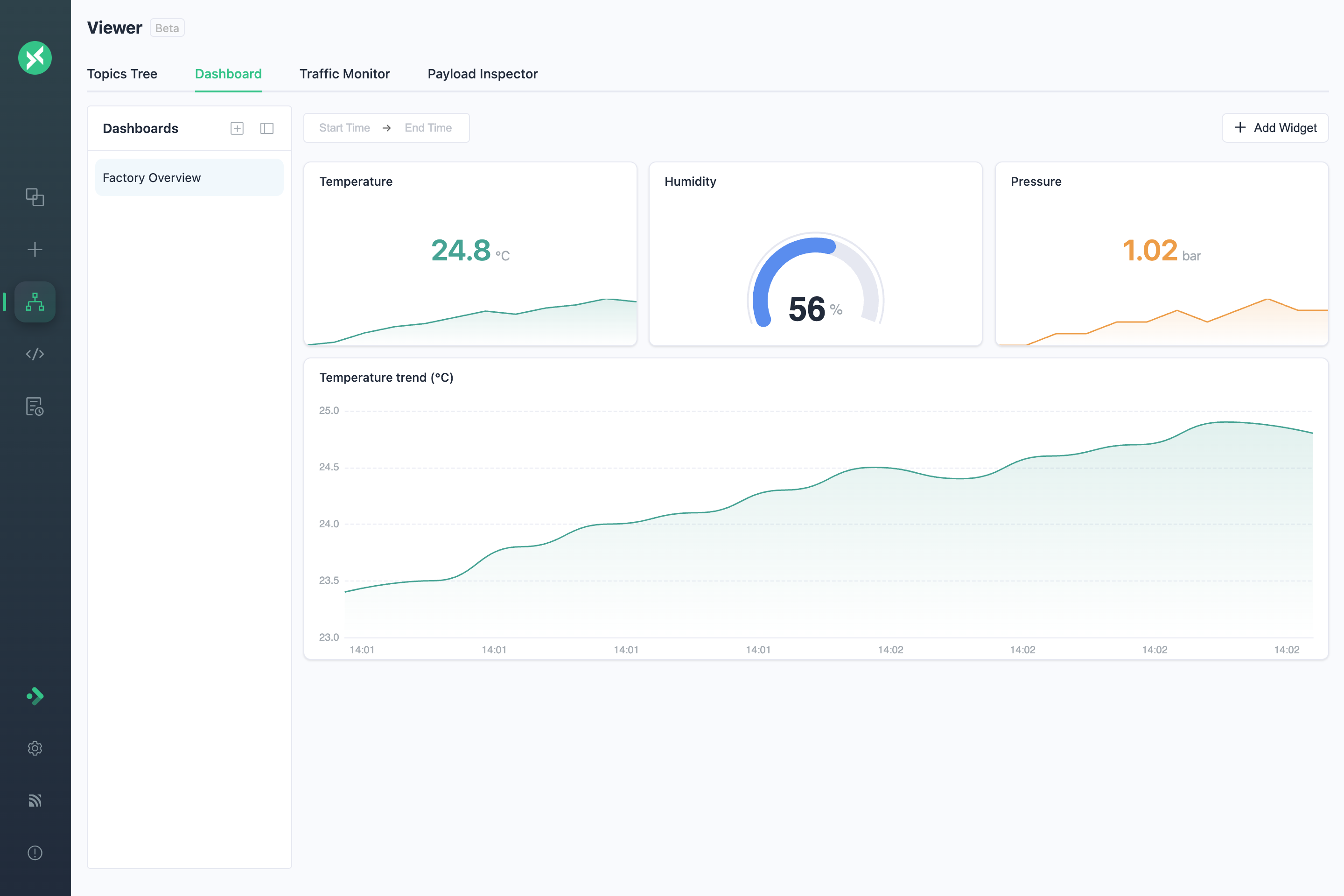
Widgets update with new messages. Time-range selection provides access to messages already received and saved locally. Both live updates and history queries support MQTT `+` and `#` topic filters. This release also improves data loading, historical matching, menus, the widget editor, and Gauge styling.
## More features and usability improvements
### GZIP message decompression
Desktop and Web add an optional **Auto-decompress GZIP messages** setting for inspecting compressed payloads directly. Desktop marks decompressed messages; uncompressed content remains unchanged.
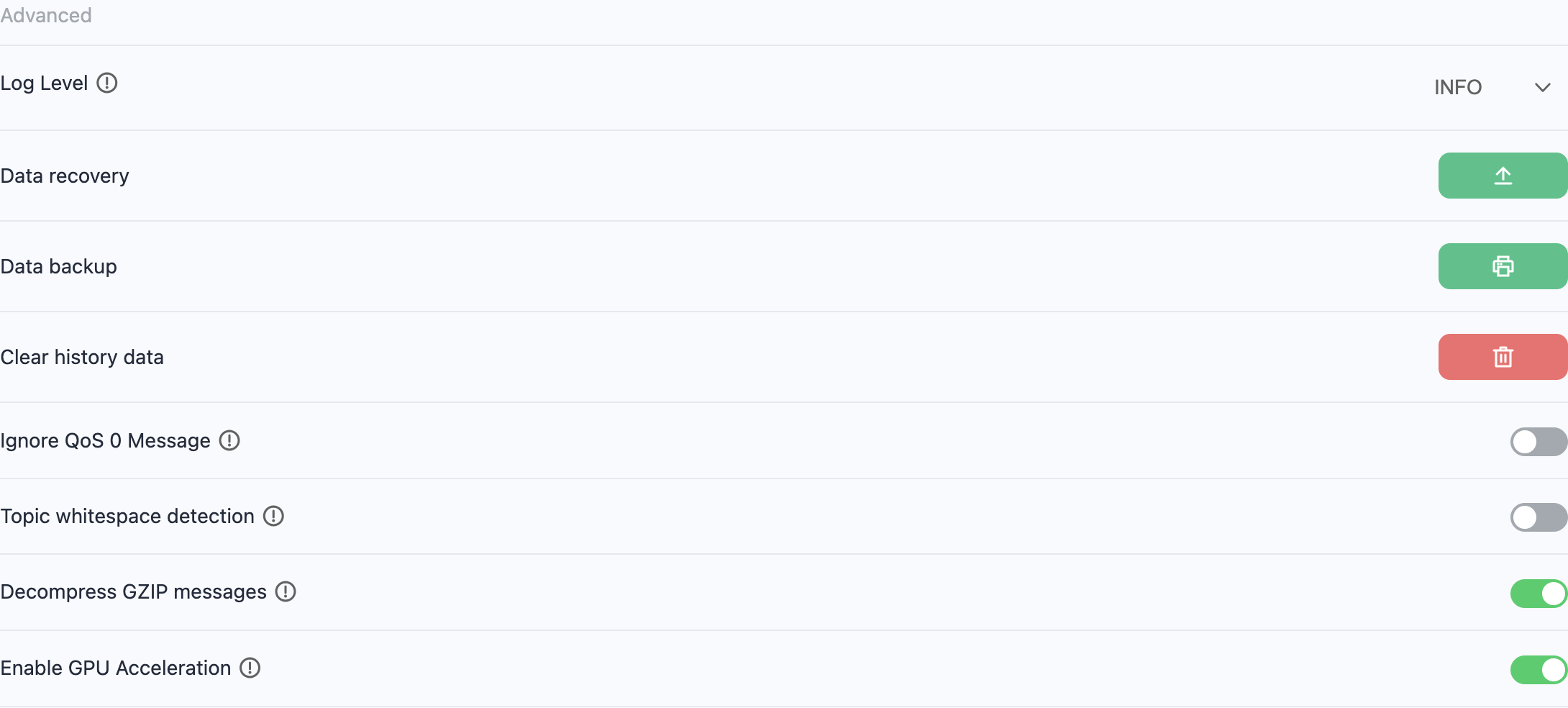
### Large Topic Tree browsing
Desktop improves browsing and updates in large Unified Namespaces, limits the subtopics displayed at once, and requests confirmation before expanding a large tree. A resizable information panel shows direct subtopics, counts, and depth.
### Independent publish contents per connection
Desktop keeps each connection's publish topic, Payload, and publish history separate. Switching connections restores that connection's publish contents. Desktop and Web support deleting individual publish-topic history entries.
### Connection groups and JSON backups
Desktop supports group selection when creating or editing connections, preserves collapsed groups, and reveals newly created connections. JSON backup and recovery include group names and membership to retain connection organization.
### Offline subscriptions and MQTT 5.0 debugging
Desktop and Web support offline deletion or disabling of subscriptions with a clean session, updating the reconnect cache to help address repeated disconnects caused by invalid subscriptions. Persistent sessions still require a broker connection to manage stored subscriptions.
Desktop displays Response Information returned by the broker. CLI also outputs it when requested and returned, supporting MQTT 5.0 request-and-response debugging.
### Everyday actions
Desktop and Web add quick connection actions to the empty page, reveal a hidden connection list when opening a connection, and move Clear History to the toolbar. Desktop adds confirmation before clearing and visible `⋯` row menus for connections and groups, with consistent row heights and layouts.
Desktop and Web About pages introduce EMQ products through a message flow. CLI root help adds links to relevant tools and services.
## Fixes and compatibility improvements 🛠
- **Filtering and history:** Desktop and Web correctly handle MQTT wildcards, system topics, shared subscriptions, and case sensitivity, with a clearable current filter. Desktop preserves subscription filtering during searches and avoids skipped boundary messages in history paging.
- **Subscription editing:** Desktop and Web fix the Confirm button remaining in a loading state.
- **MQTT 5.0 properties:** Desktop and Web omit cleared numeric properties, fixing connection failures caused by empty strings.
- **Connection settings:** Desktop immediately applies edited settings and stops old clients from reconnecting with stale configuration.
- **Decoding and imports:** Desktop fixes closing-brace indentation in nested Protobuf output and reports unreadable Excel files while clearing stale paths.
- **Interface consistency:** Desktop and Web improve topic colors across light, dark, and night themes and prevent scrollbars from wrapping QoS labels. Desktop completes translations and aligns menus, Payload Inspector headers, chart resizing, pane dragging, and styles across navigation.
- **Platform compatibility:** `Ctrl+W` / `Cmd+W` in the Desktop main window no longer quits the application. CLI installation on Apple Silicon uses the correct native architecture. Web's Node.js requirement changes to `>=18`.
The release also updates READMEs across all three applications and desktop documentation, repairs lint and adds corresponding CI, removes stale or duplicated code and test setup, and improves CLI publishing and npm provenance metadata.
## Combined example: Automate telemetry checks and visualize the results
Give the Agent a finite telemetry test: create a connection, publish 12 samples, read the received messages, compare their count, topics, and fields, and report the results. The independent Dashboard displays metrics and trends from the same connection.
After configuring a model with tool support, submit one request to the Agent:
> Create a temporary Zero EMQX broker, save its connection as Factory Demo, connect, and subscribe to `factory/+/telemetry`. Publish 12 JSON messages with `deviceId` and varying `temperature`, `humidity`, and `pressure` values to `factory/line-01/telemetry`, one at a time. Automatically compare the received count, topics, and fields and report the results. Then create a Factory Overview dashboard showing temperature, humidity, pressure, and the temperature trend; check each widget's connection, Topic Filter, and field binding, then open it.
The Agent executes tool steps, with approvals in Ask mode. [Zero EMQX](https://zero.emqx.io/) provides free temporary test brokers; instance expiry and cleanup rules come from the creation result.
A single sample has the following structure:
```json
{
"deviceId": "line-01",
"temperature": 24.8,
"humidity": 56,
"pressure": 1.02
}
```
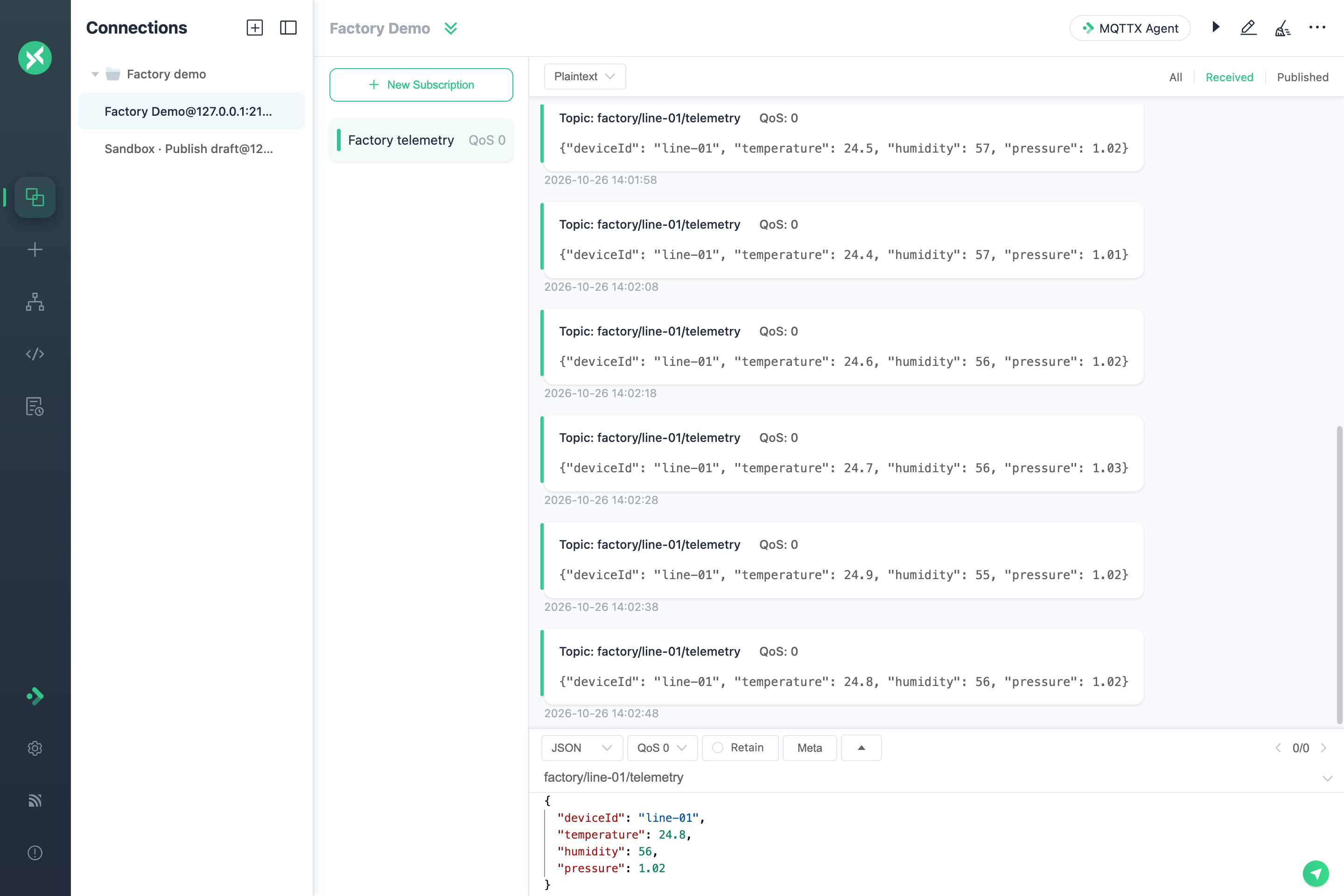
Four widgets use the same connection and `factory/+/telemetry`: temperature and pressure Big Numbers, a 0–100% humidity Gauge, and a temperature Line chart. They read the corresponding fields, with units of `°C`, `%`, and `bar`; the trend chart includes its unit in the title. The Agent can also adjust widget positions and sizes.
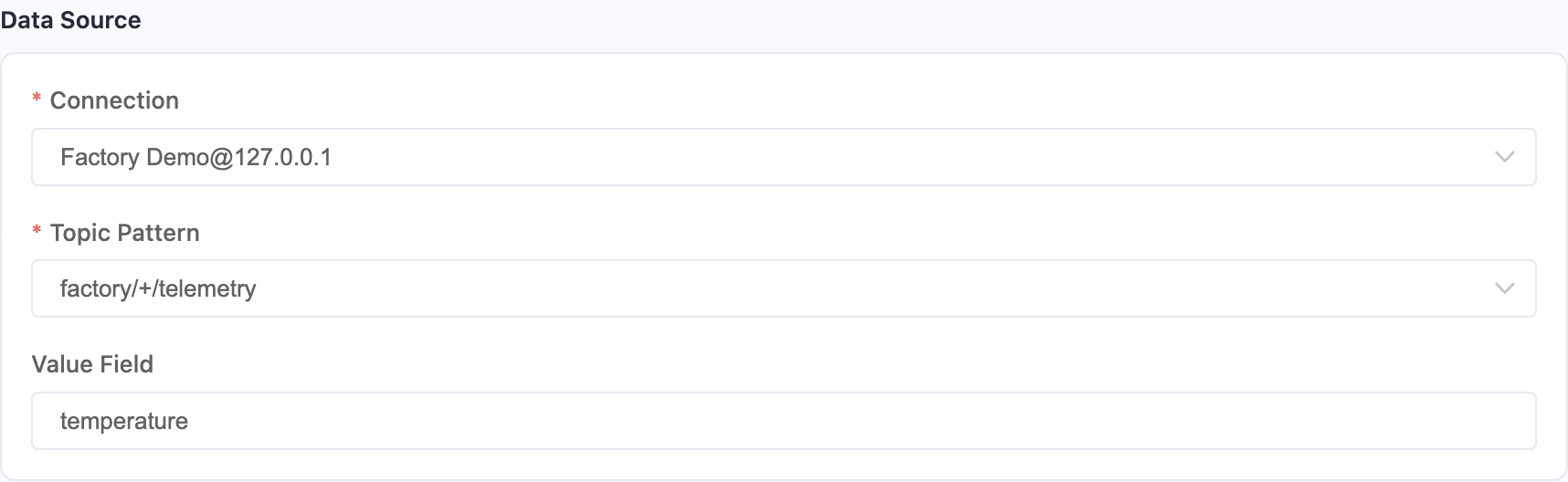
The Agent can summarize its checks from the received messages and widget configurations, identifying missing messages or unexpected field bindings. Dashboard displays the latest readings and trends from those messages.
This example publishes only 12 finite samples. With an active connection and subscription, the dashboard continues updating when devices or other clients publish to matching topics.
## Downloads and documentation
Thanks to all contributors, including first-time contributors @DanInSpace104, @sourabhburse, @XuKing, and @T3rm1.
- [Download MQTTX](https://mqttx.app/downloads)
- [Read the documentation](https://mqttx.app/docs)
- [See the full 1.13.2 changes and contributors](https://github.com/emqx/MQTTX/releases/tag/v1.13.2)
---
Source: https://mqttx.app/blog/introducing-mqttx-ai-agent-skill
# Introducing the MQTTX AI Agent Skill
> MQTTX CLI now ships with an Agent Skill that teaches AI coding agents to run MQTT checks, benchmarks, and simulations correctly.
> Language: en · Published: 2026-09-20 · Category: Product · Canonical: https://mqttx.app/blog/introducing-mqttx-ai-agent-skill · Translation: [中文](https://mqttx.app/zh/blog/introducing-mqttx-ai-agent-skill.md)
Coding agents are good at writing MQTT code. Running the MQTTX CLI correctly is a different problem: flags differ between commands, TLS and authentication options are easy to misconfigure, and benchmarks or simulations need bounded, repeatable parameters. An agent that guesses its way through `mqttx` can waste time, leave processes running, or produce results you cannot trust.
The MQTTX AI Agent Skill closes that gap. It lives in the MQTTX repository and teaches an AI coding agent how to operate the `mqttx` command correctly and safely, using the same documentation the MQTTX team maintains.
## What the skill covers
The skill is organized around the tasks agents actually perform. Its `SKILL.md` routes the agent to a dedicated reference document for each task, so the agent only reads what it needs instead of loading the entire CLI manual into context.
- **Basic workflows**: `conn`, `pub`, and `sub`, plus bounded checks and publish/subscribe round trips.
- **Connections and authentication**: transport selection, TLS and mutual TLS, WebSocket headers, credentials, and SCRAM authentication.
- **MQTT features**: MQTT 3 and MQTT 5 behavior, QoS, retained messages, sessions, wills, request/response, and subscription properties.
- **Payloads and files**: text and binary input, interactive line mode, reading from files, codecs, Protobuf and Avro schemas, and random payloads.
- **Benchmarks and simulation**: `bench conn`, `bench pub`, `bench sub`, `simulate`, `ls --scenarios`, and custom generators.
- **Configuration and utilities**: `init`, `check`, help and version output, INI defaults, and JSON or YAML options.
- **Capability map**: exact flag availability by command and version-specific caveats.
- **Troubleshooting**: guidance for failures and diagnosis.
## Install MQTTX CLI with an agent
The MQTTX repository includes an installation guide written specifically for agents. It covers environment detection, package selection, and version verification. Give your agent this prompt:
> Read https://raw.githubusercontent.com/emqx/MQTTX/main/INSTALL.md and follow its instructions to install or update MQTTX CLI for this environment. Verify the executable path and version.
## Install the skill
Install the skill with the Skills CLI:
```shell
npx skills add emqx/MQTTX --skill mqttx-cli
```
If you work from a local checkout, run `npx skills add . --skill mqttx-cli` from the repository root. You can also copy the entire `skills/mqttx-cli` directory, including its `references`, into your agent's supported skills directory, or ask the agent to read the skill's `SKILL.md` directly.
## Try it
Once the CLI and the skill are installed, give your agent a task such as:
> Use the mqttx-cli skill to verify a publish/subscribe round trip against my local broker at 127.0.0.1:1883. Use a unique topic under mqttx-test/, finish within 15 seconds, and report the result.
The agent can then choose the right commands and flags, run the check, and report what happened.
## Learn more
- [MQTTX AI Agent Skill documentation](https://mqttx.app/docs/cli/agent-skill)
- [Skill source on GitHub](https://github.com/emqx/MQTTX/tree/main/skills/mqttx-cli)
---
Source: https://mqttx.app/blog/mqttx-1-13-1-released
# MQTTX 1.13.1 Released: AI Agent Skill & MQTT 5.0 Subscription Properties
> MQTTX 1.13.1 adds a CLI Agent Skill, MQTT 5.0 subscription user properties, and improvements to data export, rendering security, and everyday debugging.
> Language: en · Published: 2026-09-20 · Category: Release Notes · Version: 1.13.1 · Canonical: https://mqttx.app/blog/mqttx-1-13-1-released · Translation: [中文](https://mqttx.app/zh/blog/mqttx-1-13-1-released.md)
MQTTX 1.13.1 is now available. This release helps AI coding agents work with MQTTX CLI and adds MQTT 5.0 user properties to Desktop and Web subscriptions. It also improves message exports, adds receive timestamps to the CLI, and fixes topic and payload rendering security issues.
[Download MQTTX](https://mqttx.app/downloads) or read the [full 1.13.1 changelog](https://mqttx.app/changelogs/v1.13.1).
## AI Agent Skill for MQTTX CLI
The MQTTX repository now includes an installation guide for agents and a `mqttx-cli` Skill for coding assistants such as Claude Code, Codex, and Cursor. The Skill provides command references and workflows for connection checks, publish/subscribe verification, benchmarks, and data simulation.
After [installing MQTTX CLI](https://mqttx.app/docs/cli/downloading-and-installation), add the Skill:
```shell
npx skills add emqx/MQTTX --skill mqttx-cli
```
You can then ask your agent to verify a publish/subscribe round trip against your local broker, with a unique topic and a time limit. See [Introducing the MQTTX AI Agent Skill](https://mqttx.app/blog/introducing-mqttx-ai-agent-skill) for the installation prompt and a complete example.
This integration runs through MQTTX CLI; it does not require the Desktop application to be open.
## MQTT 5.0 subscription user properties
Desktop and Web now let you attach User Properties to a subscription. These key-value pairs travel in the MQTT 5.0 SUBSCRIBE packet and can carry metadata understood by your broker.
Select MQTT 5.0 for your connection, open the subscription dialog, and add the properties alongside the Subscription Identifier. Saved properties appear in the subscription list's topic tooltip, so you can inspect them without reopening the editor.
The properties survive editing and re-subscribing. When you subscribe to an existing topic again, MQTTX updates the saved subscription options to match what it sent to the broker. Repeated keys and empty values are preserved.
For example, an EMQX MQTT Streams subscription can use `stream-offset: earliest` to request replay from the beginning of a stream. The broker determines how it interprets User Properties; MQTTX sends the values you configure. See the [subscription properties change](https://github.com/emqx/MQTTX/pull/2066) for implementation details.
## Clearer and more reliable exports
Message exports now track progress by the number of processed messages. Large exports can show incremental progress even when the data comes from just one connection.
The export fixes also remove duplicated fields from JSON, YAML, and XML output. CSV and Excel use one row per message with separate columns for the topic, payload, QoS, and other fields. Excel groups connections into separate sheets. These changes make exported records easier to inspect and process. See the [export fixes](https://github.com/emqx/MQTTX/pull/2015).
## More control over the client
- **Desktop:** Korean is available as an interface language. A GPU acceleration setting lets you disable hardware acceleration when troubleshooting rendering problems. Acceleration remains enabled by default, and changing it requires restarting the application. See the [GPU setting change](https://github.com/emqx/MQTTX/pull/2037).
- **Web:** The connections pane can be collapsed to give the message view more room.
- **CLI:** Received messages include a `received_at` field in UTC ISO 8601 format. This makes it easier to line up MQTT traffic with application logs when diagnosing a problem. See the [receive timestamp change](https://github.com/emqx/MQTTX/pull/2053).
## Security and bug fixes
Topic and payload rendering now escapes content to prevent XSS. The release also adds missing translations and makes Desktop connection-update failures visible in the UI.
For the complete changes and release assets, see the [official v1.13.1 release](https://github.com/emqx/MQTTX/releases/tag/v1.13.1).
---
Source: https://mqttx.app/blog/mqttx-1-13-0-released
# MQTTX 1.13.0 Released: Payload Inspector & UI Improvements
> This version introduces the new Payload Inspector feature, including Diff View and JSON Tree View, making message debugging more intuitive and efficient.
> Language: en · Published: 2026-02-03 · Category: Release Notes · Version: 1.13.0 · Canonical: https://mqttx.app/blog/mqttx-1-13-0-released · Translation: [中文](https://mqttx.app/zh/blog/mqttx-1-13-0-released.md)
MQTTX 1.13.0 is now officially released.
This version introduces the new Payload Inspector feature, including Diff View and JSON Tree View, making message debugging more intuitive and efficient. It also adds quick copy functionality for one-click copying of Topics, Payloads, and connection addresses. Additionally, new features include Protobuf Editions 2023 support, Windows portable version, and topic whitespace detection. The Desktop and Web UI has been optimized, and the Electron 39 upgrade resolves performance issues on macOS 26 Tahoe.
> **_Download the latest version:_** [**_mqttx.app/downloads_**](https://mqttx.app/downloads)
## Payload Inspector
> Special thanks to [@muzaffarmhd](https://github.com/muzaffarmhd) for contributing to this feature
MQTTX 1.13.0 introduces the new Payload Inspector. During [MQTT](https://www.emqx.com/en/blog/the-easiest-guide-to-getting-started-with-mqtt) development and testing, you often need to analyze changes in device-reported data, compare message content at different times, or quickly locate fields in complex JSON. To address this, we provide two visualization modes, Diff View and JSON Tree View, significantly improving message analysis efficiency.
### Diff View
Diff View allows users to intuitively compare Payload differences between two messages, with changes clearly highlighted.
**Typical Use Cases:**
- **Device State Tracking**: Compare device status data between two reports to quickly identify which fields have changed
- **Data Transmission Verification**: Verify whether sent and received messages are consistent
- **Troubleshooting**: Compare message content between normal and abnormal device behavior
**How to Use:**
1. Go to the Viewer page, switch to the **Payload Inspector** tab and enable **Diff View** mode
2. Select a connection and topic from the toolbar to load messages, optionally filtering by type (All/Received/Published)
3. Navigate between messages using arrow buttons or keyboard shortcuts (`←` older, `→` newer), with automatic loading when reaching the oldest entry
4. Each message displays metadata including timestamp, QoS, Retain flag, and Payload size
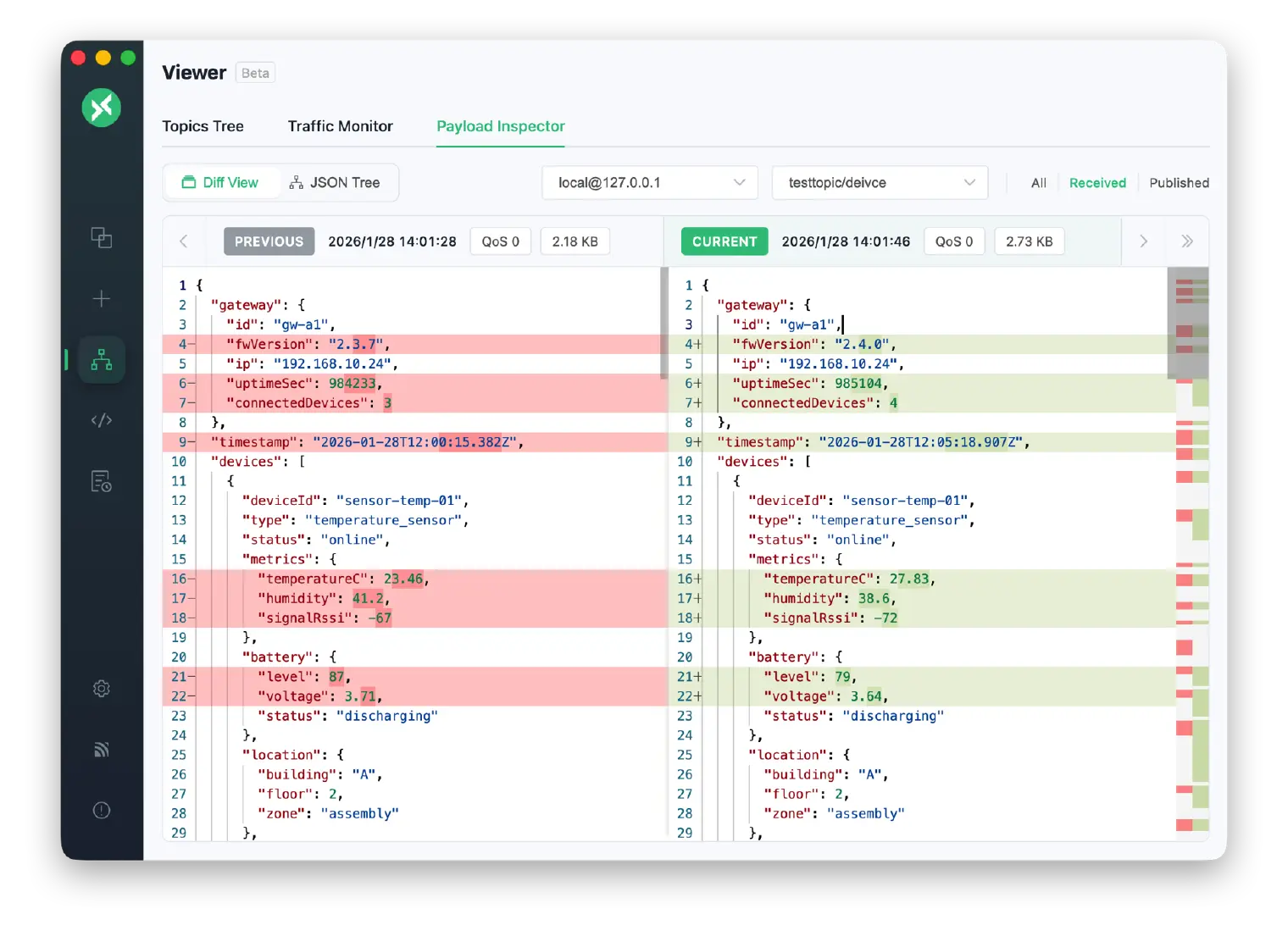
### JSON Tree View
For JSON-formatted Payloads, JSON Tree View provides structured display and navigation capabilities.
**Typical Use Cases:**
- **Complex Data Analysis**: Navigate deeply nested JSON structures like sensor data packets or device configurations
- **Field Lookup**: Quickly search and locate specific fields in large JSON payloads
- **Data Visualization**: View JSON structure hierarchy with full-screen visualization support
**How to Use:**
1. In Payload Inspector, switch to **JSON Tree** view mode and select a connection and topic
2. Navigate messages using arrow buttons (`←`/`→`), use the search box to find and highlight JSON content
3. Click the copy icon to copy Payload, or the pie chart icon for full-screen JSON structure visualization
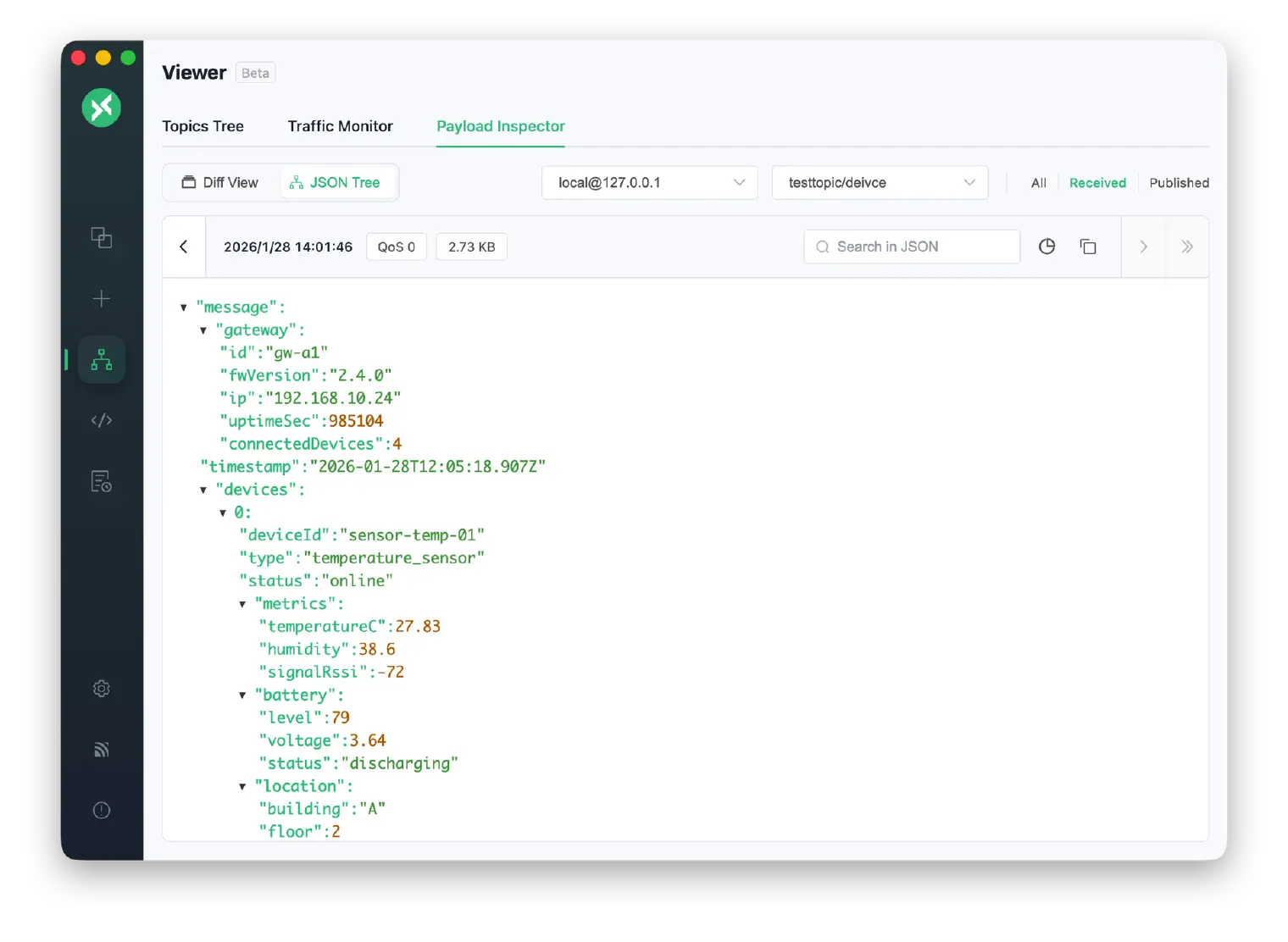
## Configurable Max Payload Display Size
Added max Payload display size setting to automatically collapse large Payloads in the message list.
**How to Set:**
1. Go to **Settings > General**
2. Find the **Max Payload Display Size** option
3. Adjust the threshold using the slider (minimum 16KB, default 512KB, maximum 2MB)
When a message Payload reaches or exceeds the set threshold, that message will be automatically collapsed in the message list, preventing large Payloads from taking up too much screen space. The complete data is still saved and can be expanded at any time.
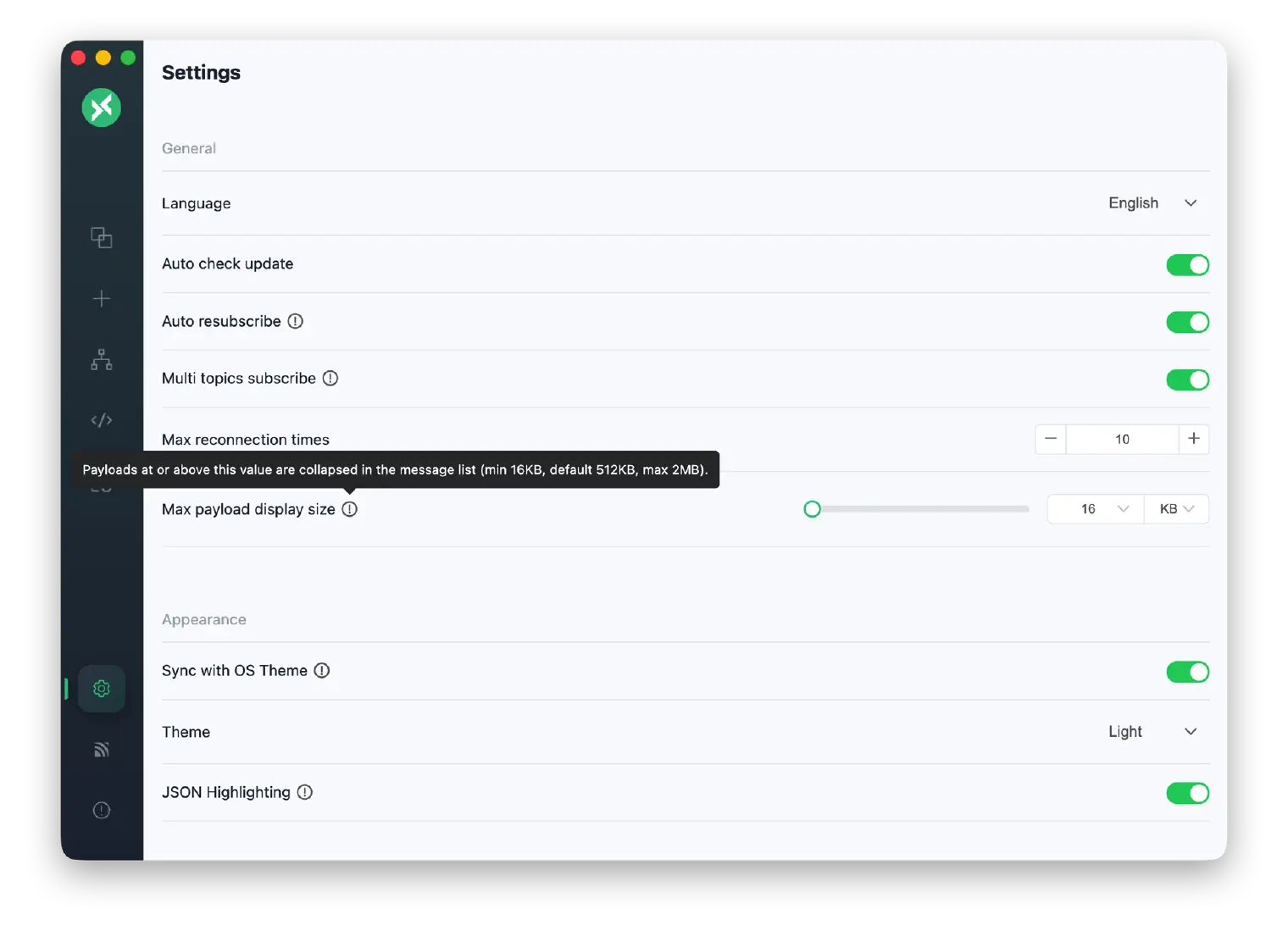
## Quick Copy Feature
Previously, right-clicking a message could only copy the Payload. This version adds separate Copy Topic and Copy Host/Broker options ([#1962](https://github.com/emqx/MQTTX/issues/1962)). This is particularly useful for scenarios with dynamic topics, making it easy to quickly copy topics for subscription configuration or integration with automation tools like Home Assistant and Node-RED.
**Connection Info Copy:**
Right-click a connection in the left connection list to quickly copy:
- **Copy Host**: Copy the host address, e.g., `broker.emqx.io`
- **Copy Broker**: Copy the full connection address, e.g., `mqtt://broker.emqx.io:1883`
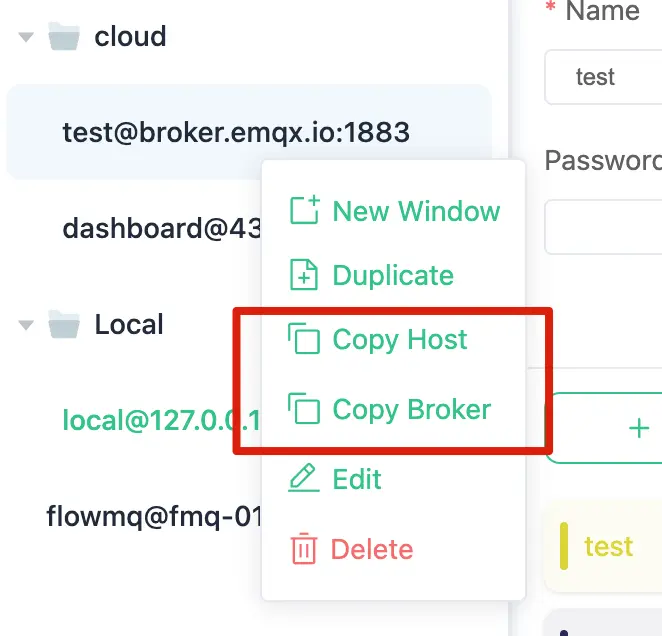
**Topic / Payload Copy:**
Right-click a target message in the message list to quickly copy:
- **Copy Topic**: Copy the message's Topic
- **Copy Payload**: Copy the message's complete Payload
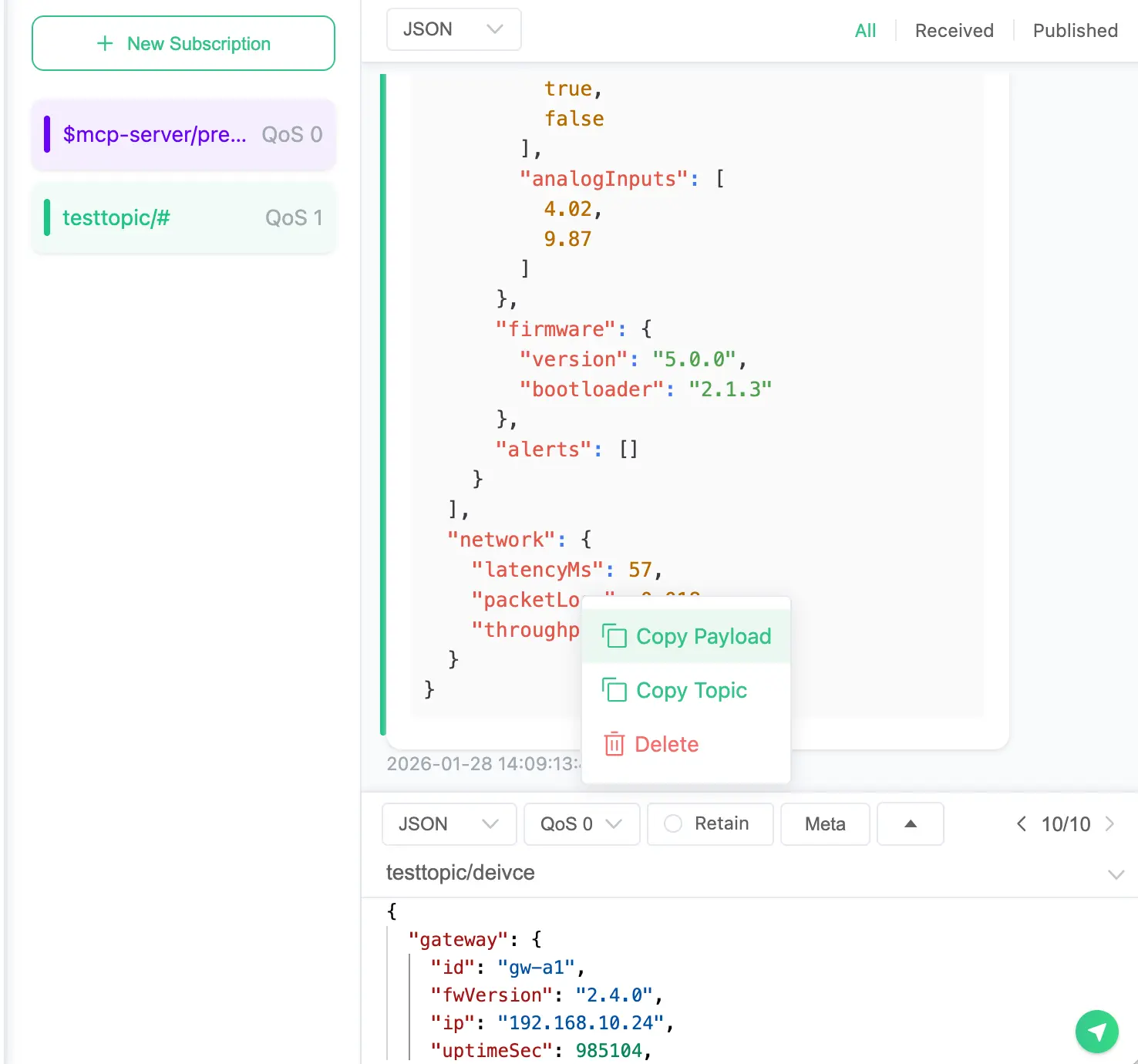
## Protobuf Editions 2023 Support
MQTTX 1.13.0 upgrades the protobufjs dependency and now supports Protobuf Editions 2023 format. This feature is available in Desktop, CLI, and Web versions.
**What is Protobuf Editions?**
Protobuf Editions is the next-generation Protocol Buffers syntax introduced by Google in 2023, replacing the previous proto2 and proto3. It introduces a more flexible feature system, allowing developers fine-grained control over field behavior.
**Editions Syntax Example:**
```protobuf
edition = "2023";
message SensorData {
int32 device_id = 1;
float temperature = 2;
float humidity = 3;
int64 timestamp = 4;
}
```
**How to Use:**
1. Go to **Settings > Schema**
2. Click **New Schema**
3. Select **Protobuf** type
4. Paste or upload your `.proto` file (supports edition = "2023" syntax)
5. Select this Schema in your connection for encoding/decoding
If your project has upgraded to Protobuf Editions 2023, MQTTX can now correctly parse and encode these messages.
## Topic Whitespace Detection
Added topic whitespace detection to help identify whitespace characters in topics that may cause publish/subscribe mismatches.
Whitespace in [MQTT topics](https://www.emqx.com/en/blog/advanced-features-of-mqtt-topics) is legal but usually indicates user input errors. For example, `sensor/temperature` and `sensor/temperature` are two different topics—this difference is hard to spot visually but can cause messages to fail routing correctly.
When enabled, if a topic contains whitespace characters, MQTTX will display a hint in the subscription dialog, using the `␣` symbol to mark whitespace positions, helping you quickly locate issues.
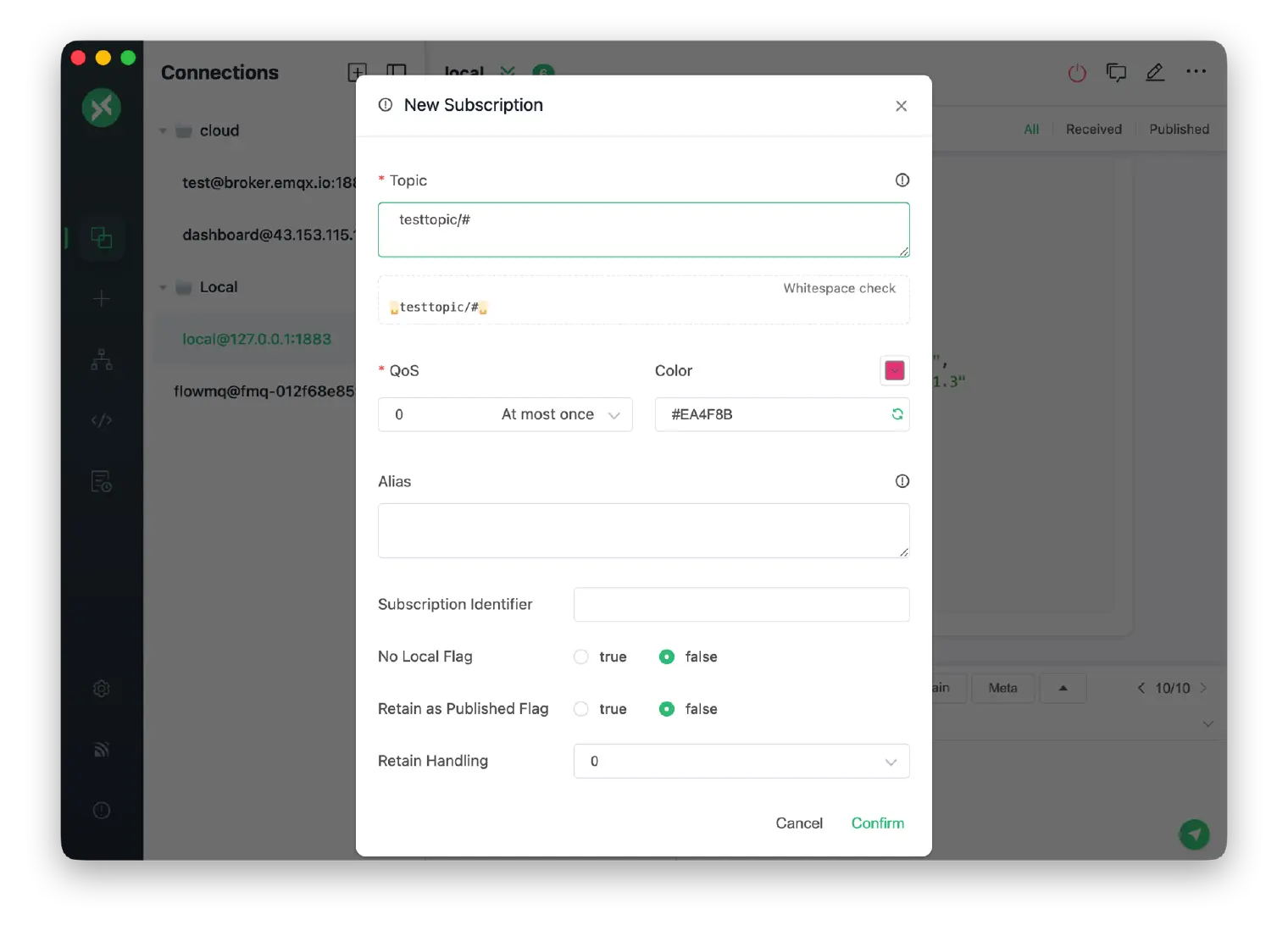
Go to **Settings > Advanced** and find the **Topic whitespace detection** toggle to enable it.
## UI Improvements
- **Desktop**: Optimized color scheme and animation transitions, simplified connection list selection styles, redesigned Help and About page layouts
- **Web**: Added JSON Payload syntax highlighting, synced Desktop UI optimizations
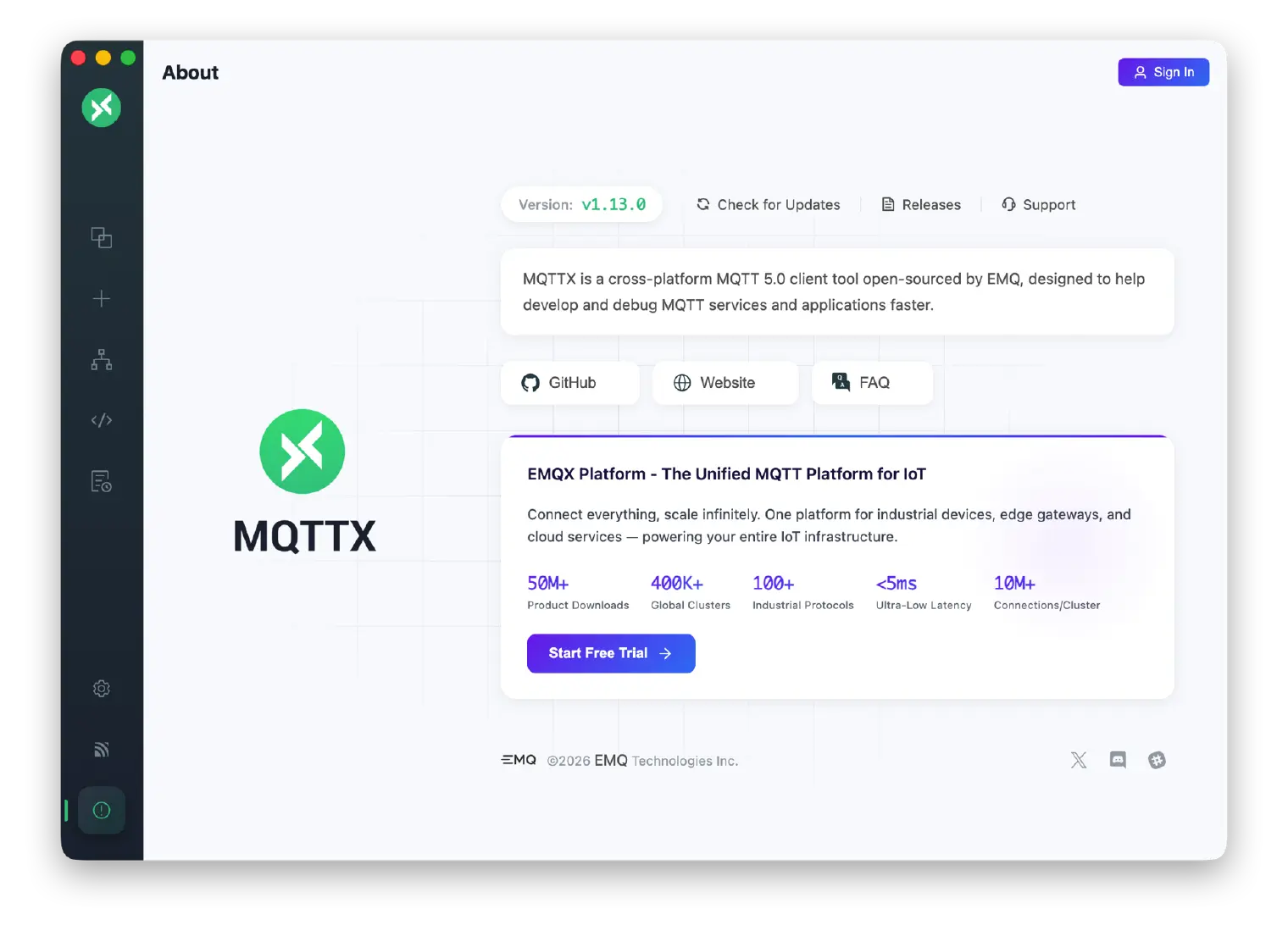
## Performance & Compatibility Improvements
- **Electron 39 Upgrade**: Resolves UI stuttering and response delays on macOS 26 Tahoe, brings better rendering performance and memory management
- **Windows Portable Version**: Added Portable version, download and extract to use without installation
- **Cross-platform Compatibility**: Fixed Windows build script compatibility issues using cross-env
## Bug Fixes
- Fixed issue where editing a disabled topic would unexpectedly enable it ([#2007](https://github.com/emqx/MQTTX/issues/2007))
- Fixed issue where pressing Enter in Topic input field inserted line breaks ([#2001](https://github.com/emqx/MQTTX/issues/2001))
- Fixed Meta button red dot position misalignment
- Fixed Web version Topic input field forced line break issue
## Roadmap
- **MQTTX 2.0 Refactor**: In progress
- **MCP over MQTT Support**: Support Model Context Protocol for AI Agent interaction with MQTT devices
- **AI Agent Mode**: Desktop and CLI support for AI Agent mode
- **Protobuf Message & Subscription Route Mapping**: Configure different Protobuf decode Schemas for different subscription topics
- **MQTTX Viewer Enhancement**: Dashboard View, System Topic View, and other visualization features
- **Configurable Disconnect Properties**: Support [MQTT 5.0](https://www.emqx.com/en/blog/introduction-to-mqtt-5) disconnect property configuration
- **IoT Scenario Data Simulation**: Integrate more IoT scenario data simulation capabilities
- **[Sparkplug B](https://www.emqx.com/en/solutions/mqtt-sparkplug) Support**: Extend MQTTX to support Sparkplug B protocol
- **Plugin System**: Support protocol extensions like CoAP, [MQTT-SN](https://www.emqx.com/en/blog/connecting-mqtt-sn-devices-using-emqx), Kafka, MessageQueue
- **Script Test Automation (Flow)**: Simplify creation and management of automated testing workflows
---
Source: https://mqttx.app/blog/mqttx-1-12-1-release-notes
# MQTTX 1.12.1 Released: SCRAM Authentication & Enhanced Security
> MQTTX 1.12.1 brings SCRAM authentication, XSS vulnerability fixes, 2025 AI model updates, and major stability enhancements for secure, reliable performance.
> Language: en · Published: 2025-10-14 · Category: Release Notes · Version: 1.12.1 · Canonical: https://mqttx.app/blog/mqttx-1-12-1-release-notes · Translation: [中文](https://mqttx.app/zh/blog/mqttx-1-12-1-release-notes.md)
MQTTX 1.12.1 is now officially available!
This version delivers a focused security update with SCRAM-enhanced authentication across all platforms, fixes for XSS vulnerabilities in payload display, updated 2025 AI models, and critical stability improvements—hardening production and testing deployments against modern security threats.
> **_Download the latest version here:_** [**_https://mqttx.app/downloads_**](https://mqttx.app/downloads)
## SCRAM Enhanced Authentication
MQTTX 1.12.1 introduces full support for **SCRAM (Salted Challenge Response Authentication Mechanism)** enhanced authentication in [MQTT 5.0](https://www.emqx.com/en/blog/introduction-to-mqtt-5), now available across Desktop, CLI, and Web platforms.
SCRAM provides cryptographic password security without sending credentials in plaintext, thereby protecting against replay attacks through the use of unique session nonces and salts.
### Enable SCRAM in EMQX
Before using SCRAM in MQTTX, you need to enable it on your [MQTT broker](https://www.emqx.com/en/blog/the-ultimate-guide-to-mqtt-broker-comparison). In EMQX:
1. Navigate to **Authentication** settings
2. Create a new authenticator and select **SCRAM** as the authentication mechanism
3. Configure your user database (built-in Database or HTTP-Server)
4. Select your hash algorithm (sha256 or sha512)
5. Add users with their credentials
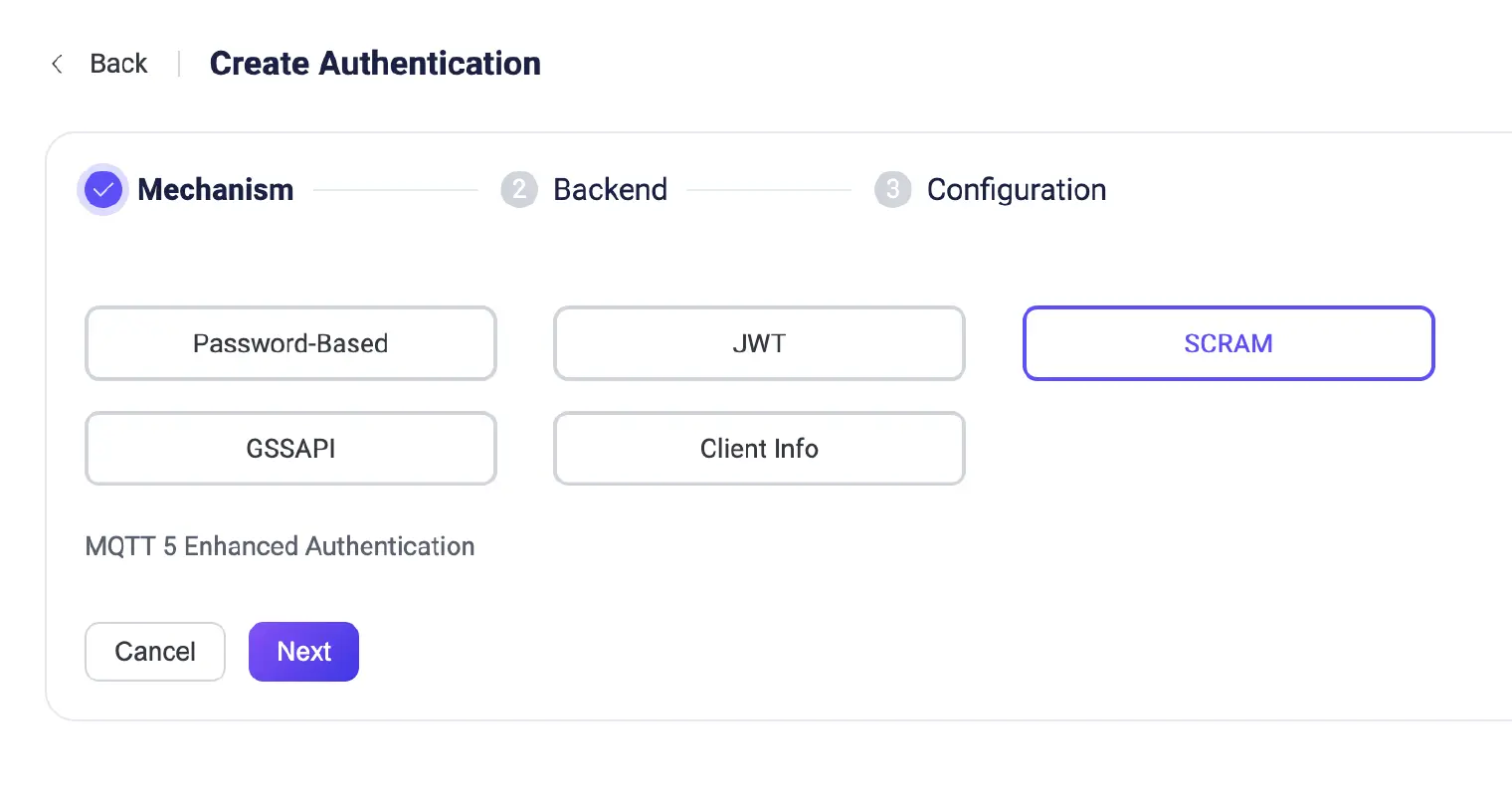

### Setup: Desktop & Web
1. Open connection settings
2. Select the **[MQTT](https://www.emqx.com/en/blog/the-easiest-guide-to-getting-started-with-mqtt) 5.0** protocol (the default)
3. In the **Authentication** section, choose **SCRAM** as your authentication method
4. Select your hash algorithm:
- **SCRAM-SHA-1**: Broader compatibility with older brokers
- **SCRAM-SHA-256**: Balanced security and performance (recommended)
- **SCRAM-SHA-512**: Maximum security for sensitive environments
5. Enter username and password
6. Connect—MQTTX handles the challenge-response flow automatically
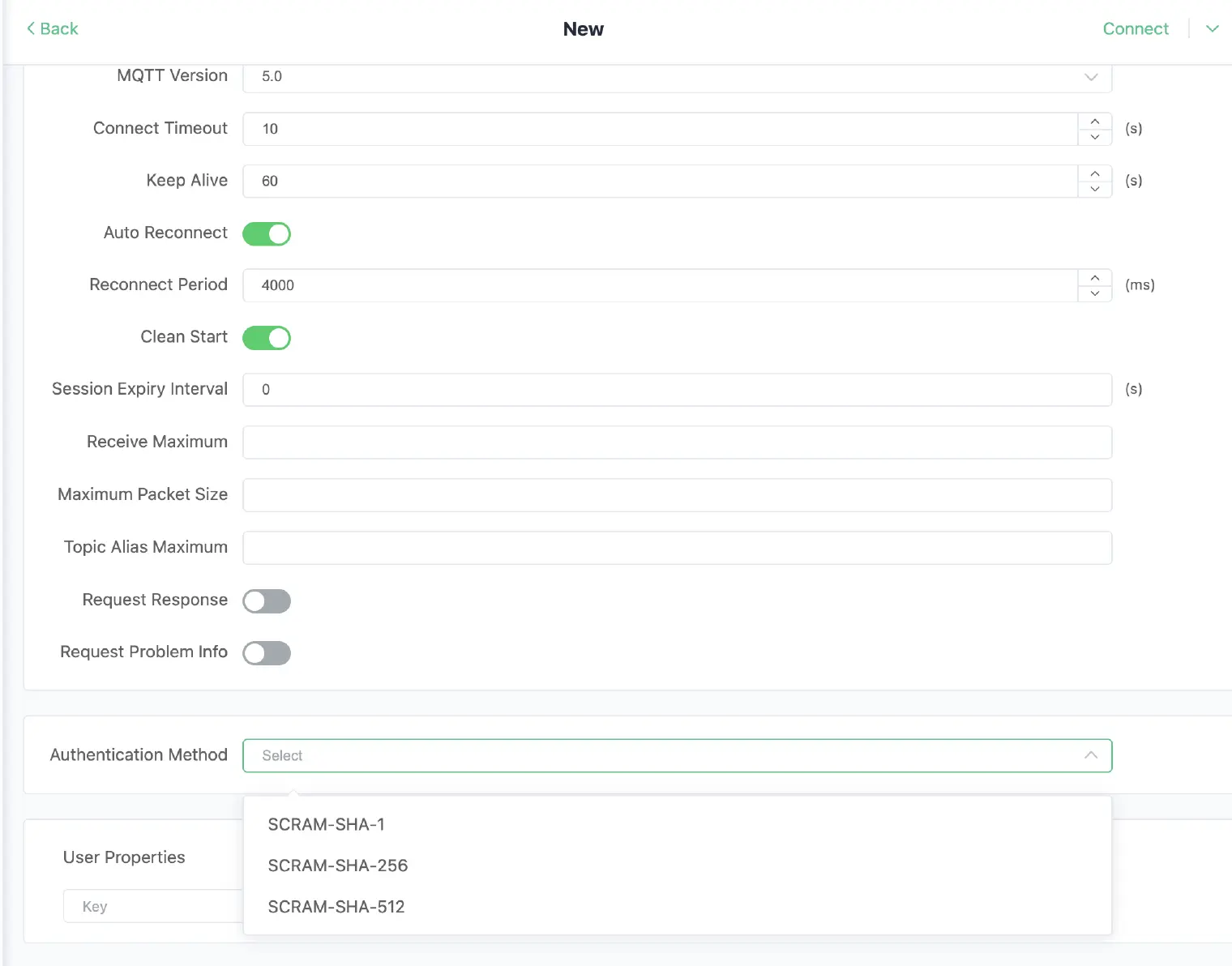
### Setup: CLI
Use the new `-am` or `--authentication-method` parameter when connecting:
```shell
# Connect with SCRAM-SHA-256 (recommended)
mqttx conn -h broker.emqx.io -p 1883 -am SCRAM-SHA-256 -u username -P password
# Use SCRAM-SHA-512 for high-security environments
mqttx sub -t 'sensor/#' -h broker.emqx.io -am SCRAM-SHA-512 -u admin -P secure_pass
# SCRAM-SHA-1 for legacy broker compatibility
mqttx pub -t 'device/data' -m 'hello' -am SCRAM-SHA-1 -u device01 -P device_password
```
SCRAM is especially valuable for production deployments where password storage and network interception are concerns, and it integrates seamlessly with EMQX and other MQTT 5.0 brokers that support enhanced authentication.
## Security: XSS Vulnerability Fixed
This release addresses a potential **XSS (Cross-Site Scripting) vulnerability** in the display of payload messages. Previous versions could render malicious HTML or JavaScript embedded in MQTT payloads, potentially exposing users to code injection attacks.
**What Was Fixed**:
All incoming message payloads are now properly escaped before rendering. Messages containing HTML tags, `